Frustrated with buffering, pixelation, or playback errors ruining your streaming experience? You’re not alone. Millions grapple with these common video streaming issues, often hindering enjoyment of their favorite shows and movies. This guide delves into four prevalent problems – buffering and lag, poor video quality, playback errors, and compatibility issues – providing practical solutions to get your streaming back on track. We’ll explore the root causes, offer effective troubleshooting steps, and empower you to reclaim seamless streaming.
From optimizing your internet connection and router settings to understanding video file formats and updating your streaming devices, we’ll cover a range of strategies to resolve these frustrating technical hurdles. We aim to provide a clear and concise roadmap to help you diagnose and fix these issues, ensuring smooth and uninterrupted viewing.
Buffering and Lag
Buffering and lag are frustratingly common experiences for streaming video viewers. These interruptions disrupt the viewing experience, turning a relaxing activity into a technical headache. Understanding the root causes and implementing effective solutions can significantly improve your streaming quality.
Buffering, that agonizing spinning wheel, occurs when your device can’t download video data fast enough to keep up with playback. Lag, on the other hand, manifests as delays between actions and responses, often accompanied by choppy or jumpy video. Both issues typically stem from a combination of network limitations and device capabilities. Insufficient internet bandwidth is a primary culprit, but other factors like network congestion, router limitations, and the streaming quality settings you’ve selected all play a role.
Improving Internet Speed to Reduce Buffering
Improving your internet speed is often the most direct path to eliminating buffering and lag. Several strategies can help boost your connection’s performance. Consider upgrading your internet plan to a higher speed tier if your current plan is insufficient for streaming. Running a speed test, readily available online through various providers, will accurately assess your current download and upload speeds. This allows you to compare your speeds against the advertised speeds of your plan and identify potential issues. Additionally, reducing the number of devices connected to your network simultaneously can free up bandwidth for streaming. Closing unnecessary applications and limiting background downloads on other devices will also improve available bandwidth.
Optimizing Router Settings for Better Streaming Performance
Your router plays a crucial role in managing your home network’s traffic. Optimizing its settings can greatly enhance streaming performance. Consider placing your router in a central location, minimizing interference from walls and other electronic devices. Regularly restarting your router can clear temporary glitches and improve its overall performance. Many routers offer Quality of Service (QoS) settings. QoS allows you to prioritize certain types of network traffic, such as streaming video, ensuring it receives sufficient bandwidth even when other devices are heavily using the network. Consult your router’s manual for specific instructions on configuring QoS. Finally, ensuring your router’s firmware is up-to-date is essential for optimal performance and security.
Streaming Quality Settings and Their Impact on Buffering
Choosing the right streaming quality settings can significantly influence buffering frequency and data usage. The following table illustrates the trade-offs between video quality and data consumption:
| Streaming Quality | Buffering Frequency | Data Usage | Video Resolution |
|---|---|---|---|
| Auto | Moderate | Moderate | Variable |
| High | High (more likely) | High | 1080p or higher |
| Medium | Low | Low | 720p |
| Low | Very Low | Very Low | 480p or lower |
Video Quality Issues (Pixelation, Freezing)
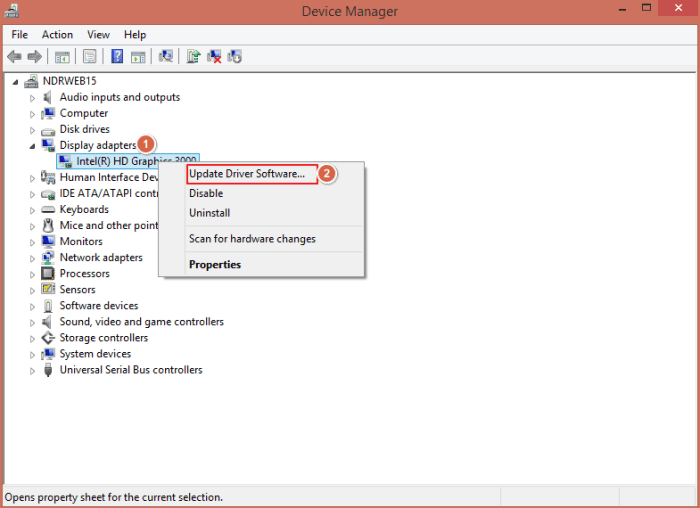
Experiencing pixelation and freezing during your streaming sessions can be incredibly frustrating. These issues stem from a variety of factors, ranging from network congestion to limitations in your hardware or software settings. Understanding these contributing factors is the first step towards resolving the problem and enjoying a smooth, high-quality viewing experience.
Poor video quality, manifesting as pixelation (a grainy, blocky image) or complete freezing of the video stream, is usually a symptom of insufficient bandwidth, processing power, or a combination of both. Network issues, such as high latency or packet loss, can interrupt the continuous flow of data needed for smooth playback. Similarly, if your device’s processor or memory is struggling to keep up with the demands of decoding and rendering the video stream, you’ll likely see pixelation and freezing. Older devices or those with limited processing capabilities are particularly susceptible.
Hardware Limitations Affecting Video Streaming
Identifying hardware limitations requires a systematic approach. Begin by assessing your internet connection speed. A speed test, readily available online through various providers, will reveal your download and upload speeds. Compare these speeds to the recommended bandwidth requirements for the streaming service you are using; if your speed falls significantly short, upgrading your internet plan might be necessary. Next, examine your device’s specifications. Check the processor speed, RAM capacity, and the graphics processing unit (GPU) capabilities. If these specs are significantly below the recommended requirements for your streaming resolution, upgrading your device may be the solution. For example, streaming 4K video on a device with a weak processor and limited RAM will almost certainly result in poor video quality. Finally, consider the age and condition of your hardware. Older devices, especially those with outdated components, may not be able to handle the demands of modern high-definition streaming.
Adjusting Video Streaming Resolution Settings
Many streaming services allow you to adjust the video quality settings. Lowering the resolution (e.g., from 1080p to 720p or even 480p) significantly reduces the amount of data that needs to be processed and transmitted, directly impacting the smoothness of playback. Accessing these settings typically involves navigating to the settings menu within the streaming application. Look for options labeled “Quality,” “Resolution,” “Video Quality,” or similar. Experiment with different resolution settings to find the optimal balance between video quality and streaming stability. Remember, lower resolutions generally require less bandwidth, leading to fewer instances of pixelation and freezing. For instance, switching from 1080p to 720p often results in a noticeable improvement in streaming stability on slower internet connections.
Potential Solutions for Resolving Pixelation and Freezing Issues
The following points represent a range of solutions to address pixelation and freezing problems:
These solutions cover a broad spectrum of potential causes and offer practical steps to improve your streaming experience. Remember to try these solutions in sequence, starting with the simplest and working your way up to more complex adjustments.
- Restart your streaming device and router.
- Close unnecessary applications running in the background.
- Lower the streaming resolution.
- Check your internet connection speed and stability.
- Upgrade your internet plan if necessary.
- Update your streaming application and device software.
- Consider upgrading your streaming device.
Playback Errors and Compatibility Problems
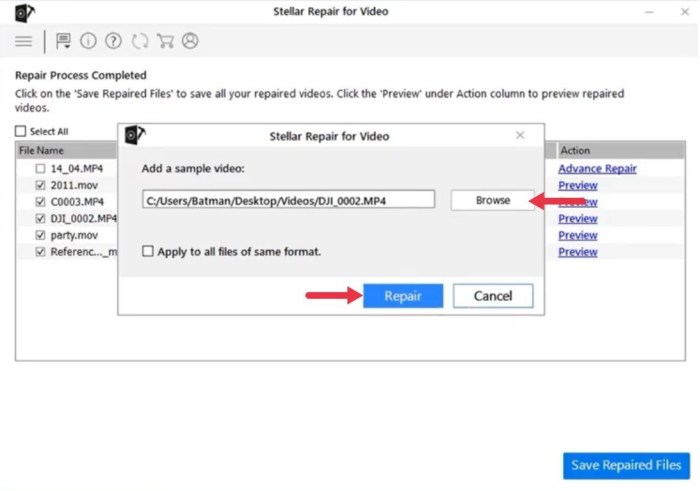
Streaming video playback issues often stem from incompatibility between the video file format, your streaming device, and the associated apps. These problems manifest as error messages, frozen screens, or distorted audio and video. Understanding the causes and solutions is key to a smooth viewing experience.
Playback errors can arise from a variety of sources, including corrupted video files, outdated software, or a mismatch between the video format and your device’s capabilities. Similarly, compatibility problems occur when your streaming device or app doesn’t support the specific codec used to compress the video file. This results in the inability to play the video altogether, or in significantly degraded playback quality.
Common Playback Errors and Their Causes
Several common error messages signal playback problems. For example, “unsupported file format” indicates the device cannot decode the video’s compression. “Network error” usually points to internet connectivity issues. “Decoding error” suggests a problem with the video file itself or the device’s processing capabilities. Understanding these messages helps pinpoint the source of the problem.
- Unsupported file format: The device lacks the necessary codec to play the video.
- Network error: Insufficient bandwidth or network instability prevents streaming.
- Decoding error: The video file is corrupted or the device struggles to process it.
- Server error: The streaming service is experiencing technical difficulties.
Video File Formats and Device Compatibility
Different video file formats (like MP4, AVI, MKV) utilize varying codecs for compression. MP4, using codecs like H.264 or HEVC, is widely compatible. AVI and MKV offer more flexibility but might lack support on some older devices. Smart TVs, streaming sticks, and game consoles usually support common formats, but checking device specifications ensures compatibility.
| Format | Common Codecs | Compatibility |
|---|---|---|
| MP4 | H.264, HEVC | Widely compatible |
| AVI | Various | More limited compatibility |
| MKV | Various | More limited compatibility |
Updating Streaming Device Software and Apps
Outdated software and apps are a frequent cause of playback issues. Updating ensures access to the latest bug fixes and compatibility improvements. The update process varies depending on the device and app, but generally involves navigating to a settings menu, selecting “Software Update” or “App Updates,” and following on-screen instructions. Regularly checking for updates is recommended.
- Access the device’s settings menu.
- Locate the “Software Update” or “App Updates” section.
- Check for available updates and follow the prompts to install them.
- Restart the device after the updates are complete.
Troubleshooting Playback Errors: A Flowchart
A systematic approach is crucial for efficient troubleshooting. This flowchart Artikels a step-by-step process for resolving playback errors.
A visual flowchart would be helpful here. Imagine a flowchart starting with “Playback Error?” If yes, check internet connection. If the connection is good, check the file format compatibility with the device. If incompatible, try converting the file. If still an error, check for software/app updates. If updates don’t resolve the issue, try restarting the device. If the problem persists, contact customer support.
Final Summary
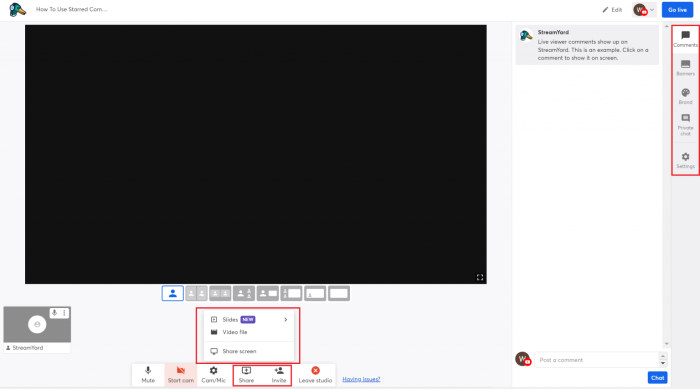
Mastering the art of smooth streaming requires understanding both your internet infrastructure and the intricacies of your streaming devices. By addressing common issues like buffering, pixelation, playback errors, and compatibility problems, you can significantly enhance your viewing experience. This guide has equipped you with the knowledge and tools to troubleshoot these problems effectively, allowing you to enjoy your favorite content without interruption. Remember to regularly check for software updates and optimize your network settings for optimal performance. Happy streaming!