Stepping into the world of smart homes promises convenience and efficiency, but the initial setup can sometimes feel like navigating a technological maze. From finicky Wi-Fi connections to incompatible devices, the path to a seamlessly integrated smart home isn’t always smooth. This guide tackles seven common setup problems, providing clear, actionable solutions to help you overcome these hurdles and finally enjoy the benefits of your smart home investment.
We’ll explore the most frequent challenges encountered during smart home device installations, offering practical troubleshooting steps and expert advice. Whether you’re battling weak Wi-Fi signals, struggling with device pairing, or facing frustrating app glitches, this guide offers a comprehensive roadmap to success. We’ll cover everything from optimizing your home network for optimal performance to understanding and resolving app-specific errors, empowering you to take control of your smart home setup.
Network Connectivity Issues

Network connectivity problems are a common frustration for smart home users. A weak or unstable Wi-Fi signal can lead to unresponsive devices, failed commands, and a generally frustrating smart home experience. Understanding the causes and implementing effective troubleshooting strategies can significantly improve your smart home’s reliability.
Common Causes of Wi-Fi Problems with Smart Home Devices
Several factors contribute to poor Wi-Fi performance for smart home devices. These include physical obstructions (walls, furniture, appliances), distance from the router, interference from other electronic devices (microwaves, cordless phones), and network congestion from multiple devices competing for bandwidth. Older routers may also lack the processing power or features to handle the demands of a large number of connected smart devices. Furthermore, using the wrong Wi-Fi channel or having a poorly configured network can severely impact performance.
Troubleshooting Weak or Unstable Wi-Fi Signals
Addressing weak or unstable Wi-Fi signals often involves a systematic approach. Begin by checking the signal strength on your smart devices. Many devices display a signal strength indicator (often represented by bars). If the signal is weak (one or two bars), try moving the device closer to the router. Next, identify potential sources of interference. Try temporarily disconnecting other Wi-Fi-using devices to see if performance improves. If the problem persists, consider restarting your router and your smart devices. A power cycle often resolves temporary glitches. Finally, if the problem continues, investigate the placement of your router. Consider moving it to a more central location, higher up, or away from potential interference sources.
Optimizing Your Home’s Wi-Fi Network for Smart Devices
Optimizing your home Wi-Fi network involves several key strategies. First, choose the right router for your needs. A router with multiple antennas and support for advanced features like MU-MIMO (Multi-User Multiple-Input and Multiple-Output) can significantly improve performance, especially with many connected devices. Secondly, consider using a Wi-Fi extender or mesh network system to extend the range of your Wi-Fi signal to reach areas with weak coverage. These systems work by creating a seamless network across multiple access points, ensuring consistent coverage throughout your home. Finally, regularly update your router’s firmware. Firmware updates often include performance improvements and security patches.
Best Practices for Connecting Smart Devices to a 5GHz Network
The 5GHz Wi-Fi band offers faster speeds and less congestion than the 2.4GHz band, making it ideal for many smart home devices. However, 5GHz signals have a shorter range and are more easily blocked by walls and other obstacles. Therefore, when connecting devices to a 5GHz network, ensure the device is relatively close to the router. Also, check your device’s specifications to confirm its compatibility with the 5GHz band. Not all smart home devices support 5GHz Wi-Fi. If your device only supports 2.4GHz, you’ll need to connect it to the 2.4GHz network.
Comparison of Wi-Fi Network Configurations
| Configuration | Speed | Range | Suitability for Smart Home Devices |
|---|---|---|---|
| Single 2.4GHz Router | Slower | Longer | Suitable for basic setups, devices sensitive to signal strength |
| Single 5GHz Router | Faster | Shorter | Suitable for devices near the router, high-bandwidth applications |
| Dual-Band (2.4GHz & 5GHz) Router | Moderate to Fast | Moderate | Best overall option, provides flexibility for different devices |
| Mesh Wi-Fi System | Fast and Consistent | Excellent | Ideal for large homes, many devices, and consistent coverage |
Device Compatibility and Pairing Problems
Setting up a smart home can be exciting, but compatibility issues and pairing problems are common hurdles. Understanding the different ecosystems and troubleshooting techniques can significantly ease the process and prevent frustration. This section will address common compatibility problems and provide step-by-step guidance for successful device pairing.
Device compatibility in the smart home realm refers to the ability of different devices and platforms to communicate and work together seamlessly. Many smart home devices operate within specific ecosystems, such as Google Home, Amazon Alexa, Apple HomeKit, or Samsung SmartThings. While some devices offer broad compatibility across multiple ecosystems, others are designed to function exclusively within their own. Attempting to integrate devices from disparate ecosystems without proper consideration can lead to frustrating incompatibilities and failures in automation.
Ecosystem Compatibility
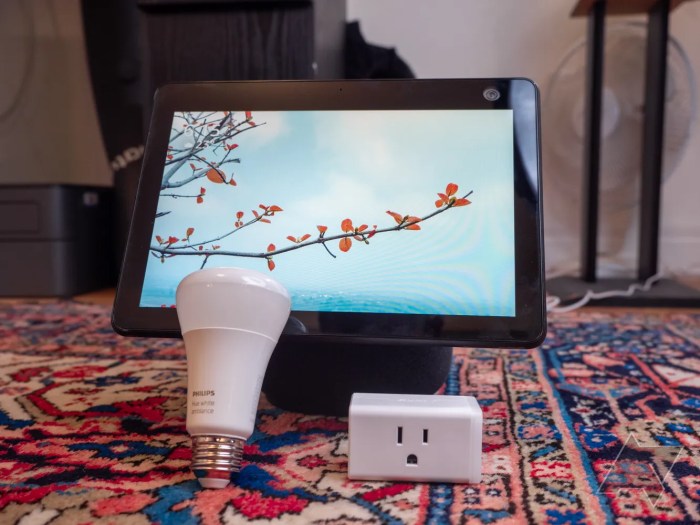
Smart home ecosystems are essentially walled gardens. A device designed for Google Home might not work directly with Amazon Alexa. For example, a Philips Hue smart bulb, while often compatible with multiple platforms, might require different setup procedures depending on which ecosystem you choose to integrate it with. This necessitates careful consideration of your preferred ecosystem or a commitment to a multi-ecosystem approach, understanding that full interoperability isn’t always guaranteed. Some smart home hubs, such as Samsung SmartThings, attempt to bridge this gap by supporting a wider range of protocols and devices from various manufacturers.
Pairing Smart Devices
Pairing a smart device involves establishing a secure connection between the device and a hub or smartphone. The process typically involves downloading a dedicated app for the device or ecosystem, activating the pairing mode on the device itself (often involving a button press or a specific sequence of actions), and then following the app’s instructions to discover and connect the device to your network. Methods vary depending on the device and the ecosystem; some devices utilize Bluetooth for initial setup, while others rely on Wi-Fi.
Common Pairing Errors and Solutions
Several common errors can occur during the pairing process. One frequent issue is the device failing to be detected by the app. This could be due to the device not being in pairing mode, an incorrect Wi-Fi password entered in the app, or the device being too far from the hub or smartphone. Another common problem is the device connecting but failing to function correctly. This often points to network connectivity problems (addressed in the previous section) or compatibility issues with the specific app or ecosystem. Finally, a weak or unstable Wi-Fi signal can significantly hinder the pairing process and lead to connection failures.
Comparing Device Addition Methods
Adding smart devices to your network involves several methods, each with advantages and disadvantages. Direct Wi-Fi connection simplifies the setup, bypassing the need for a hub, but it can sometimes be more challenging to configure. Hub-based connections offer a centralized control point and often broader compatibility, but they add another device to your network and require an additional setup step. Bluetooth pairing is often used for initial setup or for devices with limited functionality, but its range is significantly shorter than Wi-Fi.
Troubleshooting Pairing Issues: A Step-by-Step Guide
Let’s illustrate with an example using a hypothetical smart lock, “SecureLock,” and the SmartThings app.
- Ensure SecureLock is in pairing mode: Consult the SecureLock manual for instructions on activating pairing mode (usually involves pressing and holding a button on the device for a few seconds).
- Open the SmartThings app: Launch the app on your smartphone and ensure you’re logged in.
- Add a device: Navigate to the “Add Device” section within the app.
- Select “SecureLock”: Choose SecureLock from the list of compatible devices. If it is not listed, check for compatibility issues.
- Follow on-screen instructions: The app will guide you through the remaining steps, which typically involve confirming your Wi-Fi network credentials and allowing the app to access location services.
- Troubleshooting: If the app fails to detect SecureLock, ensure the device is within range, that pairing mode is activated, and that your Wi-Fi connection is stable. Restart both your smartphone and the SecureLock if necessary. If problems persist, consult the SecureLock manual or the SmartThings support website.
App-Related Issues and Software Glitches
Smart home app issues can significantly hinder the functionality of your devices. Troubleshooting these problems often involves a systematic approach, checking the app itself, the device’s firmware, and finally, seeking external assistance. Addressing these issues promptly ensures a smoother and more efficient smart home experience.
App crashes, connection failures, and error codes are common frustrations. Fortunately, many solutions are readily available, ranging from simple restarts to contacting customer support. Let’s explore effective troubleshooting strategies.
Troubleshooting App Crashes and Connection Failures
App crashes and connection failures often stem from temporary software glitches or background processes interfering with the app’s operation. A series of straightforward steps can usually resolve these issues.
- Restart the App: Close the app completely and reopen it. This often clears temporary memory issues that may be causing the crash or connection problem.
- Restart Your Smartphone or Tablet: A simple device restart can resolve many software conflicts and refresh the system’s memory.
- Check Your Internet Connection: Ensure your Wi-Fi or mobile data connection is stable and functioning correctly. Try accessing other internet-based services to confirm connectivity.
- Check for App Updates: Outdated apps can contain bugs that lead to crashes. Check your device’s app store for updates and install any available updates for your smart home app.
- Uninstall and Reinstall the App: If the problem persists, uninstall the app and then reinstall it from the app store. This reinstalls the app with a fresh set of files, eliminating potentially corrupted data.
Updating Smart Home Device Firmware
Keeping your smart home devices’ firmware up-to-date is crucial for optimal performance and security. Outdated firmware can introduce vulnerabilities and lead to compatibility issues.
- Locate the Firmware Update Option: The method for updating firmware varies depending on the device and app. Consult your device’s manual or the app’s help section for instructions. Often, this is found within the device’s settings within the app.
- Download and Install the Update: Once located, follow the on-screen instructions to download and install the latest firmware. Ensure your device is connected to a stable Wi-Fi network during the update process.
- Monitor the Update Process: Observe the progress bar or status indicator to ensure the update completes successfully. Do not disconnect the device during the update.
- Restart the Device: After the update is complete, restart your smart home device to ensure the new firmware is fully implemented.
Handling App-Specific Errors and Error Codes
App-specific errors and error codes provide valuable clues to resolving problems. Understanding these codes and what they represent is key to finding solutions.
- Record the Error Code and Message: Write down the exact error code and any accompanying message. This information is essential when searching for solutions online or contacting customer support.
- Search Online for Solutions: Use the error code as a search term on the internet. Many users have encountered and resolved similar issues, and their solutions may be available online.
- Consult the App’s Help Resources: Many smart home apps have detailed help sections or FAQs that address common error codes and troubleshooting steps.
- Contact Customer Support: If you cannot find a solution online, contact the app’s or device manufacturer’s customer support. Provide them with the error code and a description of the problem.
Troubleshooting App-Related Problems Flowchart
Imagine a flowchart with the following steps:
Start -> Check Internet Connection -> Restart App -> Check for App Updates -> Restart Device -> Uninstall and Reinstall App -> Check Device Firmware -> Contact Customer Support -> End. Each step would have a “Yes/No” decision point based on whether the problem is solved. If “No,” it would proceed to the next step.
Using App Help Resources and Contacting Customer Support
Before contacting customer support, thoroughly explore the app’s built-in help resources. Many apps offer FAQs, tutorials, and troubleshooting guides that can resolve common issues. If the problem persists, contacting customer support is the next step. Prepare to provide them with detailed information, including error codes, device models, and app versions.
Closing Summary

Successfully setting up your smart home devices shouldn’t be a source of frustration. By understanding the common pitfalls and employing the troubleshooting techniques Artikeld in this guide, you can transform the process from a daunting task into a rewarding experience. With a little patience and the right knowledge, you can unlock the full potential of your smart home technology and enjoy the seamless automation and convenience it offers. Remember, a well-functioning smart home is within reach—this guide provides the key.