Stepping into the immersive world of virtual reality can be exhilarating, but technical glitches and unexpected discomfort can quickly dampen the experience. This guide tackles seven common VR problems, offering practical solutions to ensure your virtual journeys remain smooth and enjoyable. From conquering VR sickness to troubleshooting hardware malfunctions, we’ll equip you with the knowledge to navigate the challenges and maximize your VR potential.
We’ll explore the physiological causes of VR sickness and provide effective mitigation strategies. Furthermore, we’ll delve into the realm of technical troubleshooting, covering connectivity issues, hardware malfunctions, and software bugs. By the end, you’ll be better prepared to handle any VR hiccups that come your way, allowing you to fully immerse yourself in the exciting world of virtual reality.
VR Sickness and Discomfort
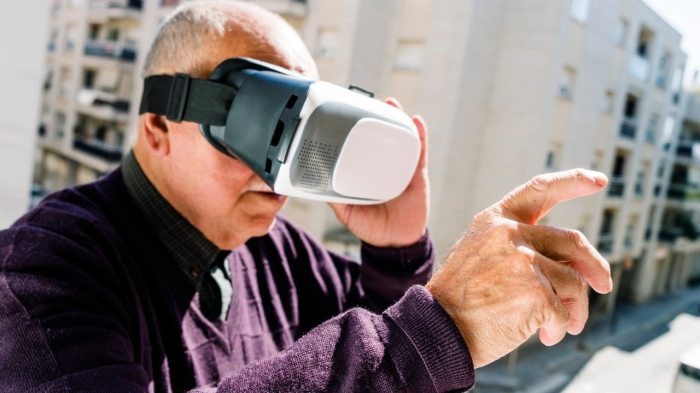
Virtual reality (VR) offers immersive experiences, but for some users, this immersion comes at a cost: VR sickness. This discomfort, similar to motion sickness, can range from mild nausea to debilitating symptoms, significantly impacting the enjoyment and usability of VR technology. Understanding its causes and implementing mitigation strategies is crucial for a positive VR experience.
VR sickness arises from a sensory conflict within the brain. Our inner ear, responsible for balance, and our eyes, providing visual input, send conflicting signals when the virtual environment doesn’t match our physical movements. For instance, in a VR game where the user is moving forward, the inner ear senses stillness while the eyes see movement, leading to disorientation and nausea. This sensory mismatch can also be exacerbated by latency (delay) between head movements and the corresponding changes in the virtual environment, further increasing the discrepancy between what the brain expects and what it receives. Other contributing factors include the intensity and complexity of the VR experience, individual susceptibility, and pre-existing conditions like migraines or motion sickness.
Causes of VR Sickness and Physiological Mechanisms
The primary cause of VR sickness is the sensory conflict between the vestibular system (inner ear) and the visual system. The vestibular system detects head movement and body position, while the visual system processes information from the eyes. When these systems provide conflicting information, the brain struggles to reconcile the discrepancy, leading to symptoms like nausea, dizziness, and disorientation. This conflict is particularly pronounced in VR experiences with rapid movements, jerky camera angles, or significant latency. Furthermore, the brain’s processing of visual information in VR can be demanding, potentially leading to cognitive overload and contributing to discomfort. Individual susceptibility to VR sickness varies; some individuals are more sensitive to sensory conflicts than others.
Mitigating VR Sickness Through Settings and Features
Many VR headsets and software applications offer features designed to reduce VR sickness. Adjusting the field of view (FOV) can lessen the sensory conflict by limiting the amount of visual information processed at once. Reducing the frame rate (fps) might seem counterintuitive, but a smoother, less jarring experience can alleviate symptoms in some users. Furthermore, many VR games and experiences offer comfort settings, such as reducing the speed of movement or implementing “teleportation” instead of continuous movement, which eliminates the continuous sensory conflict. Using a wider range of visual cues and focusing on the visual information can help to minimize this mismatch.
Acclimating to VR Environments Gradually
Gradually acclimating to VR environments is a crucial strategy for minimizing sickness. Begin with shorter VR sessions (15-30 minutes) and gradually increase the duration as tolerated. Start with less intense experiences and slowly introduce more dynamic and fast-paced content. Focusing on stationary activities initially can help the brain adjust. Taking breaks between sessions allows the vestibular system to recover and reduces the risk of accumulating discomfort. It is also advisable to start with simple games or experiences before moving to more intense ones.
Comparison of VR Sickness Mitigation Techniques
| Technique | Effectiveness | Ease of Implementation | Potential Drawbacks |
|---|---|---|---|
| Reducing Field of View (FOV) | Moderate to High | Easy | Can reduce immersion |
| Lowering Frame Rate (fps) | Moderate | Easy | Can impact visual quality |
| Using Teleportation | High | Easy (depends on software) | Can disrupt gameplay flow |
| Gradual Acclimation | High | Requires self-discipline | Time-consuming |
Technical Issues (Connectivity, Hardware Malfunctions)
Navigating the world of virtual reality often involves overcoming technical hurdles. Connectivity problems and hardware malfunctions are common sources of frustration, but understanding the potential issues and troubleshooting steps can significantly enhance your VR experience. This section will Artikel common technical problems, providing practical solutions for resolving connectivity issues and diagnosing hardware malfunctions.
Connectivity Problems: Lag, Dropped Frames, and Disconnections
Lag, dropped frames, and disconnections are frustrating experiences that can severely impact immersion. These issues stem from insufficient bandwidth, network instability, or problems with the VR software or hardware. Effective troubleshooting requires a systematic approach, starting with the simplest solutions and progressing to more complex ones.
- Check your internet connection: Ensure your internet speed meets the minimum requirements specified by your VR headset and software. Run a speed test to verify your download and upload speeds. A slow or unstable connection is a primary culprit for lag and dropped frames.
- Close unnecessary applications: Background applications can consume bandwidth and system resources, leading to performance issues. Close any unnecessary programs running on your computer or console.
- Restart your router and VR headset: A simple reboot can often resolve temporary glitches in your network or the VR hardware. Power cycle both your router and your VR headset.
- Update your drivers and software: Outdated drivers and software can introduce bugs and compatibility issues. Check for updates for your graphics card, VR headset, and VR software.
- Check for network interference: Wireless signals can be disrupted by other devices or physical obstructions. Try moving closer to your router or using a wired connection if possible.
Hardware Malfunctions: Headset Tracking Errors and Controller Issues
Hardware problems, such as tracking errors and controller malfunctions, can disrupt gameplay and significantly impact the user experience. These issues often require more in-depth troubleshooting, potentially involving hardware inspection and recalibration.
- Check headset and controller connections: Ensure all cables are securely connected to both the headset and the computer or console. Loose connections can lead to tracking errors and controller malfunctions.
- Clean the headset sensors: Dust and debris can accumulate on the headset’s tracking sensors, interfering with accurate tracking. Gently clean the sensors with a microfiber cloth.
- Calibrate the headset and controllers: Many VR headsets allow for recalibration of the tracking system. Follow the manufacturer’s instructions to recalibrate your headset and controllers to ensure accurate tracking.
- Check for physical damage: Inspect the headset and controllers for any signs of physical damage, such as cracks or loose components. Damaged hardware may require repair or replacement.
- Update the firmware: Check for firmware updates for your headset and controllers. Outdated firmware can lead to various malfunctions.
Troubleshooting Flowchart
A systematic approach to troubleshooting is crucial. The following flowchart Artikels the steps to take when experiencing a technical issue in VR:
Start -> Check Internet Connection -> Restart Router & Headset -> Update Drivers & Software -> Check Headset & Controller Connections -> Clean Sensors -> Calibrate Headset & Controllers -> Check for Physical Damage -> Update Firmware -> Contact Support
Software and Application Problems
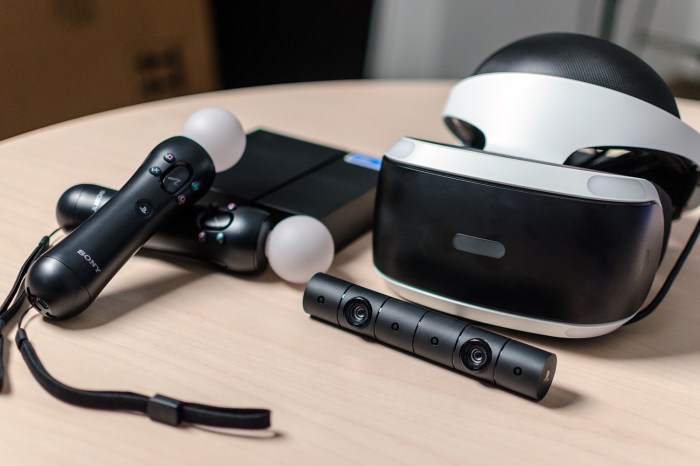
Software and application issues are a common source of frustration in the VR world, ranging from minor glitches to complete application crashes. These problems can stem from outdated software, incompatibility between applications and your VR system, or simply bugs within the application itself. Addressing these issues effectively requires understanding the root cause and employing appropriate troubleshooting techniques.
Common Software Bugs and Glitches
Software bugs in VR applications can manifest in various ways. These range from minor visual artifacts like flickering textures or screen tearing to more serious issues such as freezing, unexpected application closures, or controller malfunctions. These problems can significantly impact the user experience, making immersion difficult and potentially causing frustration. For example, a poorly optimized game might result in noticeable frame rate drops, leading to motion sickness. Another common issue is incorrect tracking of the VR headset or controllers, causing misalignment between the virtual and real world.
Updating VR Software and Drivers
Maintaining updated VR software and drivers is crucial for optimal performance and stability. Regular updates often include bug fixes, performance improvements, and compatibility enhancements. There are typically two main methods for updating: automatic updates through the VR software platform (such as SteamVR or Oculus Home) and manual downloads from the manufacturer’s website. Automatic updates are generally more convenient, but manual downloads offer more control and can be necessary if automatic updates fail. Choosing the best method depends on personal preference and technical comfort level. For instance, a user comfortable with managing files might opt for manual updates to ensure the latest version is installed, while others might prefer the simplicity of automatic updates.
Resolving Application Compatibility and Performance Issues
Application compatibility issues can arise when a VR application isn’t designed to work properly with your specific hardware or software configuration. This might result in the application failing to launch, displaying errors, or performing poorly. Performance optimization involves adjusting graphics settings within the application, such as lowering resolution or reducing visual effects, to improve frame rate and reduce lag. Troubleshooting application compatibility often involves checking system requirements, updating graphics drivers, and verifying that all necessary software components are installed correctly. For example, a high-end VR game might require a specific graphics card model and a minimum amount of RAM to run smoothly; failing to meet these requirements can lead to poor performance or crashes.
Best Practices for Managing VR Software and Applications
Proper software management is key to preventing future problems and ensuring a smooth VR experience.
- Regularly update your VR software and drivers.
- Keep your operating system up-to-date.
- Only install VR applications from trusted sources.
- Check system requirements before installing new applications.
- Monitor your system resources (CPU, GPU, RAM) while running VR applications.
- Regularly restart your computer to clear cached data and processes.
- Maintain sufficient free hard drive space.
End of Discussion

Mastering virtual reality involves not only embracing its immersive potential but also understanding and addressing its inherent challenges. By implementing the strategies and solutions Artikeld in this guide, you can transform frustrating technical issues and discomfort into opportunities for a smoother, more enjoyable VR experience. Remember, a little preparation goes a long way in ensuring your virtual adventures remain captivating and free from unexpected interruptions. So, put on your headset and dive in with confidence!