Stepping into the immersive world of virtual reality can be breathtaking, but frustrating performance issues can quickly dampen the experience. Low frame rates and motion sickness are two common culprits that can transform a thrilling adventure into a nauseating ordeal. This guide tackles these problems head-on, providing practical solutions to optimize your VR setup and maximize your enjoyment.
We’ll explore the technical underpinnings of these issues, examining hardware limitations, software configurations, and even the design elements within VR games themselves. Through a combination of troubleshooting guides, practical tips, and insightful comparisons, we aim to empower you to diagnose and resolve these problems, allowing you to fully appreciate the potential of virtual reality.
Low Frame Rates in VR
Experiencing low frame rates in virtual reality (VR) can significantly detract from the immersive experience, leading to motion sickness and a generally unpleasant interaction. Understanding the causes and implementing effective troubleshooting strategies is crucial for optimizing VR performance. This section delves into the key factors contributing to low frame rates and provides a practical guide to resolving these issues.
Low frame rates in VR applications stem from a complex interplay of hardware and software factors. The demanding nature of rendering realistic 3D environments at high resolutions, coupled with the need for extremely low latency, pushes both the graphics processing unit (GPU) and central processing unit (CPU) to their limits. Insufficient processing power, inadequate memory, and poorly optimized software are common culprits. Additionally, the specific VR headset being used plays a significant role, as different headsets have varying processing requirements and capabilities.
Factors Contributing to Low Frame Rates in VR
Several factors can independently or collectively contribute to low frame rates. These include the graphical fidelity of the VR application (high resolution textures, complex shaders, advanced lighting effects all increase processing demands), the processing power of the CPU and GPU (a less powerful system will struggle to maintain high frame rates), the amount of available system RAM (insufficient RAM can lead to performance bottlenecks), the VR headset’s resolution and refresh rate (higher resolution and refresh rate headsets demand more processing power), and the efficiency of the game’s or application’s code (poorly optimized software can be resource-intensive).
Troubleshooting Low Frame Rates in VR
A systematic approach to troubleshooting is essential. Begin by checking your system’s hardware specifications to ensure they meet the minimum requirements of the VR application. Next, monitor your CPU and GPU usage during VR gameplay using tools like Task Manager (Windows) or Activity Monitor (macOS). High CPU or GPU usage (approaching or exceeding 100%) indicates a potential bottleneck. If a bottleneck is identified, consider lowering in-game graphics settings (resolution, anti-aliasing, shadows, etc.) to reduce the load on your system. Updating graphics drivers to the latest versions is crucial, as these updates often include performance optimizations. Finally, ensure that background applications are closed to free up system resources.
VR Headset Performance Comparison
Different VR headsets offer varying performance capabilities. High-end headsets like the HP Reverb G2 often boast higher resolutions and refresh rates, resulting in sharper visuals and smoother experiences, but demanding more processing power. Conversely, headsets with lower resolutions, such as the Oculus Quest 2 (standalone), may require less processing power but may sacrifice visual fidelity. The choice of headset significantly impacts the achievable frame rates for a given application and system configuration. For instance, a system that can comfortably run a VR game at a high frame rate on a lower-resolution headset might struggle to maintain the same frame rate on a higher-resolution headset.
Impact of Graphics Settings on VR Performance
The following table illustrates the performance impact of various graphics settings. Note that the exact impact can vary depending on the specific game engine, hardware, and other factors. These values are illustrative examples.
| Graphics Setting | Performance Impact (Low) | Performance Impact (Medium) | Performance Impact (High) |
|---|---|---|---|
| Resolution | Minimal impact; smooth performance | Noticeable impact; some frame drops possible | Significant impact; potential for significant frame drops |
| Anti-aliasing | Minimal impact | Moderate impact; slightly blurry visuals but better performance | High impact; sharp visuals but potential for significant frame drops |
| Shadows | Minimal impact; simple shadows | Moderate impact; more detailed shadows | High impact; highly detailed, realistic shadows; potential for significant frame drops |
| Texture Quality | Low resolution textures; minimal impact | Medium resolution textures; moderate impact | High resolution textures; significant impact; sharp visuals but potential for significant frame drops |
VR Motion Sickness and Discomfort
Motion sickness in virtual reality, while a common problem, is a complex issue stemming from a mismatch between what your brain expects and what your senses perceive. Your inner ear, responsible for balance, detects movement, while your eyes may be fixed on a stationary virtual scene. This discrepancy triggers the feeling of nausea, dizziness, and general discomfort often associated with VR motion sickness. Understanding the physiological causes is crucial to effectively mitigating this issue.
Physiological Causes of VR Motion Sickness
The primary cause of VR motion sickness lies in the conflict between vestibular and visual information. The vestibular system, located in the inner ear, senses acceleration and rotation, providing your brain with information about your body’s movement in space. Your eyes, however, provide visual input about your surroundings. In VR, the visual input often doesn’t match the vestibular input. For example, if you’re turning in a virtual environment but your body remains stationary, this sensory conflict can trigger motion sickness. This conflict can also arise from discrepancies in latency, where the visual response to movement lags behind the actual movement, further exacerbating the problem. The severity of motion sickness is influenced by individual sensitivity, the type of movement simulated, and the duration of exposure.
Minimizing VR Motion Sickness Through User Adjustments
Several techniques can significantly reduce motion sickness. Adjusting in-game settings is often the first step. Lowering the field of view (FOV) can lessen the sensory conflict. Similarly, reducing the speed of movement, especially rotational movement, can greatly improve comfort. Many VR games now include comfort options, such as “smooth locomotion” which replaces jerky teleporting with smoother movement, and “snap turning” which avoids the disorienting feeling of continuous rotation. Taking regular breaks is also vital. Stepping away from the VR headset for a few minutes allows your senses to reset and prevents prolonged exposure from overwhelming your system. Hydration and avoiding heavy meals before VR sessions can also be beneficial.
The Role of VR Headset Design and Tracking Technology
The design of the VR headset and its tracking technology play a significant role in motion sickness. Higher refresh rates and lower latency reduce the discrepancy between visual and vestibular inputs, leading to a more comfortable experience. Accurate tracking is also crucial; if the headset doesn’t accurately reflect your head movements, it can exacerbate the sensory conflict. Headset designs that minimize screen door effect (the visible grid of pixels) and provide a wider field of view can also contribute to a more immersive and less nauseating experience. For example, higher-end headsets generally offer better performance in these areas, contributing to a more comfortable experience.
Best Practices for VR Game Developers to Reduce Motion Sickness
It’s crucial for game developers to proactively design for comfort. Here are some best practices:
- Prioritize smooth camera movements: Avoid jerky or abrupt changes in camera position and orientation. Implement smooth transitions and easing functions.
- Implement comfortable locomotion systems: Offer options beyond teleporting, such as smooth locomotion or vignette-based movement.
- Minimize rapid or excessive rotation: Limit the speed and duration of rotational movements.
- Provide adjustable comfort settings: Allow players to customize settings such as FOV, movement speed, and snap turning.
- Consider level design: Design levels that minimize jarring movements and provide visual cues to help orient players.
- Use visual cues to mitigate disorientation: Include clear visual indicators to help players understand their position and orientation in the virtual environment.
Visual Artifacts and Glitches in VR
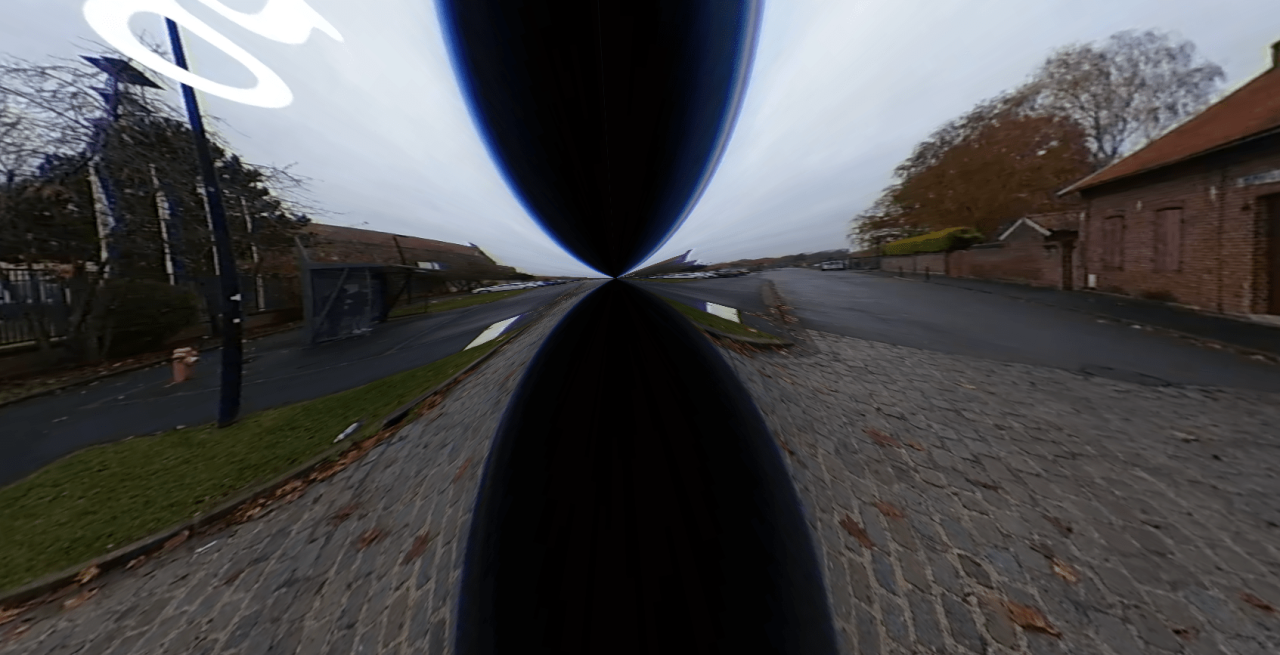
Visual artifacts and glitches in VR can significantly detract from the immersive experience, ranging from minor annoyances to completely disruptive issues. Understanding the causes and troubleshooting these problems is crucial for enjoying smooth and visually appealing VR gameplay or applications. This section will cover common visual problems, their causes, and practical solutions.
Several factors contribute to visual artifacts and glitches in virtual reality. These problems often manifest as screen tearing, stuttering, visual distortion, or other unexpected visual anomalies. The root causes can be complex, involving a combination of hardware limitations, software bugs, and driver incompatibility. Proper diagnosis requires a systematic approach to pinpoint the source of the problem.
Common Visual Artifacts in VR
Common visual artifacts encountered in VR include screen tearing (visible horizontal lines splitting the screen), stuttering (jerky, inconsistent frame rate), shimmering (a flickering effect on textures or objects), and visual distortion (geometric inaccuracies, blurry textures, or visual anomalies). These problems can stem from inadequate processing power, insufficient VRAM, driver issues, or conflicts between VR software and hardware.
Causes of Visual Artifacts
Visual artifacts in VR are often caused by a mismatch between the demands of the VR application and the capabilities of the hardware and software. Insufficient graphics processing power (GPU) can lead to stuttering and low frame rates, resulting in noticeable screen tearing. Limited video RAM (VRAM) can cause textures to fail to load properly, resulting in blurry or distorted visuals. Outdated or incorrectly configured graphics drivers can also introduce various visual glitches and artifacts. Furthermore, conflicts between VR software and other applications or system processes can negatively impact performance and visual fidelity.
Diagnosing and Troubleshooting Visual Artifacts
Diagnosing the cause of visual artifacts requires a systematic approach. Begin by checking the system’s overall performance using monitoring tools to identify potential bottlenecks in CPU, GPU, or memory usage. Next, ensure your graphics drivers are up-to-date. Outdated drivers are a frequent cause of VR glitches. If the problem persists, consider reducing in-game graphics settings, starting with anti-aliasing and shadow quality. High-resolution textures and advanced visual effects are resource-intensive and can easily overwhelm less powerful hardware. If these steps don’t resolve the issue, consider checking for software conflicts and reinstalling the VR software or drivers as a last resort.
Optimizing Graphics Settings and Driver Configurations
Optimizing graphics settings and driver configurations is a key step in minimizing visual artifacts. This involves carefully adjusting in-game settings and graphics driver parameters to balance visual quality with performance.
For example, consider a screenshot showing the difference between high and low anti-aliasing settings. In the high setting screenshot, you’d see smooth edges on objects and textures, but potentially lower frame rates. The low setting screenshot would show jagged edges (aliasing), but smoother performance. Similarly, a comparison of high and low shadow quality would show detailed, realistic shadows in the high setting image, but potentially more stuttering or lower frame rates. The low setting image would show simpler, less detailed shadows, resulting in smoother performance. Adjusting settings like texture resolution, shadow quality, and anti-aliasing can significantly impact visual fidelity and performance. Experimentation is key to finding the optimal balance for your system.
Regularly updating graphics drivers is crucial. New drivers often include performance optimizations and bug fixes that can significantly improve VR performance and reduce visual artifacts. Check your GPU manufacturer’s website (e.g., NVIDIA or AMD) for the latest drivers compatible with your hardware. Proper driver installation is vital; incorrect installation can exacerbate visual problems.
Closing Summary
By understanding the causes of low frame rates and motion sickness in VR, and by applying the strategies Artikeld in this guide, you can significantly enhance your VR experience. Remember that a combination of hardware optimization, software tweaks, and mindful gameplay adjustments can lead to smoother, more comfortable, and ultimately more enjoyable VR sessions. So, dive back into those virtual worlds with confidence and enjoy the ride!