Stepping into the immersive world of virtual reality offers unparalleled experiences, but the journey isn’t always smooth. From frustrating technical glitches to uncomfortable motion sickness, various challenges can hinder your VR enjoyment. This guide navigates these common pitfalls, providing practical solutions and insightful tips to optimize your VR setup and maximize your immersive adventures. We’ll cover everything from troubleshooting headset malfunctions to optimizing performance and minimizing motion sickness, ensuring a seamless and enjoyable VR experience.
Understanding the root causes of these problems is crucial for effective troubleshooting. We will explore the technical aspects of VR headsets, the physiological effects of immersion, and the importance of proper system configuration. By addressing these key areas, you can transform potential frustrations into opportunities for enhanced enjoyment and deeper immersion in the virtual world.
Troubleshooting VR Headset Issues
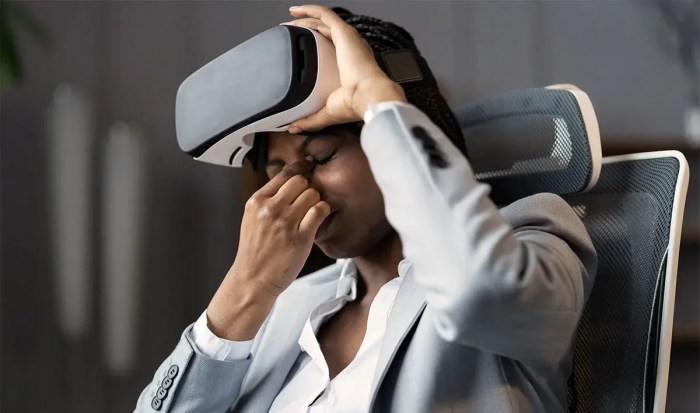
Virtual Reality headsets, while offering immersive experiences, are susceptible to various technical glitches. Understanding common problems and their solutions is crucial for maximizing enjoyment and minimizing frustration. This section details troubleshooting techniques for common VR headset malfunctions, focusing on practical solutions and preventative maintenance.
Common VR Headset Malfunctions
A range of issues can impact the VR experience. These problems often stem from simple connectivity errors or require more in-depth troubleshooting. The following table categorizes common problems, their causes, and effective solutions.
| Problem | Cause | Solution | Additional Notes |
|---|---|---|---|
| Blurry Visuals | Incorrect IPD (Interpupillary Distance) setting, loose lens, dirt or smudges on lenses, low resolution settings, graphics card limitations. | Adjust IPD setting in headset software, clean lenses with a microfiber cloth, ensure optimal graphics settings, check system requirements. | Regular lens cleaning is crucial. Consider upgrading your graphics card if system limitations are causing the issue. |
| Tracking Problems | Obstructions in the tracking field of view, poor lighting conditions, outdated drivers, interference from other devices (e.g., metal objects), incorrect sensor placement. | Remove obstructions, improve room lighting, update drivers, relocate sensors for optimal coverage, check for interference from other devices. | Ensure adequate space around the sensors and the play area. Experiment with sensor placement to find optimal tracking. |
| Connection Errors | Loose cables, faulty USB ports, outdated drivers, incorrect headset setup, power issues. | Check cable connections, try different USB ports, update drivers, refer to the headset manual for setup instructions, ensure sufficient power supply. | Try different USB cables and ports. Consider using a powered USB hub if necessary. |
| Headset Not Responding | Power issues, faulty headset, software glitches, driver conflicts. | Check power supply, restart the headset, try a different USB port, reinstall drivers, check for software updates. | If the problem persists, contact the manufacturer for support or warranty repair. |
Troubleshooting Headset Connection to PC
A headset failing to connect to a PC can be frustrating. Follow these steps to systematically resolve the issue:
- Check all cables: Ensure all cables (USB, power, display port, etc.) are securely connected to both the headset and the PC.
- Try different USB ports: Test with different USB ports on your PC. Some ports might provide insufficient power or have compatibility issues.
- Update drivers: Visit the manufacturer’s website and download the latest drivers for your headset and graphics card. Install them and restart your PC.
- Restart your PC and headset: Sometimes a simple restart resolves temporary software glitches.
- Check power supply: Ensure your PC has sufficient power to run the headset. Consider using a dedicated power supply for the headset if needed.
- Check PC compatibility: Verify that your PC meets the minimum system requirements for the VR headset.
- Contact support: If none of these steps work, contact the headset manufacturer’s support for further assistance.
VR Headset Maintenance Best Practices
Regular maintenance is crucial to prevent common problems and extend the lifespan of your VR headset.
- Clean lenses regularly: Use a microfiber cloth to gently wipe the lenses, removing smudges and fingerprints.
- Inspect cables and connectors: Regularly check cables for wear and tear, ensuring they are securely connected.
- Store the headset properly: Keep the headset in its protective case when not in use to prevent damage.
- Update software and drivers: Regularly check for software and driver updates to improve performance and address potential bugs.
- Handle with care: Avoid dropping or mishandling the headset to prevent physical damage.
Troubleshooting Tracking Issues Flowchart
Imagine a flowchart. The starting point is “Tracking Problems?”. This branches into “Yes” and “No”. If “No”, the process ends. If “Yes”, it branches to “Check for Obstructions?”. A “Yes” leads to “Remove Obstructions and Retest”. A “No” leads to “Check Lighting?”. A “Yes” leads to “Improve Lighting and Retest”. A “No” leads to “Check Drivers?”. A “Yes” leads to “Update Drivers and Retest”. A “No” leads to “Check Sensor Placement?”. A “Yes” leads to “Adjust Sensor Placement and Retest”. A “No” leads to “Contact Support”. Each “Retest” option loops back to the initial “Tracking Problems?” question. The flowchart visually guides users through systematic troubleshooting.
Addressing Motion Sickness and Discomfort
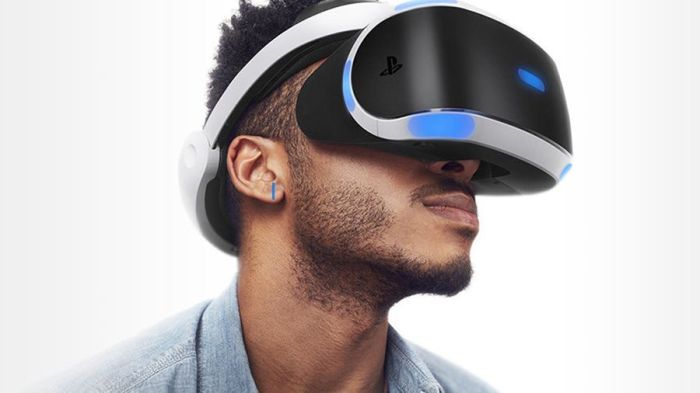
Virtual reality (VR) offers immersive experiences, but for many, this comes at the cost of motion sickness or discomfort. This is a common problem stemming from a mismatch between what the brain sees and what the body feels. Understanding the causes and employing effective mitigation strategies is crucial for maximizing enjoyment and minimizing negative side effects.
VR motion sickness arises from a sensory conflict. The visual system perceives movement within the virtual environment, while the vestibular system, responsible for balance and spatial orientation, detects little to no actual movement. This discrepancy can trigger nausea, dizziness, disorientation, and headache. The severity varies depending on individual sensitivity, the type of VR experience, and the duration of use.
VR Comfort Settings and Their Effectiveness
VR headsets and software often include comfort settings designed to reduce motion sickness. These settings typically manipulate the virtual camera’s behavior to better align with the user’s physical experience. For example, “smooth locomotion” techniques, which gradually transition between locations, are often more comfortable than instantaneous teleportation. Similarly, field-of-view adjustments can help by limiting the amount of visual information processed, thereby reducing the sensory conflict. The effectiveness of these settings is highly individualized; some users may find significant relief with minimal adjustments, while others might require more substantial changes or a combination of approaches. Experimentation is key to finding the optimal settings for each individual and VR experience.
Exercises and Techniques to Improve VR Tolerance
Building tolerance to VR motion sickness is achievable through gradual exposure and specific exercises. Starting with shorter VR sessions and gradually increasing the duration allows the brain to adapt to the sensory input. Focusing on stationary experiences initially, before progressing to more dynamic ones, is also beneficial. Furthermore, exercises focusing on balance and vestibular stimulation can improve the body’s ability to process conflicting sensory information. For example, practicing yoga or tai chi, which involve controlled movements and focus on balance, can help train the vestibular system to better handle the sensory discrepancies inherent in VR. Similarly, engaging in activities that stimulate the vestibular system, such as gentle rocking or swinging, can also improve tolerance.
Design Considerations for Minimizing Motion Sickness in VR Games and Experiences
Developers play a significant role in mitigating VR motion sickness through careful design choices. The goal is to create a cohesive and consistent sensory experience that minimizes the conflict between visual and vestibular inputs.
- Smooth Movement and Locomotion: Implementing smooth, gradual transitions between locations instead of abrupt teleportation minimizes jarring movements and reduces the sensory conflict.
- Limited Field of View (FOV): Reducing the FOV can help limit the amount of visual information the brain needs to process, lessening the potential for sensory overload and discomfort.
- Camera Stabilization: Maintaining a stable camera perspective, particularly during moments of potential motion sickness, can help prevent disorientation.
- Visual Cues: Providing clear visual cues that match the user’s perceived movement, such as subtle swaying or blurring, can help align the visual and vestibular systems.
- Environmental Design: Designing virtual environments that minimize rapid or unpredictable changes in perspective and movement can greatly reduce motion sickness.
- User Control and Agency: Allowing players greater control over their movement and perspective allows them to adjust to the VR experience at their own pace.
- Break Points and Rest Periods: Incorporating regular breaks within the VR experience allows users to rest and recover, reducing the cumulative effects of motion sickness.
Optimizing VR Performance and Setup
Getting the most out of your VR experience hinges on a well-optimized setup and understanding your system’s capabilities. A poorly configured system can lead to frustrating performance issues, while a well-tuned system unlocks the immersive potential of virtual reality. This section will guide you through optimizing your VR performance and setting up your playspace for a smooth and enjoyable experience.
Minimum System Requirements and Their Impact
Meeting the minimum system requirements for your VR headset is crucial for a functional experience. Falling short will result in low frame rates, stuttering, and potentially unplayable performance. Exceeding these requirements, however, allows for higher graphical fidelity, smoother gameplay, and a more immersive experience. For example, a game recommending an RTX 3070 will run at a significantly lower quality and frame rate on an older GTX 1060, while an RTX 4090 will allow for maximum settings and potentially higher resolutions for enhanced visuals. Always check the specific requirements listed by the VR headset manufacturer and the individual games you intend to play, as these can vary significantly.
Optimizing PC Settings for VR Gaming
Effective PC settings are vital for optimal VR performance. Prioritizing frame rate over graphical fidelity is often necessary in VR to maintain smooth gameplay and minimize motion sickness.
Graphics Settings: Lowering settings like shadows, anti-aliasing, and texture quality can significantly improve performance. Experiment with these settings to find the balance between visual quality and acceptable frame rates. For instance, reducing shadow quality from “Ultra” to “Medium” or “Low” can often yield a substantial performance boost without a drastic visual impact.
Resolution: While higher resolutions offer sharper visuals, they are computationally expensive. Reducing the in-game resolution, especially if your GPU is struggling, can significantly improve frame rates. Consider using a lower resolution specifically for VR, while keeping your desktop resolution higher for other tasks. For example, setting your VR resolution to 1440×1440 instead of 2160×2160 could significantly improve performance.
Frame Rate: Aim for a consistent frame rate of at least 90 frames per second (fps) for a smooth VR experience. Monitor your frame rate using in-game overlays or external monitoring tools and adjust settings accordingly. Maintaining a consistent frame rate is far more important than achieving the highest possible resolution.
Configuring VR Controllers for Optimal Comfort and Responsiveness
Proper controller configuration enhances both comfort and responsiveness during gameplay. Ensure your controllers are properly paired with your headset and calibrated according to the manufacturer’s instructions. Adjust the grip tightness to prevent hand fatigue, and experiment with different controller layouts to find what’s most comfortable for your hand size and playing style. Regularly check for firmware updates to ensure optimal performance and compatibility. Some headsets offer hand tracking features, allowing for more natural and intuitive interactions, which can be configured within the headset’s settings menu.
Setting Up a VR Playspace
A properly configured playspace is crucial for safety and immersion.
Room Size: The recommended playspace size varies depending on the VR game and headset. Ensure you have enough clear space to move around freely without bumping into objects. Larger playspaces allow for more dynamic and engaging gameplay. Smaller playspaces may restrict movement and immersion.
Lighting: Sufficient lighting is essential for both safety and tracking accuracy. Well-lit spaces help the headset’s cameras track your movements more reliably. Avoid using highly reflective surfaces within your playspace, as these can interfere with tracking.
Obstacle Avoidance: Before starting any VR game, thoroughly inspect your playspace for potential hazards such as furniture, fragile objects, or sharp corners. Remove or rearrange any objects that could cause injury during gameplay. Consider using boundary markers (physical or virtual) to define the limits of your playspace and prevent accidental collisions.
Closing Summary
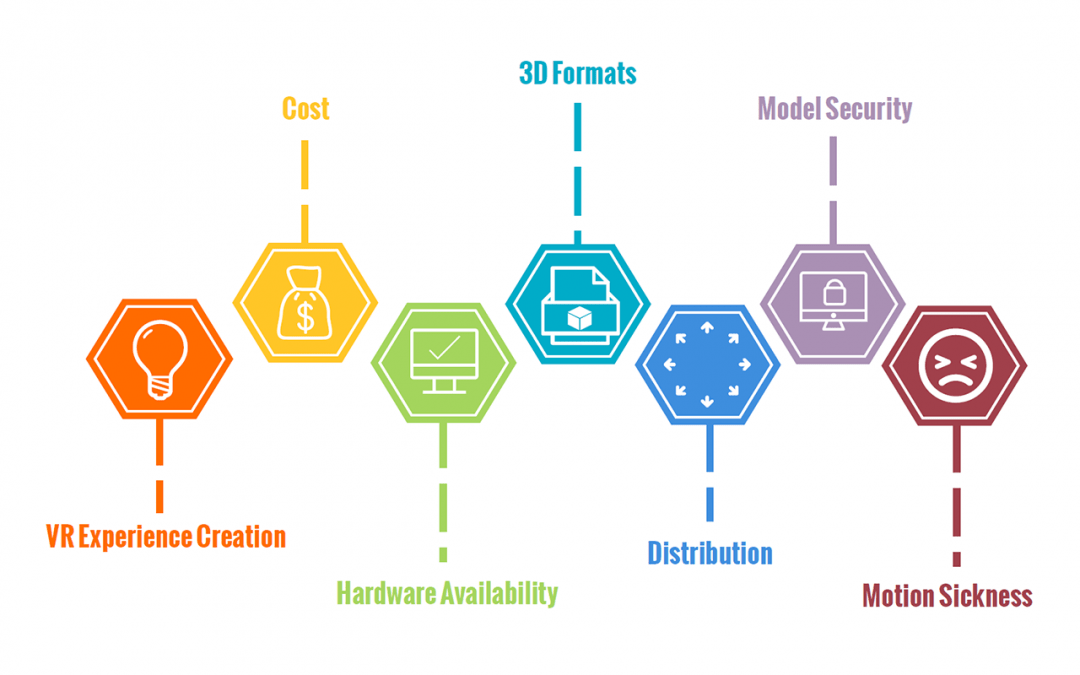
Mastering the art of VR troubleshooting empowers you to overcome common challenges and fully embrace the immersive potential of this exciting technology. By understanding the causes of technical issues, motion sickness, and performance limitations, and by implementing the solutions and preventative measures Artikeld in this guide, you can transform potential frustrations into enhanced enjoyment. Embrace the virtual world with confidence, knowing you have the knowledge and tools to navigate any obstacle and unlock the full potential of your VR experience.