Is your Google Chrome experience less than stellar? From frustrating slowdowns to perplexing display glitches, common Chrome issues can significantly impact productivity. This guide dives into seven frequently encountered problems, offering practical solutions to restore your browsing to its optimal performance. We’ll explore troubleshooting techniques, ranging from simple cache clearing to more advanced methods for resolving extension conflicts and display anomalies.
Understanding the root causes of these issues is key to effective resolution. We’ll break down each problem systematically, providing clear, step-by-step instructions to help you regain control over your browsing experience. Whether you’re a tech-savvy user or a digital novice, this guide provides the knowledge you need to troubleshoot and overcome these common Chrome challenges efficiently.
Chrome Running Slowly or Freezing
A sluggish or freezing Chrome browser can significantly impact productivity. Several factors contribute to this frustrating issue, ranging from simple browser maintenance oversights to more complex software conflicts. Understanding these causes is the first step towards resolving the problem.
Slowdowns and freezes are often caused by a build-up of temporary files (cache and cookies), resource-intensive browser extensions, too many open tabs, or even underlying hardware limitations. Addressing these issues systematically can usually restore Chrome’s performance to acceptable levels.
Clearing Chrome’s Cache and Cookies
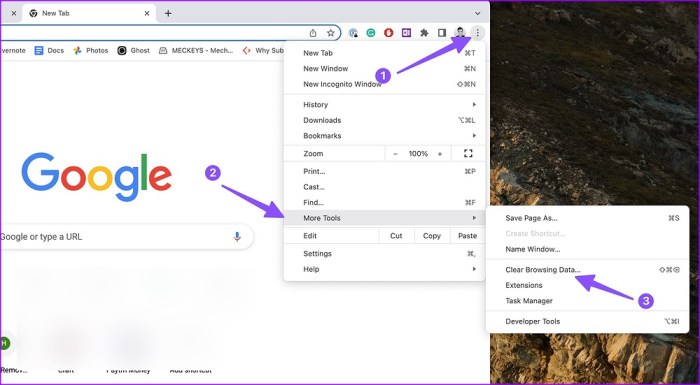
Regularly clearing your browser’s cache and cookies is crucial for maintaining optimal performance. These temporary files can accumulate over time, consuming significant storage space and slowing down browsing speed. Clearing them removes these files, freeing up resources and potentially resolving performance issues.
- Open Chrome and click the three vertical dots in the upper right corner (More).
- Select “Settings”.
- Scroll down and click “Privacy and security”.
- Click “Clear browsing data”.
- In the “Time range” dropdown, select “All time”.
- Check the boxes next to “Cookies and other site data” and “Cached images and files”. You can also select other items as needed, such as browsing history.
- Click “Clear data”.
Disabling or Uninstalling Browser Extensions
Browser extensions, while often helpful, can sometimes consume significant resources, leading to performance issues. Disabling or uninstalling unnecessary or problematic extensions can significantly improve Chrome’s speed and stability.
- Open Chrome and click the three vertical dots in the upper right corner (More).
- Select “More tools” and then “Extensions”.
- Review the list of installed extensions. Identify extensions you rarely use or suspect might be causing problems.
- To disable an extension, toggle the switch to the “off” position. To uninstall an extension, click the three vertical dots next to the extension and select “Remove”.
Managing Browser Tabs Effectively
Having numerous tabs open simultaneously can drastically reduce Chrome’s performance. Each tab consumes system resources, and too many can overwhelm even powerful computers. Effective tab management is essential for maintaining a responsive browser.
Strategies include closing unused tabs regularly, using tab groups to organize open tabs, and utilizing features like “Discard tabs” (found in Chrome’s settings) to free up memory without completely closing tabs.
Impact of Chrome Settings on Performance
The following table compares the effect of various Chrome settings on performance. Note that the impact can vary depending on your system’s specifications and the complexity of the tasks you’re performing.
| Setting | Impact on Performance (Low to High) | Description | Recommendation |
|---|---|---|---|
| Hardware Acceleration | Low to High | Uses your graphics card to render web pages. Can improve performance on capable hardware, but may cause issues on older systems. | Enable if your system supports it and you experience no issues; disable otherwise. |
| Number of Open Tabs | Low to Very High | Each tab consumes system resources; more tabs mean more resource consumption. | Keep the number of open tabs to a minimum; close unused tabs regularly. |
| Images | Low to Medium | Loading images consumes bandwidth and processing power. | Consider disabling images on low-bandwidth connections or for improved performance on low-powered devices. |
| JavaScript | Low to High | JavaScript is crucial for many website features, but heavy use can impact performance. | Generally, leave enabled unless you experience significant performance problems. Disabling it will break many websites. |
Chrome Extensions Malfunctioning or Crashing
Chrome extensions, while offering enhanced functionality, can sometimes cause problems like slowdowns, crashes, or conflicts with other browser features. Understanding the common issues and troubleshooting techniques can significantly improve your Chrome browsing experience. This section will guide you through identifying and resolving extension-related problems.
Extensions malfunctioning often manifests as unexpected browser behavior. This could range from simple glitches in functionality, such as a button not working correctly, to more severe issues like complete browser freezes or crashes. Sometimes, extensions might conflict with each other, leading to unpredictable results. A common symptom is a noticeable slowdown in browsing speed, especially when multiple extensions are active. Less frequently, extensions might cause specific websites to load incorrectly or fail to load altogether.
Troubleshooting Extension-Related Crashes
When a Chrome extension causes a crash, the browser will often provide an error message indicating the problematic extension. The first step is to identify this extension. If the error message isn’t specific, try disabling extensions one by one until the crashes stop. This process of elimination will pinpoint the culprit. Once identified, updating the extension to the latest version is usually the first course of action. If updating doesn’t resolve the issue, removing the extension entirely is necessary. In some cases, a corrupted extension profile might require reinstalling the extension after removal. Remember to restart Chrome after making any changes to extensions.
Comparing Methods for Updating or Removing Extensions
Updating an extension is generally straightforward. Navigate to the Chrome Web Store, find the extension, and click the “Update” button if available. This is often the quickest and easiest solution. Removing an extension is equally simple; in Chrome’s settings, under “Extensions,” locate the problematic extension and click the “Remove” button. This permanently deletes the extension and its data from your browser. Reinstalling after removal provides a clean slate, removing any potentially corrupted files. While updating is less disruptive, removing and reinstalling offers a more thorough solution if updating fails to resolve the issue.
Resolving Extension Conflicts
Conflicts between extensions arise when two or more extensions try to access or modify the same browser resources simultaneously. This can lead to unexpected behavior or crashes. Identifying conflicting extensions often requires careful observation and testing. Disabling extensions one by one, restarting Chrome, and observing the behavior can help pinpoint conflicting pairs. Sometimes, reviewing the permissions each extension requests can highlight potential overlaps. If a conflict is found, it may be necessary to choose one extension over the other, or seek alternative extensions with less overlapping functionality.
Best Practices for Managing Chrome Extensions
Proactive management of Chrome extensions can prevent many issues. Following these best practices ensures a smoother browsing experience.
- Only install extensions from reputable sources, primarily the Chrome Web Store.
- Regularly review your installed extensions and remove those you no longer use.
- Pay attention to the permissions each extension requests and only install those you trust.
- Keep your extensions updated to the latest versions to benefit from bug fixes and performance improvements.
- Restart your browser periodically to clear temporary files and prevent potential conflicts.
Chrome Display Issues (e.g., Blank Pages, Incorrect Font Rendering)
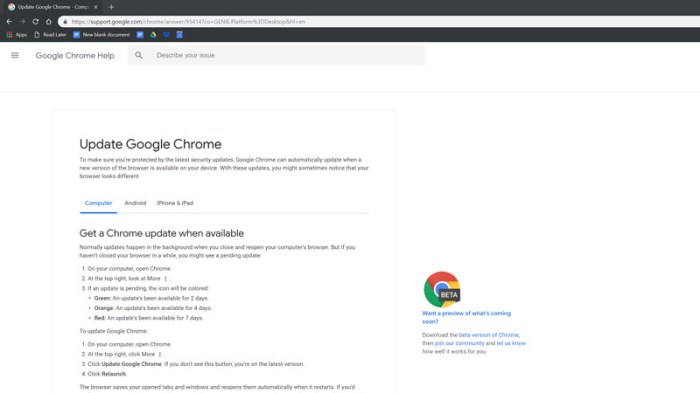
Visual problems in Chrome, such as blank pages, incorrect font rendering, or other display anomalies, can stem from various sources. Troubleshooting these issues involves systematically checking different components of your system and browser configuration. Addressing these problems will restore your browsing experience to its optimal state.
Troubleshooting Blank or Unresponsive Pages
Encountering a blank or unresponsive page in Chrome can be frustrating. Several steps can help resolve this. First, ensure your internet connection is stable. Try accessing other websites to rule out a network problem. If other sites load correctly, the issue is likely browser-specific. Next, try refreshing the page (Ctrl+Shift+R or Cmd+Shift+R) to force a hard reload, bypassing cached data. Clearing your browser cache and cookies can also be beneficial. This removes temporary files that may be interfering with page loading. If the problem persists, consider restarting your Chrome browser or even your computer. In some cases, a corrupted temporary file may be the culprit. Finally, if the issue is with a specific website, checking the website’s status on a site like Downdetector.com can determine if the problem originates from the website itself.
Checking and Updating Graphics Drivers
Outdated or corrupted graphics drivers are a common cause of display problems in Chrome. To check your graphics driver version, you need to access your computer’s device manager. The process varies slightly depending on your operating system (Windows or macOS). For Windows, search for “Device Manager” in the start menu. Expand the “Display adapters” section to see your graphics card and its driver version. For macOS, open System Information (found through Spotlight search) and navigate to the “Graphics/Displays” section. Once you know your current driver version, visit the website of your graphics card manufacturer (e.g., NVIDIA, AMD, Intel) and download the latest driver for your specific card model and operating system. Install the new driver, restart your computer, and check if the Chrome display issues are resolved.
Resetting Chrome’s Settings to Defaults
Resetting Chrome to its default settings can resolve display problems caused by corrupted user preferences or extensions. This process removes all your customized settings, extensions, and themes, reverting Chrome to its factory state. To reset Chrome, open Chrome’s settings (three vertical dots in the upper right corner), then click on “Settings.” Scroll down and click on “Reset and clean up,” followed by “Restore settings to their original defaults.” A confirmation prompt will appear; click “Reset settings” to proceed. Note that this will remove all your saved passwords and bookmarks, so ensure you have backups if necessary.
Checking Browser Compatibility
Sometimes, display problems arise from incompatibility between Chrome and the website you are trying to access. Older websites might not be fully optimized for newer versions of Chrome, leading to rendering issues. While you can’t directly change a website’s code, you can try using a different browser (like Firefox or Edge) to see if the issue persists. If the website displays correctly in another browser, it confirms a compatibility problem with Chrome. In such cases, reporting the issue to the website’s developers is recommended. They may be able to update their website to improve compatibility.
Common Chrome Display Problems and Troubleshooting Steps
| Problem | Likely Cause | Troubleshooting Steps | Additional Notes |
|---|---|---|---|
| Blank or Unresponsive Pages | Network issues, corrupted cache, website problems | Check internet connection, refresh page (Ctrl+Shift+R), clear cache and cookies, restart Chrome/computer, check website status | Consider using a VPN if network issues persist. |
| Incorrect Font Rendering | Outdated graphics drivers, browser settings, website issues | Update graphics drivers, reset Chrome settings, check website compatibility in other browsers | Try disabling browser extensions temporarily to rule out conflicts. |
| Page Elements Missing or Misplaced | Browser extensions, conflicting scripts, website coding errors | Disable extensions temporarily, clear cache and cookies, try in incognito mode | Report issues to the website if problem persists after troubleshooting. |
| Blurry or Pixelated Images | Low resolution display, outdated graphics drivers, scaling issues | Check display resolution settings, update graphics drivers, adjust Chrome’s zoom settings | Ensure your monitor is set to the correct resolution for optimal display. |
Ultimate Conclusion
By systematically addressing the seven common Google Chrome problems Artikeld in this guide, you’ve equipped yourself with the tools to maintain a smooth and efficient browsing experience. Remember, regular maintenance, such as clearing cache and cookies, and careful extension management, can prevent many issues from arising. Proactive troubleshooting ensures that minor inconveniences don’t escalate into major disruptions, allowing you to focus on what matters most – your online tasks and activities.