Frustrated by crackling microphones, echoing voices, or disruptive background noise during your online gaming sessions? Clear communication is crucial for teamwork and victory, and faulty voice chat can significantly hinder your gaming experience. This guide tackles four common voice chat problems, providing practical solutions to help you achieve crisp, clear audio in your favorite games.
We’ll explore the root causes of microphone issues, audio latency and echo, and background noise interference. Through troubleshooting steps, optimization tips, and software/hardware recommendations, you’ll learn how to identify and resolve these issues, ultimately enhancing your online gaming interactions and improving your overall gameplay.
Microphone Issues
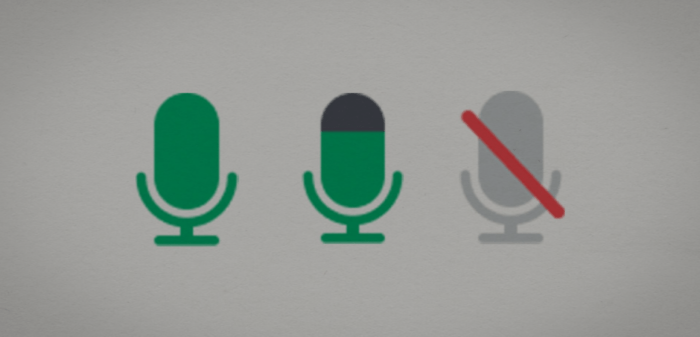
Clear communication is crucial for a positive online gaming experience. A faulty microphone can lead to frustration for both you and your teammates. This section will address common microphone problems, providing troubleshooting steps and optimization tips to ensure your voice is heard loud and clear.
Microphone issues in online gaming stem from a variety of sources, ranging from simple configuration errors to more complex hardware problems. Incorrect in-game or operating system settings are frequent culprits, often resulting in muted audio or distorted sound. Outdated or corrupted audio drivers can also interfere with microphone functionality, preventing proper signal transmission. Finally, physical damage to the microphone itself, loose connections, or internal hardware failures can render the microphone unusable.
Troubleshooting Microphone Problems
Addressing microphone issues involves a systematic approach. Begin with the simplest solutions and progress to more complex ones if necessary. This step-by-step guide will help you diagnose and resolve common microphone problems.
- Check In-Game and System Audio Settings: Ensure your microphone is selected as the default input device in both your game’s audio settings and your operating system’s sound settings. Verify that the microphone’s volume is adequately adjusted and that it is not muted.
- Update or Reinstall Audio Drivers: Outdated or corrupted audio drivers are a common cause of microphone issues. Visit your computer manufacturer’s website or the website of your sound card manufacturer to download and install the latest drivers. If problems persist, try uninstalling the current drivers and then reinstalling them.
- Test Microphone Hardware: Use the microphone test feature built into your operating system (often found in sound settings) to check if the microphone is picking up sound. Try plugging your microphone into a different USB port or audio jack if applicable. If using a headset, ensure the microphone is properly connected and that the mute switch isn’t engaged.
- Check for Physical Damage: Inspect your microphone for any visible damage, such as cracks or loose wires. If damage is found, repair or replacement may be necessary.
Optimizing Microphone Settings
Even with a functioning microphone, optimizing settings can significantly improve voice clarity and reduce background noise.
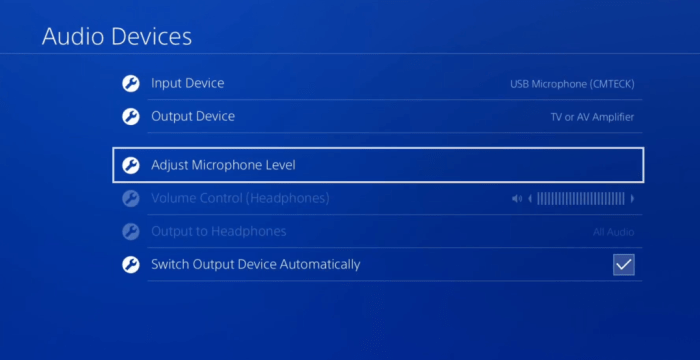
- Adjust Microphone Sensitivity: Set the microphone sensitivity to a level that captures your voice clearly without picking up excessive background noise. Too high sensitivity can amplify unwanted sounds, while too low may make your voice too quiet.
- Use Noise Reduction Software: Many gaming platforms and audio applications offer noise reduction features that filter out background noise. Experiment with different settings to find the best balance between noise reduction and voice clarity.
- Choose a Quiet Environment: Minimize background noise by gaming in a quiet room. Close doors and windows, and turn off noisy appliances or devices.
- Position the Microphone Correctly: Position your microphone close enough to capture your voice effectively, but not so close that it picks up breath sounds or other unwanted noises. Experiment with different positions to find what works best.
Microphone Types for Gaming
Different microphone types offer varying levels of performance and features. The best choice depends on your budget and needs.
| Type | Price Range | Pros | Cons |
|---|---|---|---|
| Headset Microphone (integrated) | $20 – $200+ | Convenience, affordability (at lower price points), all-in-one solution | Sound quality can be less impressive than dedicated microphones, potential for feedback |
| USB Microphone | $30 – $300+ | Easy setup, plug-and-play, generally good sound quality | Can be more expensive than headset mics, may require additional stand |
| Condenser Microphone | $50 – $500+ | High-quality sound recording, excellent for clear voice communication | More sensitive to background noise, requires a dedicated audio interface in some cases |
| Dynamic Microphone | $50 – $300+ | Durable, less sensitive to background noise, suitable for louder environments | Generally lower sensitivity, may require more powerful audio interface |
Audio Latency and Echo
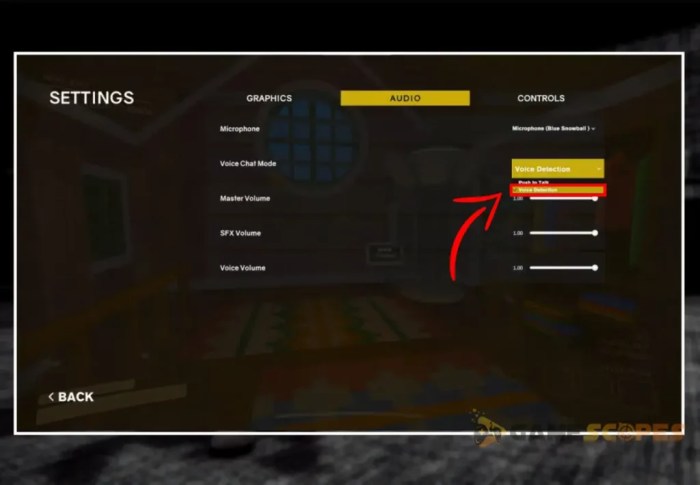
Experiencing lag in your voice chat or hearing yourself repeated can significantly impact your gaming experience. Audio latency, the delay between speaking and hearing your voice, and echo, the repetition of your voice, stem from various sources, often intertwined. Understanding these causes and implementing solutions is crucial for smooth communication.
Audio latency and echo are often caused by a combination of network issues and software conflicts. Network congestion, high ping, and unstable internet connections contribute to latency. Software conflicts can arise from multiple applications vying for audio resources, or outdated or poorly configured audio drivers. Additionally, the physical environment can play a role, with excessive reverberation leading to echo. For example, a gamer in a small, untreated room might experience more echo than someone in a larger, more acoustically treated space. Similarly, a poor quality or improperly configured microphone can also contribute to both latency and echo.
Causes of Audio Latency
Network instability is a primary culprit. High ping, packet loss, and bandwidth limitations all increase latency. For instance, if your internet connection is struggling to keep up with the data flow required for voice chat, a noticeable delay will occur. Additionally, software conflicts, such as competing audio applications or outdated drivers, can add to the delay by overloading the system’s processing power. Finally, the distance your audio signal travels, from your microphone to the game server and back to other players, directly impacts latency. Longer distances inherently increase the travel time for the audio data.
Methods for Reducing Audio Latency
Optimizing network configuration is key. This includes closing unnecessary applications that consume bandwidth, using a wired connection instead of Wi-Fi, and ensuring your router is properly configured and positioned for optimal signal strength. Adjusting in-game audio settings can also help. Many games allow you to prioritize voice chat over other audio elements, which can reduce latency by reducing the processing load. Prioritizing voice chat allows the game to allocate more resources to ensure the timely transmission of your voice. For example, lowering the overall audio quality in-game, without compromising the voice chat quality, can help to reduce latency by decreasing the amount of data being processed.
Techniques for Minimizing Echo
Echo is often caused by feedback loops, where the microphone picks up its own output, creating a repetitive cycle. Checking for feedback loops involves identifying sources of audio that might be inadvertently picked up by your microphone, such as speakers placed too close to it. Adjusting microphone placement is crucial. Moving your microphone further away from speakers or other audio sources can drastically reduce echo. Additionally, using a directional microphone, which is more sensitive to sounds directly in front of it, can minimize the pickup of ambient noise and reduce echo. Finally, experimenting with different microphone settings, such as gain and noise reduction, might help in mitigating echo.
Software Solutions for Latency and Echo Reduction
Several software applications can assist in reducing latency and echo. Choosing the right software depends on individual needs and system specifications. These programs often offer advanced features like noise cancellation, echo cancellation, and audio optimization.
- VoiceMeeter Banana: A versatile audio routing software capable of advanced audio manipulation.
- RTX Voice: Nvidia’s noise-cancellation and audio enhancement tool, designed to reduce background noise and echo.
- Krisp: A dedicated noise-cancellation application that can be integrated with various communication platforms.
Background Noise and Interference
Unwanted sounds in your gaming audio can significantly impact your gameplay and communication with teammates. Background noise, from subtle keyboard clicks to loud environmental sounds, can interfere with clear voice transmission and make it difficult for others to understand you. Addressing these issues improves overall communication and enhances the gaming experience.
Common sources of background noise in gaming setups include mechanical keyboards, computer fans, air conditioners, nearby conversations, pets, and even street noise. The intensity of these sounds varies depending on your environment and equipment. Fortunately, several strategies can effectively minimize or eliminate this interference, leading to clearer and more professional-sounding communication.
Minimizing Background Noise
Reducing background noise involves a multi-pronged approach combining hardware and software solutions. The goal is to create a quieter recording environment and utilize tools to further filter out residual noise.
One of the simplest and most effective solutions is using noise-canceling headphones. These headphones are specifically designed to reduce ambient noise, effectively isolating your microphone from external sounds. Adjusting your microphone’s sensitivity is another crucial step. A highly sensitive microphone will pick up even faint background noises, while a less sensitive one will focus more on your voice, minimizing unwanted sounds. Experiment with your microphone’s settings to find the optimal balance between capturing your voice clearly and reducing background noise.
Beyond hardware, software solutions offer additional noise reduction capabilities. Many voice communication platforms (such as Discord or TeamSpeak) include built-in noise reduction features, while dedicated noise-reduction software can further refine your audio. These programs analyze your audio input and filter out unwanted sounds, improving the overall clarity of your voice. Remember to use clear and concise language; speaking slowly and deliberately can also help compensate for any remaining background noise.
Comparison of Noise Reduction Techniques
| Method | Effectiveness | Cost | Ease of Use |
|---|---|---|---|
| Noise-canceling headphones | High – significantly reduces ambient noise | Medium to High (depending on quality) | High – simply plug and play |
| Microphone with noise-canceling features | Medium to High – depends on the microphone’s quality | Medium to High | High |
| Software noise reduction (e.g., Krisp, Audacity) | Medium – effectiveness varies depending on the software and noise level | Low to Medium (some are free, others are subscription-based) | Medium – requires some setup and configuration |
| Adjusting microphone sensitivity | Low to Medium – helps but may not eliminate all noise | Low – no additional cost | High – simple in-built settings adjustment |
Closing Summary

By addressing microphone problems, audio latency, echo, and background noise, you can significantly improve your online gaming experience. Remember, clear communication is key to effective teamwork and winning strategies. Implementing the solutions Artikeld in this guide will not only enhance your gameplay but also foster a more enjoyable and collaborative online gaming environment. So, ditch the frustration and dive into the world of seamless voice chat!