Frustrating lag can transform a thrilling gaming experience into a frustrating ordeal. This guide tackles four prevalent causes of video game lag: network connectivity issues, hardware limitations, software problems, and game-specific glitches. We’ll explore practical solutions, from optimizing network settings and upgrading hardware to troubleshooting software conflicts and adjusting in-game graphics. By addressing these common culprits, you can significantly improve your gameplay and reclaim the smooth, responsive experience you deserve.
Understanding the root cause of lag is crucial for effective troubleshooting. We’ll delve into the specifics of each problem area, providing clear explanations and actionable steps to resolve them. Whether you’re a seasoned gamer or a relative newcomer, this guide offers valuable insights and practical advice to banish lag and enhance your gaming sessions.
Network Connectivity Issues
Network connectivity problems are a major source of frustration for online gamers. Lag, rubberbanding, and disconnections can ruin the gaming experience, turning a potential victory into a frustrating defeat. Understanding the causes of these issues and implementing effective solutions is crucial for a smooth and enjoyable online gaming experience.
Network lag manifests in several ways, each stemming from a different underlying problem. High ping, for example, represents the delay in data transmission between your computer and the game server. This is measured in milliseconds (ms) and a high ping translates to delayed actions in-game – your character might move slower than expected, or your attacks might land noticeably later than intended. Imagine trying to shoot a fast-moving target in a first-person shooter with a significant ping; your shots will consistently miss because of the delay between your action and its effect on the server. Packet loss, on the other hand, occurs when data packets fail to reach their destination. This results in intermittent interruptions in gameplay, such as sudden freezes or visual glitches. Finally, bandwidth limitations restrict the amount of data your internet connection can handle at any given time. In high-bandwidth games, insufficient bandwidth can lead to stuttering, blurry textures, and overall poor performance. Think of trying to stream a high-resolution video while simultaneously playing a graphically demanding game; both will suffer from performance issues due to bandwidth contention.
Troubleshooting Network Connectivity Problems
Troubleshooting network connectivity issues often requires a systematic approach. The following table Artikels common problems, their solutions, the tools needed, and the expected outcome.
| Problem | Solution | Tools Needed | Expected Outcome |
|---|---|---|---|
| High Ping | Check for network congestion, restart your router and modem, optimize QoS settings. | Speed test website (e.g., Ookla Speedtest), router interface access | Lower ping times, improved responsiveness in-game. |
| Packet Loss | Identify and eliminate sources of network interference (e.g., cordless phones, microwaves), check for faulty network cables, run a network diagnostic. | Network diagnostic tool (often built into operating systems), cable tester | Reduced or eliminated packet loss, smoother gameplay. |
| Low Bandwidth | Upgrade your internet plan, close unnecessary applications consuming bandwidth, prioritize gaming traffic using QoS. | Speed test website, task manager or resource monitor | Increased bandwidth availability, improved game performance (e.g., higher frame rates, less stuttering). |
| Connection Drops | Check for faulty cables, update network drivers, power cycle your router and modem. Consider contacting your internet service provider. | Network diagnostic tools, device manager | Stable and consistent connection, elimination of connection drops. |
Wired vs. Wireless Connections
Wired and wireless connections offer different performance characteristics. Wired connections (Ethernet) generally provide superior performance due to their stability and higher bandwidth capacity. Wireless connections (Wi-Fi) are convenient but susceptible to interference and signal degradation, leading to higher ping and packet loss. For example, in a competitive online game where milliseconds matter, a wired connection will provide a significant advantage over Wi-Fi, ensuring consistently low ping and reliable data transmission. However, in casual gaming scenarios where perfect responsiveness is less critical, a wireless connection might suffice. If you live in a house with many Wi-Fi devices competing for bandwidth, the difference in performance between wired and wireless will be more pronounced.
Optimizing Network Settings for Online Gaming
Optimizing network settings involves several steps to prioritize gaming traffic and minimize interference.
- Run a speed test: Determine your current download and upload speeds to establish a baseline.
- Check for network interference: Identify and eliminate sources of interference such as cordless phones or microwaves.
- Prioritize gaming traffic (QoS): Most routers allow you to prioritize specific applications or devices. Configure your router’s QoS settings to give your gaming device higher priority, ensuring it receives sufficient bandwidth even during periods of high network activity. This typically involves assigning a higher priority to the UDP and TCP ports used by your game.
- Update network drivers: Ensure your network adapter drivers are up-to-date for optimal performance.
- Close unnecessary applications: Minimize bandwidth usage by closing applications not essential for gaming.
- Consider a wired connection: If possible, connect your gaming device directly to your router using an Ethernet cable for the most stable connection.
Hardware Limitations

Video game lag isn’t always about your internet connection. Sometimes, the problem lies within your computer’s hardware itself. A less powerful system struggles to keep up with the demands of modern games, resulting in noticeable performance issues. Understanding which components are most critical and how they impact gameplay is crucial for troubleshooting and upgrading.
Insufficient processing power, inadequate memory, or a slow storage device can all lead to frustrating lag spikes and reduced frame rates. Let’s examine the roles of key hardware components in achieving smooth gameplay.
Hardware Components and Their Impact on Gameplay
The central processing unit (CPU), graphics processing unit (GPU), random access memory (RAM), and storage drive (SSD or HDD) are the primary hardware components affecting gaming performance. A weak CPU may struggle to handle complex game calculations, resulting in stuttering or low frame rates, especially in games with many on-screen elements or AI opponents. A weak GPU can’t render graphics quickly enough, leading to choppy visuals and lower frame rates. Insufficient RAM can cause the system to slow down significantly, as it struggles to load game assets and data. Finally, a slow hard disk drive (HDD) can lead to longer loading times and potential stutters during gameplay, especially if the game frequently needs to access data from the drive.
Hardware Upgrade Options
Upgrading your hardware can dramatically improve gaming performance. The cost of upgrades varies widely depending on the component and its specifications. It’s important to research and choose components that are compatible with your existing system.
Upgrading to a more powerful CPU, GPU, or adding more RAM are the most impactful changes. However, upgrading to a solid-state drive (SSD) can also significantly reduce loading times.
- CPU Upgrade (e.g., Intel Core i5 to i7, AMD Ryzen 5 to Ryzen 7): Cost: $150 – $500+
- GPU Upgrade (e.g., NVIDIA GeForce RTX 3060 to RTX 3070, AMD Radeon RX 6600 to RX 6700 XT): Cost: $300 – $800+
- RAM Upgrade (e.g., 8GB to 16GB or 32GB): Cost: $50 – $150
- SSD Upgrade (e.g., 500GB to 1TB or 2TB): Cost: $50 – $200
Game Settings and Hardware Performance
Game settings directly impact how much your hardware needs to work. Lowering settings reduces the processing load, resulting in smoother gameplay, especially on less powerful systems. Resolution (the number of pixels displayed on screen), graphics quality (texture detail, shadows, lighting effects), and anti-aliasing (smooths jagged edges) are key settings to adjust. Reducing resolution from 1080p to 720p, lowering texture detail from “Ultra” to “Medium,” or disabling anti-aliasing can significantly improve performance.
Performance Impact of Different Graphics Settings
The table below illustrates how different graphics settings impact performance across various hardware configurations. Note that these are general observations and actual performance can vary depending on the specific game and hardware.
| Setting | Low-End PC Impact | Mid-Range PC Impact | High-End PC Impact |
|---|---|---|---|
| Resolution (1080p vs 720p) | Significant improvement | Noticeable improvement | Minor improvement |
| Texture Quality (Ultra vs Low) | Dramatic improvement | Moderate improvement | Slight improvement |
| Shadow Quality (High vs Low) | Significant improvement | Noticeable improvement | Minor improvement |
| Anti-Aliasing (On vs Off) | Significant improvement | Noticeable improvement | Minor improvement |
Software and Game-Specific Issues
Lag isn’t always about your internet or hardware; sometimes, the problem lies within the software itself. Outdated drivers, resource-hogging applications, and even conflicts between different programs can significantly impact your gaming experience, leading to frustrating stutters and delays. Understanding these software-related issues is crucial for effective troubleshooting.
Outdated drivers, background applications, and conflicting software can all contribute to video game lag. For example, an outdated graphics driver might lack optimizations for your specific game, resulting in poor performance. Multiple background applications running simultaneously can compete for system resources, leaving less processing power available for your game. Similarly, conflicting software, such as certain security programs or overlays, can interfere with game processes, causing noticeable lag. The impact varies depending on the severity of the issue and the system’s specifications; a high-end system might handle more background processes than a low-end one.
Updating Graphics Drivers and Optimizing System Settings
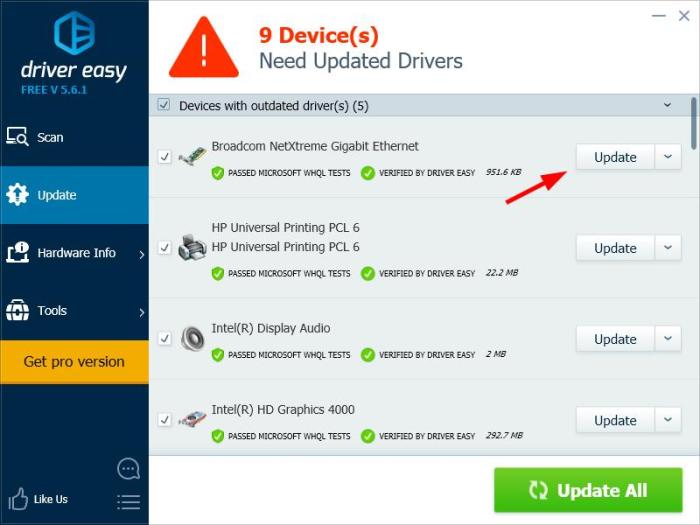
Keeping your graphics drivers up-to-date is essential for optimal gaming performance. Outdated drivers often lack performance enhancements and bug fixes that can significantly improve your frame rate and reduce lag. Similarly, optimizing your system settings for gaming ensures your computer allocates resources effectively.
- Identify your graphics card: Determine whether you have an NVIDIA, AMD, or Intel graphics card. This information is usually found in your computer’s system information or device manager.
- Visit the manufacturer’s website: Go to the official website of your graphics card manufacturer (NVIDIA, AMD, or Intel).
- Download the latest driver: Download the latest driver that’s compatible with your operating system and graphics card model. Be sure to select the correct driver for your specific card.
- Install the driver: Run the downloaded installer and follow the on-screen instructions. A system restart might be required.
- Adjust in-game settings: Reduce graphical settings such as resolution, shadows, anti-aliasing, and texture quality to improve performance. Experiment to find the optimal balance between visual fidelity and frame rate.
- Close unnecessary applications: Before launching a game, close any unnecessary applications running in the background to free up system resources.
- Adjust power settings: Switch to a high-performance power plan to ensure your system isn’t throttling performance to save energy.
Common Game-Specific Issues
Even with updated drivers and optimized settings, some games are inherently more prone to lag due to poor optimization or excessive in-game effects. For instance, games with complex physics engines, numerous particles effects (explosions, smoke, etc.), or a high number of AI characters often struggle to maintain a smooth frame rate, especially on lower-end systems. Games like Cyberpunk 2077 upon its initial release and some massively multiplayer online role-playing games (MMORPGs) are known for experiencing performance issues due to demanding game engines and large numbers of players interacting simultaneously.
Troubleshooting Software-Related Lag Problems
A systematic approach is vital when tackling software-related lag. This checklist provides a structured way to identify and resolve these issues.
- Verify game file integrity: Use the game launcher’s built-in feature to scan and repair corrupted game files. This can resolve issues caused by damaged or incomplete game assets.
- Close unnecessary applications: Terminate all non-essential applications, including browser tabs, streaming services, and other resource-intensive programs, before launching the game.
- Adjust in-game settings: Lower graphical settings such as resolution, shadows, anti-aliasing, and texture quality. Experiment to find the best balance between visuals and performance.
- Manage overlays: Disable any overlays from applications like Discord, Steam, or GeForce Experience, as these can sometimes interfere with game performance.
- Manage background processes: Use the Task Manager (Windows) or Activity Monitor (macOS) to identify and close resource-intensive background processes that might be impacting game performance. Pay close attention to CPU and memory usage.
- Update game software: Ensure the game itself is up-to-date, as patches often include performance optimizations and bug fixes.
Final Review
Consistently high-performance gaming requires a multifaceted approach. By systematically addressing network connectivity, hardware capabilities, software optimization, and game-specific settings, you can significantly reduce, if not eliminate, frustrating lag. Remember that a combination of factors might be at play, so thorough investigation is key. This guide provides a framework for identifying and resolving these issues, enabling you to focus on the enjoyment of your games rather than battling technical difficulties.