Immersive 360-degree videos offer a captivating viewing experience, but technical glitches can quickly spoil the magic. Two common frustrations are inconsistent playback speed (stuttering) and issues with video stitching and distortion. This guide tackles these problems head-on, providing practical solutions to ensure smooth, seamless viewing of your 360-degree content, whether on a desktop or VR headset.
We’ll explore the underlying causes of these issues, from inadequate internet speed and hardware limitations to problems with video codecs and stitching algorithms. Through clear explanations and step-by-step instructions, you’ll learn how to diagnose and fix these problems, maximizing your enjoyment of the immersive world of 360-degree video.
Inconsistent Playback Speed or Stuttering
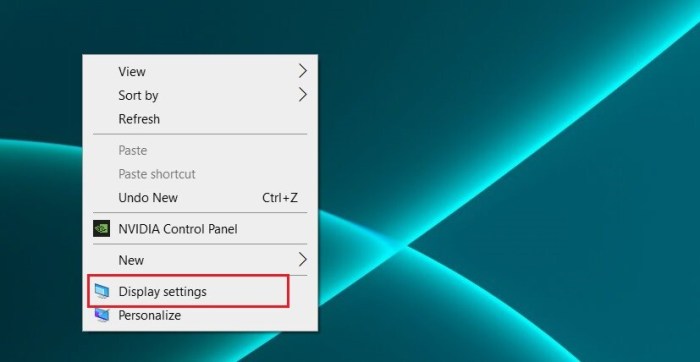
Inconsistent playback speed and stuttering are frustratingly common issues when viewing 360-degree videos. These problems can significantly detract from the immersive experience, leaving viewers feeling disoriented and annoyed. Understanding the underlying causes and implementing effective troubleshooting steps is crucial for a smooth and enjoyable viewing experience.
Several factors contribute to inconsistent playback speed in 360-degree videos. The most significant are the high resolution and data demands of these videos. Unlike traditional videos, 360-degree videos require significantly more processing power to render the entire spherical image. This increased processing load can strain both the hardware and software involved in playback, resulting in stuttering or slowdowns. Furthermore, the video codec used, the quality of the internet connection, and the integrity of the video file itself all play crucial roles in determining playback smoothness.
Troubleshooting Stuttering Issues
Addressing stuttering involves a systematic approach, beginning with the simplest checks and progressing to more involved solutions. First, verify your internet connection speed. A slow or unstable connection is a frequent culprit, especially for high-resolution 360-degree videos which require substantial bandwidth. Use a speed test website to measure your download and upload speeds, comparing them to the video’s recommended bandwidth. If the connection is inadequate, consider upgrading your internet plan or reducing the video’s resolution.
Next, assess the integrity of the video file itself. A corrupted or incompletely downloaded video file can lead to playback problems. Try downloading the video again from a reliable source, ensuring the download completes without interruption. If you’re using a locally stored file, verify its file size matches the expected size listed on the source website, and check the file for any error messages.
Video Codec Comparison
Different video codecs compress and encode video data in various ways, impacting file size and playback performance. Choosing the right codec can significantly influence the smoothness of 360-degree video playback.
| Codec | Compatibility | Typical Bitrate (Mbps) | Performance Notes |
|---|---|---|---|
| H.264 (AVC) | Widely compatible | Variable, typically 8-20 | Good balance of quality and compatibility, but can be computationally intensive for high resolutions. |
| H.265 (HEVC) | Increasingly compatible | Variable, typically 4-12 | Offers better compression than H.264, resulting in smaller file sizes and potentially smoother playback, but may require more powerful hardware. |
| VP9 | Good compatibility with modern browsers | Variable, typically 6-15 | Open-source codec offering good compression and performance, suitable for streaming. |
| AV1 | Growing compatibility | Variable, typically 3-8 | Royalty-free codec offering excellent compression, but hardware support is still evolving. |
Hardware Limitations and 360-Degree Video Playback
The processing power of your hardware significantly impacts 360-degree video playback. These videos demand substantial resources from your CPU (Central Processing Unit), GPU (Graphics Processing Unit), and RAM (Random Access Memory). A CPU struggles to decode and process the large amount of data involved in rendering the spherical image. A weak GPU struggles to render the high-resolution visuals, and insufficient RAM can lead to buffering and stuttering as the system struggles to keep up with the demands of the video. Upgrading your hardware, particularly your GPU and RAM, can significantly improve playback smoothness for 360-degree videos. For instance, a system with a dedicated graphics card (GPU) and ample RAM (8GB or more) will generally handle 360-degree video playback much better than a system relying solely on integrated graphics and limited RAM.
Issues with Video Stitching and Distortion
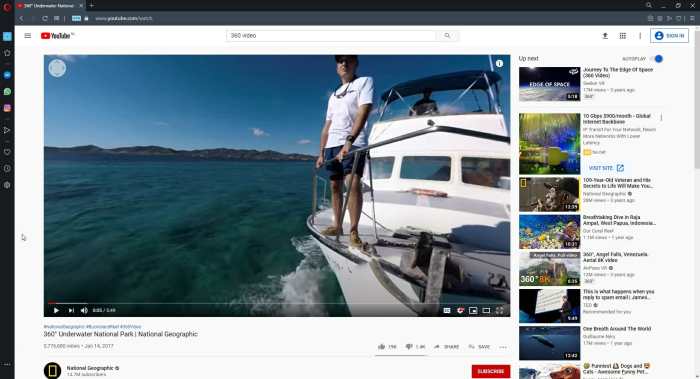
Creating seamless 360° videos requires precise stitching of multiple camera feeds. Imperfect stitching leads to noticeable distortions and visual artifacts, significantly impacting the viewer experience. Understanding the causes and solutions to these problems is crucial for producing high-quality immersive content.
Stitching errors in 360° videos often stem from inconsistencies in the input footage or limitations within the stitching software. Misaligned camera positions, variations in exposure or white balance between cameras, and insufficient overlap between adjacent camera views are common culprits. Furthermore, the choice of stitching algorithm and its parameters can also heavily influence the final result, leading to distortions such as ghosting, seams, and warping.
Detecting and Correcting Stitching Problems
Identifying stitching issues often involves visual inspection of the final 360° video. Look for noticeable seams or discontinuities between camera perspectives, areas with ghosting (doubled images), and warping or stretching of the scene. Specialized software often provides tools to highlight areas with poor stitching quality. For example, many applications will display a color-coded map showing the confidence level of the stitching process at each point in the video. Areas with low confidence scores often correspond to problematic regions. Correction methods depend on the severity of the problem and the software being used. Minor issues might be addressed by adjusting stitching parameters within the software. More severe problems may necessitate re-stitching the video with different settings or even re-shooting the footage.
Re-stitching a 360-Degree Video
Re-stitching a 360° video involves using video editing software capable of processing multiple camera feeds. A step-by-step guide using a hypothetical software package, “360StitchPro,” is Artikeld below:
- Import Footage: Import all the individual camera feeds into 360StitchPro. Ensure that the footage is properly labeled and organized to maintain correct alignment.
- Calibration (if needed): If camera calibration data isn’t already embedded, use the software’s calibration tools to determine the relative positions and orientations of the cameras. This step is critical for accurate stitching.
- Parameter Adjustment: Experiment with various stitching parameters. These often include blend modes, overlap adjustments, and distortion correction options. 360StitchPro offers several algorithms: spherical, cylindrical, and planar. Test each to find the optimal settings for your footage.
- Stitching Process: Initiate the stitching process. This may take some time depending on the video length and resolution.
- Review and Refine: Once the stitching is complete, thoroughly review the output for any remaining errors. If needed, adjust parameters and re-stitch until a satisfactory result is achieved.
- Export: Export the stitched video in the desired format and resolution.
Comparison of Stitching Algorithms
Different stitching algorithms offer varying strengths and weaknesses. The choice depends on factors such as the camera setup, scene complexity, and desired output quality.
- Spherical Stitching: This algorithm maps the scene onto a sphere, providing a natural representation of 360° environments. It’s well-suited for general-purpose 360° video, but can struggle with highly complex scenes or significant parallax.
- Cylindrical Stitching: This algorithm projects the scene onto a cylinder. It’s computationally less demanding than spherical stitching but can introduce distortions, particularly near the top and bottom of the image.
- Planar Stitching: This algorithm is best suited for scenes with minimal parallax and a relatively flat perspective. It’s often used for creating panoramic images rather than full 360° videos.
Lack of Proper VR Headset Compatibility
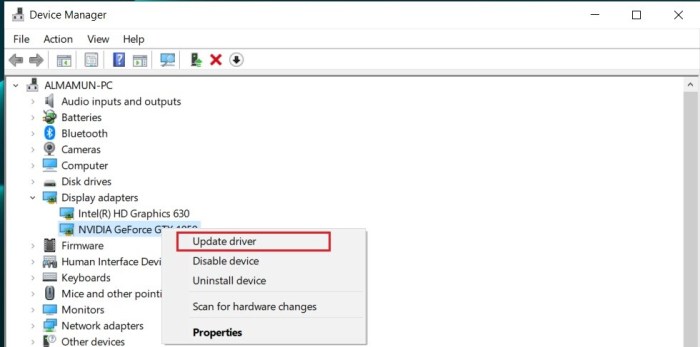
Ensuring your 360-degree video plays smoothly on your VR headset hinges on understanding the technical requirements of both the video and the headset. Different headsets have varying capabilities when it comes to video formats, codecs, and resolutions, leading to compatibility issues if these aren’t properly matched. This section will explore how to identify and resolve these issues.
Different VR headsets utilize different video formats and codecs for optimal playback. Understanding these differences is crucial for ensuring a seamless viewing experience. High-resolution videos often require more processing power and may not be supported by all headsets. Similarly, certain codecs are more efficient than others, impacting both file size and playback performance. A video optimized for one headset might be completely unplayable on another.
VR Headset Video Format and Codec Requirements
The optimal video format and codec depend heavily on the specific VR headset model. For instance, some headsets might favor MP4 containers with H.265 (HEVC) encoding for high-quality video at a manageable file size, while others may only support older codecs like H.264. Consulting the headset manufacturer’s specifications is essential. These specifications often detail supported video formats, resolutions, frame rates, and bitrates. Failure to match these parameters can result in playback errors or poor video quality. A common problem is attempting to play a high-resolution video (e.g., 8K) on a headset that only supports up to 4K resolution. This would lead to either the video not playing at all, or playing at a lower, downgraded resolution.
Converting 360-Degree Videos for VR Headset Compatibility
Converting a 360-degree video to a compatible format typically involves using video editing software with encoding capabilities. Popular choices include Adobe Premiere Pro, DaVinci Resolve, and FFmpeg (a command-line tool). The process generally involves selecting the target format and codec based on the VR headset’s specifications, adjusting the resolution and frame rate to match the headset’s capabilities, and then exporting the converted video file. It is important to note that some conversion processes can be computationally intensive and may require significant time and processing power, depending on the video length and resolution.
Examples of VR Headset Compatibility Issues and Solutions
Understanding common compatibility problems and their solutions is crucial for troubleshooting.
- Problem: Video plays with significant lag or stuttering. Solution: Reduce the video resolution or frame rate to match the headset’s processing capabilities. Alternatively, try converting the video to a codec that’s more efficiently processed by the headset.
- Problem: Video is distorted or displays artifacts. Solution: Check the video’s metadata to ensure it’s properly formatted as a 360-degree video. Incorrect metadata can lead to distortion. If the metadata is correct, try converting the video to a different codec or using a different video player.
- Problem: Video fails to play entirely. Solution: Verify that the video format and codec are supported by the VR headset. If not, convert the video to a compatible format. Also, ensure the video file is not corrupted.
Checking VR Headset Technical Specifications
To determine a VR headset’s video playback capabilities, consult the manufacturer’s website or the headset’s user manual. These resources typically provide detailed specifications, including:
- Supported Video Formats: This lists the container formats (e.g., MP4, MKV) the headset can handle.
- Supported Codecs: This specifies the compression algorithms (e.g., H.264, H.265) the headset supports.
- Maximum Resolution: This indicates the highest resolution the headset can display (e.g., 2K, 4K, 8K).
- Maximum Frame Rate: This shows the highest frame rate (frames per second, or fps) the headset can handle (e.g., 60fps, 90fps, 120fps).
By carefully reviewing these specifications and matching them to your video’s properties, you can significantly improve the chances of successful and smooth 360-degree video playback on your VR headset.
Final Summary
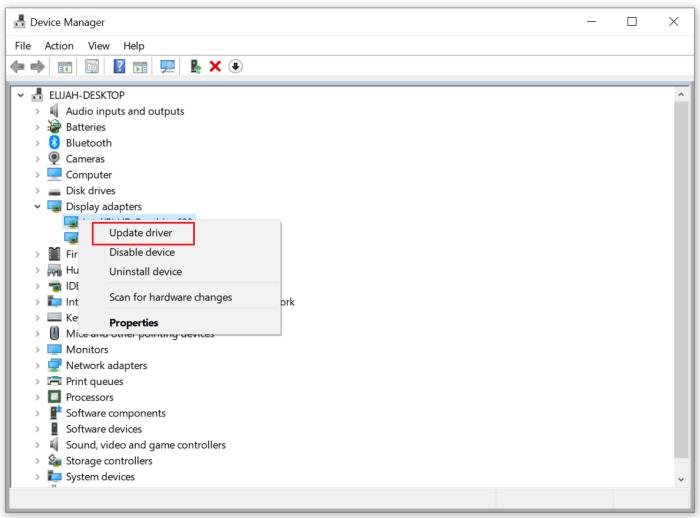
Successfully navigating the complexities of 360-degree video playback requires understanding both the software and hardware involved. By addressing common issues like stuttering and stitching problems, you can unlock the full potential of this exciting technology. This guide has equipped you with the knowledge to troubleshoot these problems effectively, ensuring a consistently smooth and engaging viewing experience for yourself and your audience. Remember to always check your hardware specifications and internet connection for optimal performance.