Seamless cloud storage syncing is crucial for productivity, yet frustrating issues frequently arise. Slow speeds, conflicting files, and cryptic error messages can disrupt workflows and even lead to data loss. This guide tackles three common cloud storage syncing problems, offering practical solutions and preventative strategies to keep your data flowing smoothly and securely.
We’ll explore the root causes behind slow syncing, from network limitations to oversized files. We’ll then delve into the complexities of resolving syncing conflicts, emphasizing the importance of version control and conflict resolution techniques. Finally, we’ll provide a systematic approach to troubleshooting and interpreting error messages, empowering you to confidently navigate any syncing challenges.
Slow or Interrupted Syncing
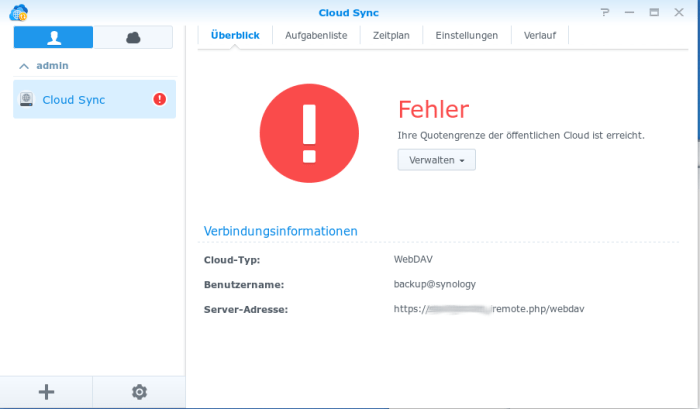
Cloud storage syncing, while convenient, can sometimes be frustratingly slow or prone to interruptions. This can be due to a variety of factors, ranging from network issues to file size and type. Understanding these causes and implementing appropriate solutions can significantly improve your syncing experience.
Causes of Slow Cloud Storage Syncing
Several factors contribute to slow or interrupted syncing. Network connectivity problems, such as low bandwidth or unstable connections, frequently impede the process. Large file sizes and numerous files also significantly increase syncing time. Furthermore, certain file types, particularly those heavily compressed or containing complex data structures, can demand more processing power and thus slow down the sync. Finally, issues with the cloud storage service itself, such as server-side problems or maintenance, can also cause delays.
Resolving Network Connectivity Issues
Network connectivity is paramount for efficient syncing. A weak or intermittent Wi-Fi signal is a common culprit. Try moving closer to your router, or consider using a wired Ethernet connection for a more stable and faster connection. Check your internet speed using online speed tests; if your speeds are significantly lower than your plan, contact your internet service provider. Restarting your router and modem can also resolve temporary network glitches. Additionally, ensure that firewalls or other security software aren’t blocking the cloud storage application’s access to the internet.
Optimizing File Sizes for Improved Syncing
Large files significantly impact syncing speeds. Compressing files before uploading can dramatically reduce their size and improve syncing performance. Tools like 7-Zip or WinRAR can effectively compress various file types. For images, consider using lossy compression techniques (like JPEG) to reduce file size without significant quality loss. For videos, lower resolutions and frame rates can drastically reduce file sizes. Regularly deleting unnecessary files from your local and cloud storage will also keep syncing times manageable.
Troubleshooting Syncing Problems Related to Specific File Types
Certain file types might cause syncing issues due to their complexity or incompatibility. For example, very large databases or video files may take a long time to sync. If you encounter problems with a specific file type, try converting it to a more universally compatible format. For example, converting a RAW image file to JPEG may resolve syncing issues. If the issue persists, check your cloud storage provider’s documentation for supported file types and any known limitations. Sometimes, corrupted files can also prevent syncing; try repairing or replacing the corrupted file.
Cloud Storage Provider Syncing Speed Comparison
| Provider | Typical Upload Speed (Mbps) | Typical Download Speed (Mbps) | Notes |
|---|---|---|---|
| Dropbox | Varies by network conditions | Varies by network conditions | Generally reliable, speed dependent on user’s internet connection. |
| Google Drive | Varies by network conditions | Varies by network conditions | Performance often tied to Google’s infrastructure; generally fast. |
| Microsoft OneDrive | Varies by network conditions | Varies by network conditions | Speed often comparable to Google Drive, integrates well with Windows. |
| iCloud | Varies by network conditions | Varies by network conditions | Best performance on Apple devices, speed may vary on other platforms. |
Syncing Conflicts and Data Loss

Cloud storage syncing, while incredibly convenient, can sometimes lead to frustrating conflicts. These conflicts arise when multiple devices or users make changes to the same file simultaneously, creating different versions. Understanding how to prevent and resolve these conflicts is crucial to maintaining data integrity and avoiding accidental data loss. This section will Artikel common scenarios, prevention strategies, and effective resolution methods.
Preventing Data Loss During Syncing Conflicts
Proactive measures significantly reduce the risk of data loss during syncing conflicts. Regular backups are paramount; maintaining multiple copies of your files on different drives or in a separate cloud service acts as a safety net. Furthermore, understanding your cloud storage provider’s conflict resolution policies is essential. Some services automatically choose a version, while others may present both versions for manual selection. Knowing your provider’s approach allows you to anticipate potential issues and adjust your workflow accordingly. Finally, establishing a clear file-naming convention and regularly reviewing synced files helps in identifying and resolving potential conflicts early.
Common Scenarios Leading to File Conflicts and Their Resolution
Several situations frequently lead to file syncing conflicts. One common scenario involves editing the same document on multiple devices without waiting for the sync to complete. For example, editing a spreadsheet on your laptop, then later making changes on your phone, can lead to a conflict when both versions attempt to sync. Another scenario involves simultaneous edits by multiple users sharing a file. Consider a collaborative document where two individuals edit the same section simultaneously; this will inevitably create a conflict. Resolving these conflicts usually involves comparing the different versions and choosing the correct one, potentially incorporating changes from both. Some cloud storage services provide a visual comparison tool to aid in this process.
The Importance of Version Control in Cloud Storage and Its Utilization
Version control is a critical feature offered by many cloud storage services. It allows you to track changes made to a file over time, preserving previous versions even after modifications. This is invaluable for recovering from accidental deletions or restoring earlier versions if a conflict leads to unwanted changes. Most services automatically retain version history for a specified period, allowing you to revert to previous states. For example, if a conflict results in the loss of important data, you can revert to an earlier, uncorrupted version. Utilizing version control requires minimal effort but offers significant protection against data loss.
Comparing Conflicting File Versions and Selecting the Correct One
When a syncing conflict occurs, most cloud storage providers offer tools to compare conflicting file versions. These tools often display a side-by-side comparison, highlighting the differences between the conflicting versions. This visual representation makes it easier to identify the desired changes and choose the correct version. In some cases, you may need to manually merge the changes from both versions, selecting the relevant sections from each. This process requires careful attention to detail to ensure that no important information is lost. Consider using a text comparison tool if the differences are subtle or difficult to identify visually.
Handling File Conflicts and Resolving Them Effectively
The following flowchart illustrates the process of handling and resolving file conflicts effectively:
[Imagine a flowchart here. The flowchart would begin with “File Syncing Conflict Detected?”. A “Yes” branch would lead to “Compare Conflicting Versions.” From there, a branch would lead to “Choose Correct Version/Merge Changes,” followed by “Save Changes and Confirm.” A “No” branch from the initial question would lead to “Continue Syncing.” Each step would have clear visual indicators like arrows and boxes.]
Syncing Errors and Troubleshooting
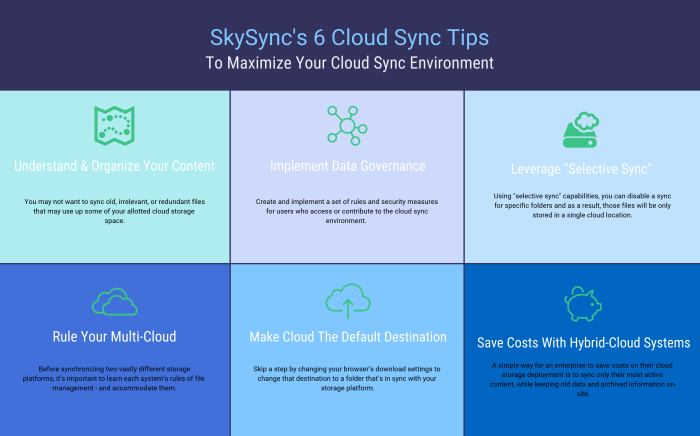
Understanding and resolving syncing errors is crucial for maintaining data integrity and a smooth workflow with cloud storage. Different cloud services employ various error-handling mechanisms, leading to a range of error messages and codes. Successfully navigating these requires a systematic approach combining error interpretation, troubleshooting steps, and effective utilization of provider support resources.
Error messages related to cloud storage syncing vary significantly depending on the provider and the specific issue. Some services utilize numerical error codes, while others provide more descriptive text messages. For example, a “Network Error” might indicate a temporary internet connectivity problem, whereas a “File Conflict” points to simultaneous modifications of the same file. The contrast lies in the level of detail and the ease of understanding; numerical codes often require consulting the provider’s documentation, while descriptive messages provide more immediate insight.
Interpreting Error Codes and Identifying Root Causes
Error codes are often cryptic but represent specific underlying problems. Consider a hypothetical example: Error Code 403 might indicate a “forbidden” access attempt, suggesting authentication issues or insufficient permissions. Conversely, an error code related to file size exceeding limits would point to a storage quota issue. Effective interpretation involves carefully examining the error message (numerical or textual) and cross-referencing it with the provider’s documentation or support pages. Understanding the error’s context (e.g., specific file involved, time of occurrence) further aids in root cause analysis.
Common Syncing Errors and Troubleshooting Steps
A systematic approach to troubleshooting is essential. Below is a list of common syncing errors and their corresponding troubleshooting steps:
- Slow or Interrupted Syncing: Check internet connection stability and speed. Restart the syncing application and/or your computer. Temporarily disable firewalls or antivirus software that might interfere with the syncing process. Consider reducing the number of files or folders being synced simultaneously.
- Syncing Conflicts: Identify conflicting files. Manually review and merge changes, choosing the desired version. Set up a conflict resolution strategy within your cloud storage settings (e.g., always keep the latest version or prioritize specific user edits).
- Data Loss: Verify data backups. Contact the cloud storage provider immediately to report the issue and explore data recovery options. Review your syncing settings to ensure data is properly stored and backed up.
- Authentication Errors: Verify your login credentials. Ensure your password hasn’t expired. Check for any account suspension or temporary lockout issues. Contact the provider’s support for assistance.
- File Corruption Errors: Check file integrity using checksum tools. Attempt to re-upload the file. If the error persists, contact support for potential data recovery options.
Utilizing Cloud Storage Provider Support Resources
Most cloud storage providers offer comprehensive support resources including FAQs, knowledge bases, and direct contact options. Effective utilization involves first consulting FAQs and knowledge bases to find solutions to common issues. If the problem persists, contacting support directly via email, phone, or chat provides a personalized approach. Provide detailed information about the error, including screenshots, error codes, and relevant timestamps. Documenting the troubleshooting steps you’ve already taken is beneficial. For example, Google Drive’s support site offers extensive troubleshooting guides, while Dropbox provides direct chat support for premium users.
Reporting and Resolving Persistent Syncing Errors
A step-by-step guide for resolving persistent syncing errors is crucial.
- Document the error: Note the specific error message, code, and timestamp. Include details about the affected files or folders.
- Attempt basic troubleshooting: Check internet connectivity, restart devices, and temporarily disable firewalls.
- Consult provider’s resources: Check FAQs, knowledge bases, and online forums for similar issues.
- Contact support: Clearly describe the problem, including steps taken and relevant information.
- Follow support’s instructions: Cooperate with support staff and follow their guidance.
- Monitor progress: Track the resolution process and communicate any further issues.
Ultimate Conclusion
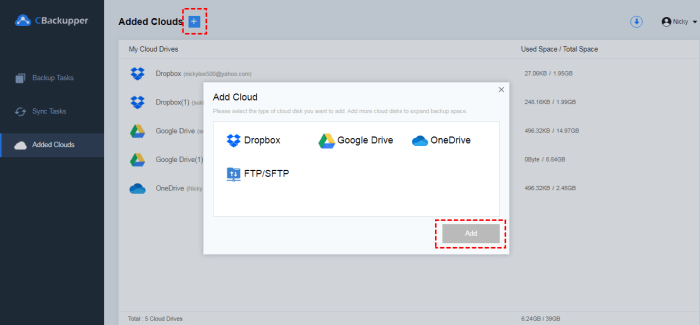
Mastering cloud storage syncing isn’t just about resolving immediate problems; it’s about establishing a proactive approach to data management. By understanding the common pitfalls and implementing the strategies Artikeld in this guide, you can significantly reduce the likelihood of encountering syncing issues and maintain a consistently reliable and efficient workflow. Remember to leverage your cloud provider’s support resources and adopt best practices for file management to ensure a seamless and secure cloud experience.