Frustrated with buffering, black screens, or login problems disrupting your Netflix binge? You’re not alone. Millions experience common Netflix streaming issues, often stemming from simple network glitches, app malfunctions, or account hiccups. This guide provides clear, step-by-step solutions to seven frequently encountered problems, ensuring you can get back to enjoying your favorite shows and movies without interruption.
We’ll cover everything from troubleshooting network connectivity and optimizing your Wi-Fi for seamless streaming to resolving app crashes, account login issues, and payment problems. Whether you’re using a smart TV, smartphone, or game console, this comprehensive guide offers practical advice and easy-to-follow instructions to get your Netflix streaming back on track. Let’s dive in and reclaim your viewing pleasure!
Network Connectivity Problems
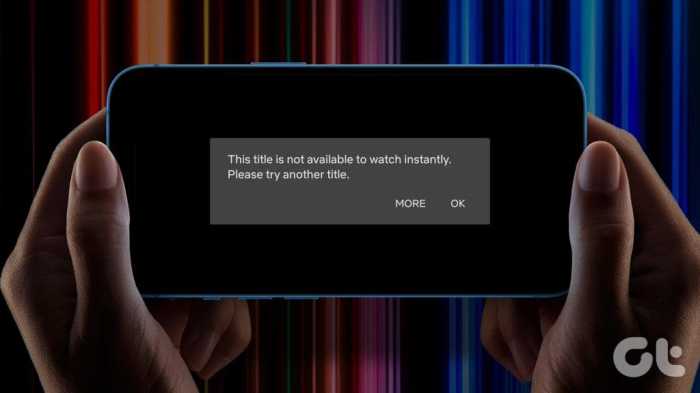
Network connectivity issues are a frequent cause of Netflix streaming problems. A weak or unstable internet connection can lead to buffering, low-resolution video, or complete playback failure. Several factors can contribute to these problems, and understanding these factors is the first step to resolving them.
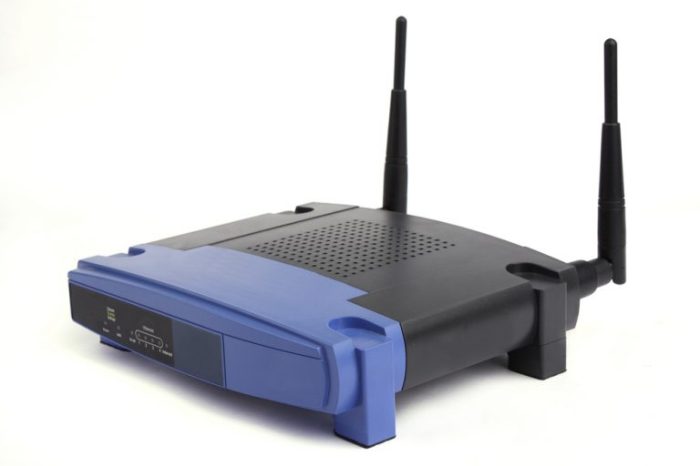
Common causes include insufficient internet bandwidth, router problems, network congestion, Wi-Fi interference, and problems with your modem or internet service provider (ISP). A slow internet connection might be shared across multiple devices, while router issues could stem from outdated firmware or a faulty configuration. Network congestion occurs when too many devices are using the same network simultaneously, while Wi-Fi interference can be caused by other electronic devices operating on the same frequency. Finally, problems with your modem or ISP can result in intermittent or completely absent internet service.
Troubleshooting Network Connectivity Issues
Troubleshooting network problems involves a systematic approach to identify and resolve the root cause. This typically begins with checking your internet connection and then moves to examining your router and network settings.
- Check your internet speed: Use a speed test website (like speedtest.net or fast.com) to measure your download and upload speeds. Compare these speeds to your internet plan’s advertised speed. A significantly slower speed than expected indicates a problem with your internet connection, requiring contact with your ISP.
- Restart your modem and router: Power cycle your modem and router by unplugging them from the power outlet, waiting 30 seconds, plugging the modem back in, waiting for it to fully restart, and then plugging in the router. This often resolves temporary glitches.
- Check your router settings: Access your router’s configuration page (usually through a web browser by typing your router’s IP address into the address bar) to ensure that QoS (Quality of Service) settings are configured to prioritize streaming traffic. You may also want to check for firmware updates.
- Check for network congestion: Identify other devices using your network and temporarily disconnect any non-essential devices to see if streaming performance improves. Consider upgrading to a higher bandwidth internet plan if congestion is a persistent problem.
- Improve Wi-Fi signal strength: Relocate your router to a central location in your home, away from obstructions like walls and large appliances. Consider using a Wi-Fi extender or mesh network system to improve signal coverage in areas with weak reception. You can also change the Wi-Fi channel on your router to reduce interference from neighboring networks.
Wired vs. Wireless Connections for Netflix Streaming
The choice between a wired and wireless connection significantly impacts Netflix streaming quality. Each option presents advantages and disadvantages.
| Connection Type | Speed | Reliability | Setup Difficulty |
|---|---|---|---|
| Wired (Ethernet) | Generally faster and more consistent | More reliable due to less interference | More difficult; requires a cable connection to your device |
| Wireless (Wi-Fi) | Can be slower and less consistent depending on signal strength and interference | Less reliable due to potential interference and signal drops | Easier; no cables required |
App and Device Issues

Experiencing Netflix streaming problems might not always stem from your internet connection. Often, the issue lies within the Netflix app itself or the device you’re using. Outdated apps, corrupted data, or incompatibility between the app and your device’s operating system can all lead to frustrating interruptions in your viewing experience. This section will guide you through troubleshooting common app and device-related Netflix problems.
App malfunctions can manifest in various ways, from unexpected crashes and freezing to persistent loading errors that prevent you from accessing your favorite shows. These issues can occur across a wide range of devices, including smart TVs, smartphones, game consoles, and computers. The solutions, however, often involve similar steps, focusing on updating, resetting, or reinstalling the Netflix app.
Updating the Netflix App
Keeping your Netflix app updated is crucial for optimal performance and access to the latest features and bug fixes. Outdated apps are more prone to glitches and compatibility issues. The update process varies slightly depending on your device’s operating system and app store. Generally, you’ll find an “Update” button or notification within the app store (such as the Google Play Store for Android or the App Store for iOS) or your device’s system settings. For smart TVs, the process often involves navigating to the app store built into the TV’s interface and searching for Netflix. If an update is available, simply select it and follow the on-screen prompts to download and install the latest version.
Troubleshooting App Crashes, Freezing, and Loading Errors
App crashes, freezing, and persistent loading screens are common indicators of underlying problems with the Netflix app. These problems can stem from temporary glitches, corrupted app data, or conflicts with other applications. Before resorting to drastic measures like reinstalling the app, try these troubleshooting steps:
- Force-Stop the App: On most devices, you can force-stop an app through your device’s settings. This closes the app completely, clearing its temporary memory.
- Clear App Cache and Data: Clearing the app’s cache and data removes temporary files and settings that may be causing conflicts. This usually doesn’t delete your Netflix account information or viewing history.
- Restart Your Device: A simple device restart can often resolve minor software glitches that affect the app’s performance.
- Check for Device Software Updates: Outdated operating systems can sometimes conflict with apps, leading to instability. Ensure your device’s software is up-to-date.
If these steps don’t resolve the issue, reinstalling the Netflix app is the next logical step. This will replace any corrupted files and ensure a fresh installation. Remember to sign back into your Netflix account after reinstalling.
Solutions for Common Netflix App Errors
A range of errors can occur within the Netflix app, often accompanied by error codes. While the specific steps might vary slightly depending on the error code, the following general solutions often prove effective:
- Force-stopping the app: This closes the app completely, clearing its temporary memory and potentially resolving minor glitches.
- Clearing the app cache and data: Removing temporary files can resolve conflicts and improve performance. This usually doesn’t affect your account information.
- Reinstalling the app: This replaces any corrupted files and ensures a clean installation. Remember to sign back into your Netflix account afterwards.
- Checking for device software updates: Outdated operating systems can cause compatibility issues. Ensure your device’s software is updated.
- Restarting your device: A simple restart can resolve minor software glitches.
- Checking your internet connection: Although this section focuses on app issues, a poor internet connection can exacerbate app problems. Ensure you have a stable connection.
Account and Payment Problems

Netflix account issues can be frustrating, but most are easily resolved. This section covers common account problems, including login difficulties, billing errors, and profile management challenges, offering straightforward solutions.
Account problems often stem from incorrect login credentials, payment processing errors, or difficulties managing multiple profiles within a single account. Understanding the root cause is key to a quick resolution.
Login Problems
Incorrect passwords are the most frequent cause of login failures. Netflix provides a password reset option through its website or app. Users should navigate to the login page, select “Forgot Password,” enter their registered email address or phone number, and follow the instructions to receive a password reset link. This link will allow them to create a new password, ensuring secure access to their account. If problems persist after a password reset, checking for typos in the email address or phone number is crucial. Contacting Netflix support directly might be necessary in persistent cases.
Billing Errors
Billing errors can range from incorrect payment information to declined transactions. To address these, users should first verify their payment method details within their Netflix account settings. This includes confirming the credit card number, expiration date, and billing address. If the payment method is outdated or incorrect, updating it is essential to resume service. For declined transactions, checking with the bank or card issuer to understand the reason for the decline is crucial. Possible reasons include insufficient funds or a security hold. Netflix’s help center offers additional resources to resolve billing discrepancies.
Profile Access Issues
Managing multiple profiles within a Netflix account can sometimes lead to access problems. Each profile has its own personalized settings, viewing history, and recommendations. If a profile is inaccessible, ensure the account is logged in correctly and the selected profile is the intended one. If a profile is missing, check the account settings for profile management options, allowing for the creation of new profiles or the restoration of existing ones. In the case of parental controls affecting access, reviewing and adjusting these settings can restore access. A visual flowchart below will aid in troubleshooting.
Troubleshooting Account Problems Flowchart
Imagine a flowchart with three main branches: Login Problems, Billing Errors, and Profile Access Issues.
Login Problems Branch:
1. Start
2. Check for typos in email/password
3. Reset Password (via email/phone)
4. If successful, proceed to Netflix. If unsuccessful, contact Netflix support.
5. End
Billing Errors Branch:
1. Start
2. Verify payment information
3. Update payment information if necessary
4. Check with bank/card issuer for declined transactions
5. If resolved, resume service. If unresolved, contact Netflix support.
6. End
Profile Access Issues Branch:
1. Start
2. Verify login and selected profile
3. Check parental controls
4. Manage profiles (add/restore)
5. If resolved, access profile. If unresolved, contact Netflix support.
6. End
Conclusive Thoughts
Successfully navigating the world of Netflix streaming shouldn’t be a cinematic struggle. By understanding the common causes of streaming issues and implementing the troubleshooting steps Artikeld in this guide, you can significantly reduce interruptions and maximize your viewing experience. Remember, a little proactive problem-solving goes a long way in ensuring uninterrupted access to your favorite content. So, grab your remote, and happy streaming!