Stepping into the immersive world of virtual reality often means grappling with the occasional technical hiccup. Frustrating controller issues can quickly derail an otherwise captivating experience. This guide tackles three prevalent problems—drifting, button malfunctions, and connection drops—providing practical solutions to get you back into the game swiftly and efficiently. We’ll explore both software and hardware troubleshooting, ensuring you have the tools to diagnose and resolve these common VR controller frustrations.
From understanding the root causes of inaccurate tracking to mastering the art of re-establishing a lost connection, this comprehensive guide offers clear, step-by-step instructions. We’ll delve into the specifics of each problem, offering a blend of simple fixes and more advanced techniques to suit varying levels of technical expertise. Whether you’re a seasoned VR enthusiast or a curious newcomer, this guide will empower you to overcome these challenges and fully enjoy the immersive potential of your VR setup.
Drifting or Inaccurate Tracking
Experiencing drifting or inaccurate tracking with your VR controllers can significantly detract from the immersive experience. This issue, characterized by the on-screen cursor or in-game representation of your controller not aligning with your actual hand movements, stems from several potential sources. Understanding these causes is the first step towards resolving the problem.
Common causes of VR controller drift include interference from nearby electronic devices, poor sensor placement, obstructions blocking the sensors’ view of the controllers, controller battery issues, and even underlying hardware problems within the controllers themselves. Addressing these issues often involves a combination of software recalibration and hardware troubleshooting.
Recalibrating VR Controllers
Recalibration is often the first and most effective step in resolving drifting issues. The specific steps vary depending on your VR headset and controllers (Oculus, HTC Vive, Valve Index, etc.), but the general process involves resetting the controllers’ positional tracking within the headset’s software.
The process typically involves powering off and on the controllers, sometimes holding specific buttons during startup, and then performing an in-software calibration routine. This routine usually guides you through a series of movements, allowing the headset to re-establish the baseline for your controller’s position and orientation. Consult your VR headset’s user manual or online support documentation for detailed, model-specific instructions. This documentation often includes videos and diagrams to visually guide you through the process.
Troubleshooting Tracking Issues Related to Sensor Placement and Obstructions
Optimal sensor placement is crucial for accurate tracking. Ensure your VR headset’s base stations (if applicable) are positioned strategically to maintain a clear, unobstructed view of your controllers at all times. Ideally, place the sensors high and at a distance from each other, minimizing potential blind spots.
Avoid placing reflective surfaces, such as mirrors or highly polished furniture, near the sensors. These surfaces can interfere with the infrared signals used for tracking. Similarly, obstructions like large objects, people, or even curtains can block the sensors’ line of sight to the controllers, leading to tracking errors. Experiment with sensor placement to find the optimal configuration for your environment.
Comparison of VR Controller Calibration Methods
| Method | Steps | Advantages | Disadvantages |
|---|---|---|---|
| In-Software Calibration | Follow on-screen prompts within the VR headset’s software. | Easy to perform, often resolves minor drift. | May not resolve issues caused by hardware problems. |
| Factory Reset (if available) | Restore controllers to their factory default settings. | Resets all controller settings, may fix software glitches. | Requires re-pairing controllers, loses custom settings. |
| Re-pairing Controllers | Disconnect and reconnect controllers to the headset. | May resolve connection issues affecting tracking. | Can be time-consuming, may not solve drift problems. |
| Manual Sensor Adjustment | Experiment with base station placement and orientation. | Improves tracking accuracy by optimizing sensor coverage. | Requires trial and error, may not be effective in all environments. |
Potential Hardware Problems Causing Drift and Their Identification
While software issues are common, hardware problems can also contribute to controller drift. These can include malfunctioning sensors within the controllers, damaged internal components, or low battery power.
Low battery power can significantly impact tracking accuracy. Ensure your controllers are fully charged before attempting any troubleshooting steps. If drift persists even with a full charge, the problem may lie with the controller’s internal components. Inspect the controllers for any visible damage, such as cracks or loose parts. If you suspect a hardware failure, contacting your VR headset’s manufacturer for support or warranty service is recommended.
Button or Stick Malfunction
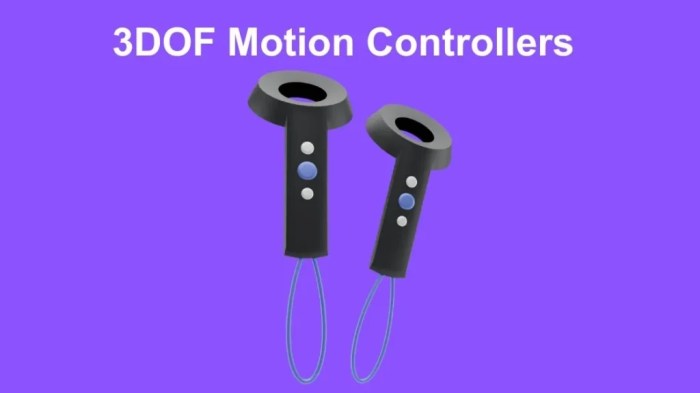
VR controllers, while generally robust, can experience button or joystick malfunctions. These issues can significantly impact your VR experience, rendering gameplay frustrating or even impossible. Understanding the potential causes and troubleshooting steps can help you quickly restore functionality. This section details common causes, diagnostic techniques, and solutions for resolving these problems.
Button or joystick malfunctions stem from a variety of sources, broadly categorized as software or hardware problems. Software issues often manifest as unresponsive buttons or erratic joystick movements, while hardware problems usually involve physical damage or connection failures. Differentiating between these two types is crucial for effective troubleshooting.
Software vs. Hardware Issues
Software-related button problems are often temporary and can be resolved through simple troubleshooting steps. These issues might arise from glitches within the VR software, driver conflicts, or incorrect controller settings. Hardware problems, on the other hand, indicate a physical fault with the controller itself, requiring more involved solutions, potentially including repairs or replacements. A simple test involves checking if the problem persists after restarting your computer and VR software. If the issue persists after a restart, it’s more likely to be hardware-related.
Troubleshooting Flowchart
The following flowchart guides you through diagnosing button or stick malfunctions:
                                    Start
                                      |
                      ------------------------------------
                      |                  |                  |
              Problem with Button?   Problem with Stick?  No Problem?
                      |                  |                  |
                      V                  V                  V
             Is it software?       Is it software?      End
                      |                  |
                      V                  V
     Restart VR & Computer       Restart VR & Computer
                      |                  |
                      V                  V
      Problem Resolved?       Problem Resolved?
                      |                  |
                      V                  V
           Yes: End             Yes: End
                      |                  |
                      V                  V
           No: Hardware Issue    No: Hardware Issue
                      |                  |
                      V                  V
          Check Connections       Check Connections
                      |                  |
                      V                  V
      Problem Resolved?       Problem Resolved?
                      |                  |
                      V                  V
           Yes: End             Yes: End
                      |                  |
                      V                  V
           No: Repair/Replace   No: Repair/Replace
Testing for Faulty Connections and Components
Testing for faulty connections involves visually inspecting the controller’s connection points, both internally (if you’re comfortable opening the device) and externally, where the controller connects to the PC or headset. Look for loose wires, damaged connectors, or any signs of physical stress. For joystick issues, gently move the joystick in all directions; any unusual resistance or looseness suggests a problem.
To test buttons, try pressing each button individually while observing the in-game response. If a button is unresponsive or registering incorrectly, this indicates a potential hardware failure within the button mechanism itself. For example, if a button only registers a press intermittently, the contact points within the button might be dirty or damaged.
Potential Solutions
Here’s a list of potential solutions, progressing from the simplest to the most complex:
- Restart your VR software and computer.
- Check and reseat all cable connections.
- Update your VR software and drivers.
- Try a different USB port.
- Clean the controller’s buttons and joystick with compressed air.
- Calibrate your VR controllers using the in-game or headset settings.
- Contact the manufacturer for warranty repair or replacement.
- Consider professional repair services if you’re comfortable opening the controller and are familiar with electronics repair.
Connection Problems
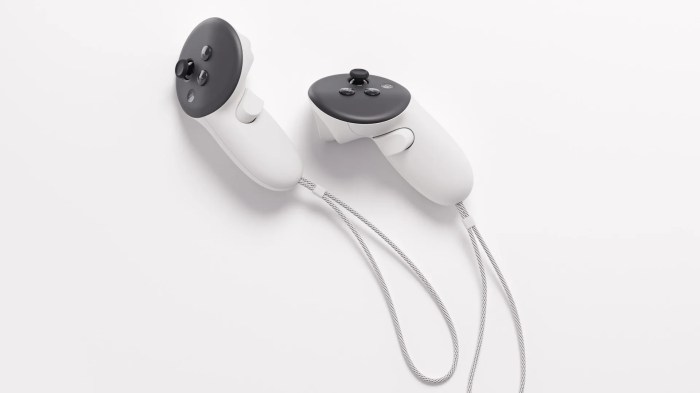
Losing connection with your VR controller is frustrating, interrupting your immersive experience. This section will explore the common causes of connection issues, offering practical solutions to get you back in the game quickly. We’ll cover troubleshooting steps for various connection types and offer tips for improving overall wireless performance.
Connection problems with VR controllers can stem from several sources: a weak Bluetooth signal (for wireless controllers), a faulty USB port or cable (for wired controllers), driver conflicts, software incompatibility, or interference from other devices. These issues can manifest as intermittent disconnections, complete loss of tracking, or unresponsive buttons. Understanding the root cause is crucial for effective troubleshooting.
Identifying Connection Issues
Various factors can lead to controller disconnections. For Bluetooth controllers, distance from the headset, physical obstructions (walls, furniture), and interference from other Bluetooth devices (phones, keyboards) can all weaken the signal, resulting in dropped connections or erratic behavior. With wired controllers, problems might arise from a damaged USB cable, a malfunctioning USB port on your PC, or driver issues. In either case, troubleshooting involves systematically checking each potential source of the problem.
Re-establishing Connection
Re-establishing a connection depends on the type of connection and the nature of the problem. For Bluetooth controllers, attempting to re-pair the controller with the headset is often the first step. This typically involves putting the controller into pairing mode (often indicated by a blinking light) and selecting it from the list of available devices on your headset or PC. For wired controllers, ensuring the USB cable is securely connected to both the controller and the PC is essential. Trying a different USB port or cable can also help rule out hardware faults.
Driver Updates and Software Compatibility
Outdated or corrupted drivers can significantly impact controller performance and connection stability. Checking for and installing the latest drivers from the manufacturer’s website is a crucial step. This ensures that your operating system has the necessary software to correctly communicate with your controller. Similarly, ensuring your VR software (SteamVR, Oculus software, etc.) is up-to-date is vital for optimal compatibility and functionality. Outdated software may not support the latest controller firmware or have known bugs that cause connection issues.
Optimizing Wireless Performance
For wireless controllers, optimizing the wireless environment can significantly reduce connection drops. Minimizing physical obstructions between the controller and the headset is key. Keeping other Bluetooth devices to a minimum in the immediate vicinity can also reduce interference. Additionally, restarting both the headset and the PC can sometimes resolve temporary software glitches that affect connectivity. In some cases, moving closer to the headset’s base station (if applicable) can dramatically improve signal strength.
Troubleshooting Connection Problems
| Problem Type | Possible Cause | Troubleshooting Steps | Additional Notes |
|---|---|---|---|
| Bluetooth Disconnection | Weak signal, interference, distance | Re-pair controller, reduce interference, move closer to headset | Check headset and controller battery levels. |
| Wired Controller Malfunction | Faulty USB cable, bad USB port, driver issues | Try different cable/port, check for driver updates, restart PC | Inspect cable for damage. Try a different USB port (e.g., USB 3.0). |
| Intermittent Disconnections (Wireless) | Software glitches, interference, low battery | Restart headset/PC, check for updates, check battery levels | Consider using a USB extension cable for better signal. |
| No Connection (Wired or Wireless) | Controller power, incorrect pairing, hardware failure | Check controller power, re-pair (wireless), check cables (wired) | If the problem persists, contact the manufacturer. |
Conclusion
Successfully navigating the intricacies of VR controller troubleshooting empowers you to fully immerse yourself in the virtual world. By understanding the common causes of drifting, button malfunctions, and connection problems, and by following the practical solutions Artikeld in this guide, you can minimize downtime and maximize your enjoyment. Remember that proactive maintenance, such as regularly checking for driver updates and ensuring optimal sensor placement, can significantly reduce the likelihood of encountering these issues in the future. So, equip yourself with this knowledge, tackle those frustrating glitches head-on, and get back to exploring the limitless possibilities of virtual reality.