Frustrated with Skype call issues? Dropped calls, audio glitches, and video problems can disrupt communication. This guide tackles three common Skype call challenges: audio failures, video malfunctions, and connection drops. We’ll provide practical, step-by-step solutions to get you back on track with clear, reliable calls.
From checking basic settings to optimizing your network configuration, we’ll explore a range of troubleshooting techniques. Whether you’re a novice or experienced user, this guide offers clear explanations and actionable advice to resolve these frustrating issues and improve your overall Skype experience. We’ll cover everything from simple fixes to more advanced solutions, ensuring you can pinpoint the problem and restore your connection efficiently.
No Audio During Skype Calls

Experiencing audio issues during Skype calls can be frustrating, but thankfully, most problems are easily resolved. This section will guide you through common causes and effective troubleshooting steps to restore clear communication. We’ll cover checking your settings, testing your devices, and adjusting audio levels.
Common Causes of Audio Problems
Several factors can contribute to audio problems during Skype calls. These include incorrect microphone or speaker selection, low or muted audio levels, driver issues, background noise interference, and problems with your internet connection. Additionally, outdated Skype software or conflicts with other applications can also interrupt audio functionality. Addressing these potential issues systematically will help pinpoint the source of the problem.
Troubleshooting Microphone and Speaker Settings
Before diving into advanced troubleshooting, ensure your microphone and speakers are correctly selected within Skype.
- Open Skype and go to Settings (usually a three-dot icon).
- Navigate to Audio & Video.
- Under “Microphone,” select the correct microphone from the dropdown menu. If you have multiple devices, you might see options like “Built-in Microphone,” “USB Headset Microphone,” etc. Choose the one you intend to use for the call.
- Similarly, under “Speakers,” select your preferred speakers. Again, choose from the list of available devices.
- Test your audio using the “Test Speaker” and “Test Microphone” buttons to verify the selected devices are working correctly. These buttons will play a test sound through your speakers and record a short sample from your microphone.
Testing Audio Devices
Testing your audio devices both within Skype and your operating system helps isolate whether the issue is within Skype’s configuration or a broader system problem.
- Skype’s built-in test: As mentioned above, utilize Skype’s “Test Speaker” and “Test Microphone” buttons for an initial check. If these tests fail, the problem likely stems from your audio device settings or the device itself.
- Operating system sound settings: Access your operating system’s sound settings (this varies slightly depending on the operating system, but typically found in System Preferences or Control Panel). Verify that the correct microphone and speakers are selected as default devices. You may also find volume controls for both input and output devices here. Check if the volume is appropriately set (not muted or too low).
- Third-party audio testing tools: Many free audio testing tools are available online. These applications can provide more detailed diagnostics, identifying issues like low input sensitivity or excessive background noise.
Adjusting Audio Input and Output Levels
Optimal sound quality requires correctly balanced input and output levels. Too low, and your voice won’t be heard; too high, and you risk distortion or feedback.
- Within Skype’s Audio & Video settings, look for input and output level sliders (often represented as volume bars). Adjust these sliders to find the sweet spot where your voice is clear and audible without distortion. Start by setting them to a moderate level and adjust as needed.
- Your operating system’s sound settings also offer volume controls. Adjusting these levels can complement Skype’s internal settings. Ensure both the system and Skype volume levels are appropriately set for a balanced audio experience.
Comparison of Troubleshooting Techniques
| Technique | Description | Software/Hardware | Effectiveness |
|---|---|---|---|
| Check Skype Audio Settings | Verify correct microphone and speaker selection within Skype. | Software | High (for simple selection errors) |
| Test Audio Devices (Skype & OS) | Use Skype’s built-in test and check operating system sound settings. | Software | Medium (helps identify device or software issues) |
| Adjust Input/Output Levels | Fine-tune audio levels in Skype and operating system settings. | Software | Medium (improves clarity and prevents distortion) |
| Check Microphone/Speaker Hardware | Inspect for physical damage or loose connections. Try a different microphone or speakers. | Hardware | High (if hardware is faulty) |
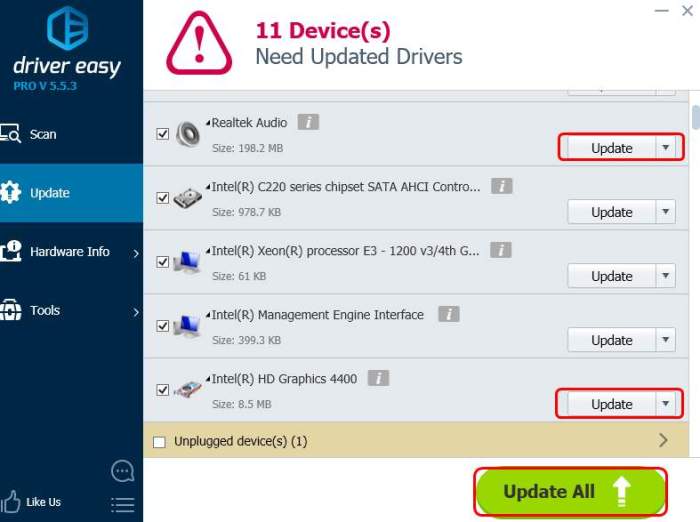
| Update Audio Drivers | Ensure your audio drivers are up-to-date. | Software | Medium (solves driver-related compatibility issues) |
| Restart Computer/Router | A simple restart can resolve temporary software glitches or network problems. | Software/Hardware | Low (but often a first troubleshooting step) |
Video Issues in Skype Calls

Video problems during Skype calls can be frustrating, but often stem from easily fixable issues. This section will explore common causes of video failure and provide troubleshooting steps to restore your video connection. Understanding the potential sources of the problem will help you quickly pinpoint the solution.
Causes of Video Problems in Skype Calls
Several factors can prevent your video from working correctly during a Skype call. These include problems with your webcam’s hardware or software, incorrect Skype settings, network connectivity issues, and driver problems. Insufficient bandwidth can also lead to poor video quality, even if the connection is established. Finally, privacy settings can inadvertently block your webcam’s access to Skype.
Checking Webcam Settings and Permissions
Before troubleshooting network issues, it’s crucial to verify that Skype has permission to access your webcam. This involves checking both the operating system’s privacy settings and Skype’s own settings. In Windows, for example, you would navigate to Privacy settings and ensure that the “Camera” setting allows Skype to use your camera. Similarly, within Skype’s settings, you need to confirm that your webcam is selected as the default video input device. MacOS users can find similar permission settings in System Preferences. Incorrectly configured settings are a frequent cause of video call failures.
Troubleshooting Video Connectivity Problems
If your webcam is correctly configured and you still experience video problems, the issue might lie with your network connection or Skype’s software. First, check your internet connection’s stability and speed. A slow or unstable connection can significantly impact video quality or even prevent a video call from connecting. Restarting your computer and your router can often resolve temporary network glitches. If the problem persists, try updating Skype to its latest version, as updates frequently include bug fixes that address video issues. Consider also testing your webcam with other video applications to isolate whether the problem originates from Skype itself or from the webcam’s functionality.
Common Video Quality Issues and Their Causes
Blurry video or a low frame rate are common video quality issues. Blurry video is often caused by low resolution settings on your webcam or low bandwidth. A low frame rate (the number of images displayed per second) usually indicates insufficient bandwidth or processing power. For example, a 30 frames per second (fps) video will appear smoother than a 15 fps video. Adjusting your webcam’s resolution to a lower setting (e.g., 480p instead of 1080p) or closing unnecessary applications to free up processing power can improve video quality. Ensuring a stable and high-speed internet connection is also critical for optimal video quality.
Troubleshooting Video Problems Flowchart
Imagine a flowchart with the following structure:
Start:
* Is the webcam connected and powered on? Yes -> Proceed; No -> Check connections and power.
* Does Skype have permission to access the webcam? Yes -> Proceed; No -> Adjust privacy settings.
* Is the webcam selected as the default video input device in Skype settings? Yes -> Proceed; No -> Change the default video input device.
* Is your internet connection stable and fast enough? Yes -> Proceed; No -> Troubleshoot internet connection.
* Is Skype up-to-date? Yes -> Proceed; No -> Update Skype.
* Is the problem isolated to Skype or present in other video applications? Isolated to Skype -> Try reinstalling Skype; Present in other apps -> Check webcam hardware/drivers.
End: Problem solved or further troubleshooting required.
Connection Problems and Call Drops
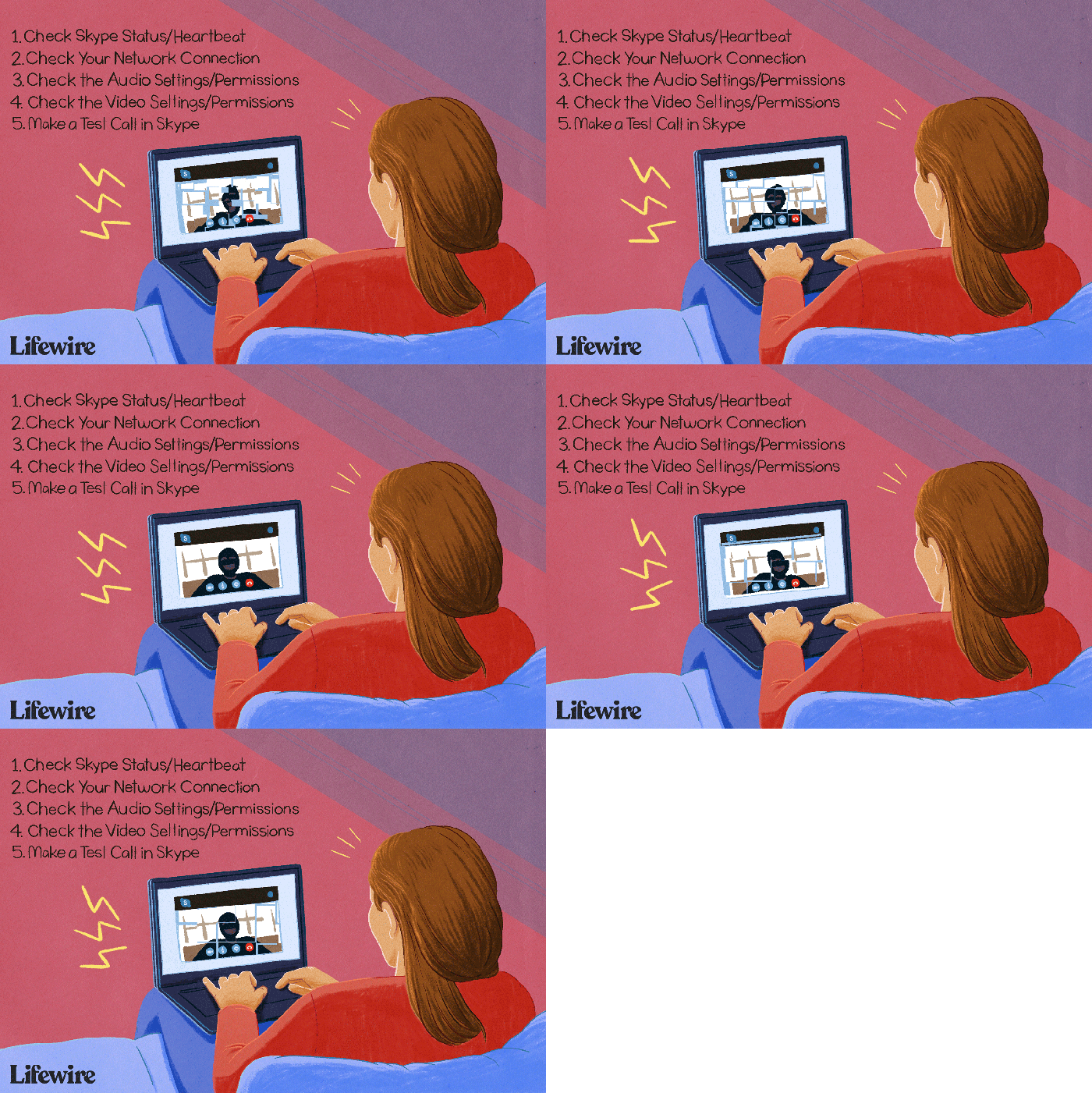
Unstable internet connections are a frequent culprit behind frustrating Skype call experiences. Dropped calls and choppy audio are major disruptions, impacting communication and productivity. Understanding the relationship between your network configuration and Skype’s performance is key to resolving these issues. This section will explore various network setups, optimization techniques, and troubleshooting steps to ensure smoother, more reliable Skype calls.
Network configurations significantly influence Skype call quality. A wired connection, using an Ethernet cable directly to your router, generally provides the most stable and consistent performance due to its higher bandwidth and lower latency compared to Wi-Fi. Wi-Fi, while convenient, is susceptible to interference from other devices and physical obstructions, leading to intermittent connectivity and dropped calls. Mobile data networks, often used on smartphones or tablets, can offer varying levels of stability depending on signal strength and network congestion. Stronger signals generally translate to better call quality, while congested networks can result in dropped calls or significant latency.
Network Settings Optimization for Skype
Optimizing your network settings can dramatically improve Skype call stability. Prioritize a wired connection whenever possible. If Wi-Fi is necessary, position your router centrally in your home to minimize signal interference and ensure a strong signal strength. Consider upgrading to a dual-band (2.4GHz and 5GHz) router, as the 5GHz band generally offers less congestion and faster speeds. Also, adjust your router’s Quality of Service (QoS) settings to prioritize Skype traffic. This ensures that Skype receives sufficient bandwidth even when other applications are consuming network resources. Finally, regularly update your router’s firmware to benefit from bug fixes and performance enhancements.
Improving Internet Speed and Bandwidth
Sufficient internet speed and bandwidth are crucial for high-quality Skype calls. Consider upgrading your internet plan if your current speed is insufficient. Running speed tests using online tools like Ookla’s Speedtest.net can help determine your actual download and upload speeds. For optimal performance, aim for a minimum upload speed of 1.5 Mbps for voice calls and higher speeds for video calls. Minimize bandwidth-intensive activities like streaming videos or downloading large files during Skype calls to free up resources for the call. Additionally, consider closing unnecessary applications running in the background that might consume bandwidth.
Identifying and Resolving Network Issues
Troubleshooting network-related issues requires a systematic approach. Start by checking your internet connection. If you have a wired connection, ensure the Ethernet cable is securely connected to both your computer and the router. For Wi-Fi, check the signal strength indicator on your device and try moving closer to the router. Restart your router and modem; this often resolves temporary glitches. If problems persist, check for network interference from other devices like microwaves or cordless phones, which operate on frequencies that can overlap with Wi-Fi. Contact your internet service provider if the problem persists after trying these steps. They can perform diagnostic tests to identify and resolve any issues on their end.
Solutions for Unstable Connections
Several steps can help address unstable connections. Restarting your computer and router is a simple yet effective first step. This clears temporary files and resets network configurations. Check for any physical obstructions between your device and the router that might be interfering with the Wi-Fi signal. Consider temporarily disabling other network-intensive applications to free up bandwidth for Skype. If you use a VPN, try temporarily disconnecting to see if it improves the connection. If the issue persists, consider contacting your internet service provider for assistance. They might be able to identify and resolve problems with your internet connection or offer troubleshooting advice.
Outcome Summary
Successfully navigating Skype’s occasional technical hurdles empowers you to maintain seamless communication. By understanding the common causes of audio, video, and connection problems, and by applying the troubleshooting steps Artikeld, you can significantly reduce call disruptions. Remember to regularly check your settings, optimize your network, and utilize the diagnostic tools available within Skype for proactive maintenance. Enjoy clearer, more reliable calls!