Frustrated by unexpected game crashes? It’s a common problem with various causes, ranging from insufficient system resources to corrupted files and problematic drivers. This guide will walk you through troubleshooting three prevalent culprits behind these frustrating interruptions, equipping you with the knowledge and steps to regain smooth gameplay.
We’ll explore how insufficient RAM, CPU, or VRAM can lead to crashes, how to identify and repair corrupted game files across different platforms, and how to address driver issues and software conflicts that hinder game performance. By following the practical advice and troubleshooting steps Artikeld here, you can significantly improve your gaming experience and minimize those frustrating game crashes.
Corrupted Game Files
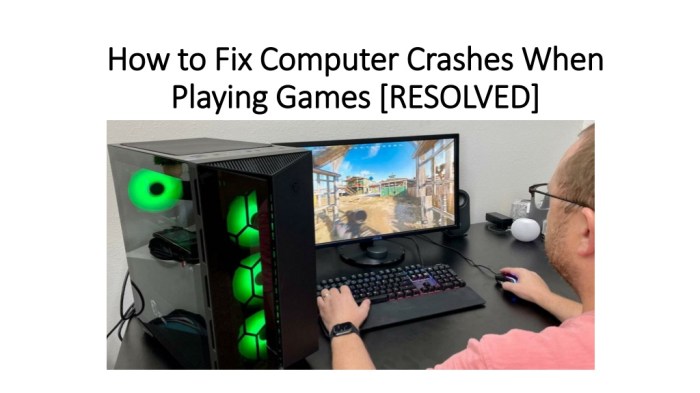
Game crashes can often stem from corrupted game files. These files, essential for the game’s smooth operation, can become damaged in several ways, leading to frustrating interruptions in gameplay. Understanding how corruption occurs and how to address it is crucial for maintaining a stable gaming experience.
Game file corruption can arise from various sources. Incomplete downloads, where the transfer process is interrupted before all necessary files are received, often leave files incomplete or damaged. Faulty installations, perhaps due to insufficient disk space, system errors, or interruptions during the installation process, can result in corrupted game data. Malware, malicious software designed to damage or disrupt systems, can also corrupt game files, leading to instability and crashes. Finally, even seemingly minor hardware issues, like failing hard drives or unstable power supplies, can contribute to data corruption.
Verifying Game File Integrity
Game launchers and platforms frequently provide built-in tools to verify the integrity of your game files. Steam, for example, allows you to right-click on the game in your library, select “Properties,” then navigate to the “Local Files” tab. There, you’ll find a button to “Verify Integrity of Game Files.” This process compares your installed files against the game’s original files, automatically replacing any corrupted or missing files. Similar functionality is usually available on platforms like the Epic Games Store and GOG Galaxy. This is a quick and efficient first step in troubleshooting crashes.
Reinstalling the Game
If verifying file integrity doesn’t resolve the issue, reinstalling the game is the next logical step. A clean installation ensures that no corrupted files remain from the previous installation. Before beginning, it’s important to completely uninstall the game. This typically involves going through your system’s application manager or control panel and selecting the game for removal. Then, it’s essential to delete any remaining game folders manually. These are often located in the “Program Files” directory or a user-specific “Documents” or “AppData” folder. Once the game and all associated files are completely removed, download and install a fresh copy of the game from your preferred platform. This thorough process minimizes the chance of carrying over corrupted files.
Using Game Repair Tools
Some games come with their own built-in repair tools, or third-party utilities may be available. These tools can automatically scan and attempt to repair corrupted game files. While potentially beneficial, these tools aren’t always foolproof. They might not detect all forms of corruption, and in some cases, they can even introduce new problems. It’s crucial to weigh the potential benefits against the risks before using such tools. Always back up your game files before using any repair utility.
Backing Up Game Files
Creating a backup of your game files before attempting any repairs or reinstallation is a crucial preventative measure. This allows you to revert to a working state if something goes wrong during the repair or reinstall process. The simplest method is to copy the entire game folder to an external drive or cloud storage service. This way, if your game files become irreparably damaged, you can restore them from the backup, saving you time and frustration. Remember to perform a backup before any significant modification to your game installation.
Driver Issues and Software Conflicts
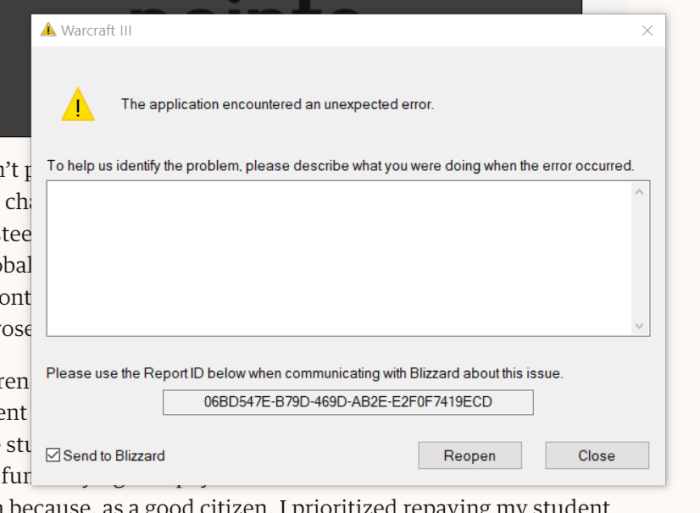
Game crashes can often stem from problems with your system’s drivers or conflicts between different software applications. Outdated, corrupted, or conflicting graphics drivers are particularly common culprits, leading to visual glitches, instability, and ultimately, crashes. Similarly, background processes or other software can interfere with a game’s resources, resulting in unexpected shutdowns. Addressing these issues can significantly improve game stability.
Outdated or corrupted graphics drivers are a frequent cause of game crashes. These drivers act as the intermediary between your game and your graphics hardware (GPU). If they are outdated, they may lack the necessary optimizations or bug fixes for your specific game, leading to instability. Corrupted drivers, often resulting from incomplete installations or system errors, can also cause crashes and other performance problems. Conflicting drivers, where multiple drivers for the same hardware are installed, can create serious system instability.
Graphics Driver Updates
Updating your graphics drivers to the latest versions is crucial for maintaining game stability and performance. The process varies slightly depending on your graphics card manufacturer (Nvidia, AMD, or Intel). Generally, you should visit the manufacturer’s website, identify your specific graphics card model, and download the latest driver package for your operating system. After downloading, run the installer, following the on-screen instructions. It’s important to restart your computer after the installation is complete to ensure the changes take effect. Regularly checking for driver updates is recommended, as manufacturers frequently release updates to address bugs and improve performance.
Software Conflicts and Troubleshooting
Conflicts between game software and other applications or background processes can severely impact game performance and lead to crashes. Resource contention, where multiple programs compete for the same system resources (CPU, RAM, etc.), is a common cause. For example, a resource-intensive video editing program running in the background might deprive a game of sufficient resources, resulting in a crash. Similarly, conflicting software, such as security software or overlays, might interfere with the game’s execution.
Common Software Conflicts and Solutions
Several types of software can conflict with games. Below is a list of common culprits and potential solutions:
Understanding the potential for software conflicts is key to improving game stability. Addressing these conflicts can often resolve crashes and enhance overall gaming experience.
- Antivirus/Security Software: Some security software can interfere with game executables, leading to crashes. Try temporarily disabling your antivirus during gameplay to see if this resolves the issue. If it does, consider adding the game’s executable to your antivirus’s exception list.
- Overlays: Game overlays from platforms like Discord, Steam, or GeForce Experience can sometimes cause conflicts. Disabling these overlays during gameplay can help prevent crashes.
- Background Applications: Resource-intensive applications running in the background (e.g., video editors, streaming software) can compete with your game for system resources. Closing unnecessary background applications before launching a game can improve stability.
Managing Startup Programs and Services
Many programs and services automatically start when your computer boots up. Some of these can consume significant system resources, impacting game performance and potentially causing crashes. Managing these startup items can improve overall system stability.
Effectively managing startup programs and services can free up valuable system resources, leading to smoother gameplay and reduced instances of game crashes.
- Access Task Manager (Windows): Press Ctrl+Shift+Esc to open Task Manager. Navigate to the “Startup” tab.
- Review Startup Programs: Examine the list of startup programs and their impact on startup. Programs with a high startup impact can consume significant resources.
- Disable Unnecessary Programs: Disable programs you don’t need to start automatically. This will reduce the load on your system at startup.
- Access Services (Windows): Search for “services” in the Windows search bar and open the Services application. This displays a list of Windows services.
- Review Services: Carefully review the list of services. Many services are crucial for system operation, so disabling them without proper understanding can cause issues.
- Disable Non-Essential Services (Caution): Only disable services you are confident are not essential. Incorrectly disabling services can lead to system instability.
Final Wrap-Up
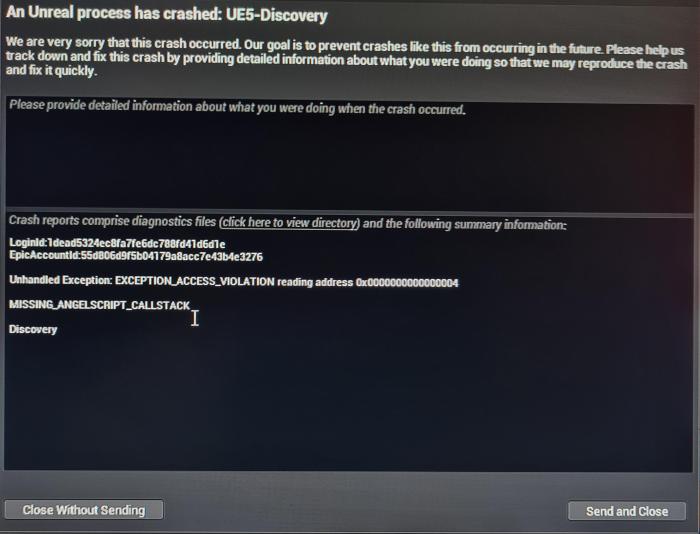
Successfully navigating the world of game crashes requires a systematic approach, addressing potential issues from hardware limitations to software conflicts. By understanding the common causes—insufficient system resources, corrupted game files, and driver problems—and implementing the troubleshooting techniques Artikeld in this guide, you can effectively resolve most game crashes and enjoy uninterrupted gameplay. Remember to regularly update your drivers and maintain a clean system for optimal performance.