Frustrated with your smartphone dying before the day is done? We all experience the anxiety of a low battery, disrupting our workflow and social connections. This guide offers practical, actionable steps to significantly improve your phone’s battery life, transforming your daily digital experience. Learn how simple adjustments to your settings and usage habits can dramatically extend the time between charges.
We’ll explore the key power consumers on your phone, from apps and features to your personal usage patterns. By understanding these factors, you’ll gain the knowledge and tools to optimize your device for maximum battery efficiency. This isn’t about sacrificing functionality; it’s about making informed choices to get the most from your smartphone.
Understanding Your Phone’s Power Consumption
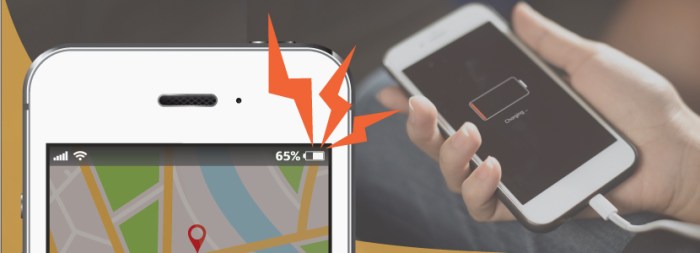
Smartphone battery life is influenced by a complex interplay of factors, making it crucial to understand how your phone uses power to effectively extend its lifespan. Many apps and features quietly drain your battery in the background, often without your immediate awareness. This section will explore the key contributors to battery drain and provide practical methods for identifying the culprits.
Several factors contribute to smartphone battery drain. The most significant are screen brightness and usage time, background app activity, location services (GPS, Wi-Fi, Bluetooth), network connectivity (cellular data, Wi-Fi), processing power demands (gaming, video streaming), and the phone’s overall age and battery health. Even seemingly minor actions, like constantly checking notifications or leaving apps running unnecessarily, can cumulatively impact battery life.
Typical Power-Consuming Apps and Features
High-performance apps such as games, video streaming services (Netflix, YouTube), and navigation apps (Google Maps, Waze) are notorious battery drainers. These applications demand significant processing power and often utilize GPS and cellular data, resulting in increased power consumption. Additionally, apps that constantly sync data in the background, such as email clients, social media apps, and news aggregators, contribute to battery drain even when not actively used. Location services, while convenient, are particularly power-hungry, as they require constant GPS or Wi-Fi scanning. High screen brightness levels also consume considerable battery power.
Identifying Battery-Hogging Apps
Most smartphones provide built-in tools to monitor battery usage. These tools typically show a list of apps, ranked by their battery consumption over a specified period (e.g., last 24 hours, last 7 days). This allows users to easily identify apps that are excessively draining the battery. For example, on Android devices, you can usually find this information in the “Battery” section of the phone’s settings. Apple devices provide similar information in the “Battery” section of the Settings app. By analyzing this data, users can proactively manage their app usage and limit the impact of battery-intensive applications.
Screen Brightness and Power Consumption
Screen brightness is a major factor influencing battery life. A brighter screen requires more power to illuminate the display. The following table illustrates the comparative power consumption at different brightness levels. Note that the actual values will vary depending on the phone model and screen technology.
| App | Usage Time (minutes) | Battery Percentage Used | Power Consumption Level (Low/Medium/High) |
|---|---|---|---|
| Social Media App (e.g., Instagram) | 30 | 5% | Low |
| Video Streaming (e.g., YouTube) | 60 | 20% | High |
| Mobile Game (e.g., High-end RPG) | 45 | 15% | Medium |
| Navigation App (e.g., Google Maps) | 90 | 25% | High |
Optimizing Settings and Features
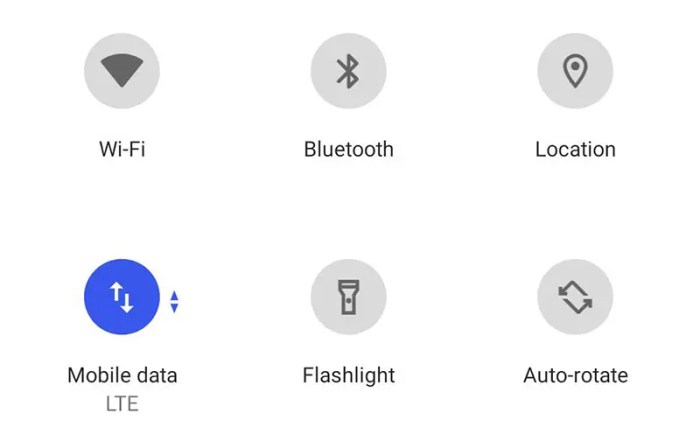
Your smartphone’s settings and features significantly impact its battery life. By making a few adjustments, you can dramatically extend the time between charges. This section details how to optimize various settings to conserve power efficiently. Understanding these settings allows for a more personalized approach to battery management, tailored to your individual usage patterns.
Location Services Impact
Location services, while convenient for navigation and location-based apps, consume considerable battery power. Constantly transmitting your location uses significant energy. Disabling location services for apps that don’t require it, or choosing “Battery Saving” mode within the location settings, can noticeably improve battery life. For instance, if you only use your maps app occasionally, keeping location services constantly on is unnecessary power drain.
Background App Activity Management
Many apps continue running in the background, even when not actively used. This background activity consumes battery power, often unnoticed. Limiting background activity for less critical apps reduces this drain. Most smartphone operating systems offer settings to control background app activity, allowing you to restrict or completely disable it for specific applications. This is particularly effective for apps that frequently update or sync data. For example, disabling background data for social media apps when not actively using them can significantly improve battery life.
Data Usage Optimization
Excessive data usage, especially over mobile networks, significantly impacts battery life. Switching to Wi-Fi whenever possible reduces battery consumption. Limiting background data usage for apps, as mentioned previously, also helps. Consider setting data limits for individual apps to prevent uncontrolled data consumption and subsequent battery drain. For example, restricting video streaming apps to Wi-Fi only prevents significant battery drain from high-bandwidth activities over cellular data.
Screen Brightness, Timeout, and Vibration Adjustments
Your screen is a major battery consumer. Lowering screen brightness reduces power consumption significantly. Similarly, shortening screen timeout settings (the time before the screen automatically turns off) and disabling vibration feedback for notifications and key presses can also save battery. A simple adjustment to 50% brightness from 100% can extend your battery life by several hours, depending on usage. Similarly, reducing the screen timeout from 30 seconds to 15 seconds is a simple but effective power saving measure.
Enabling Low-Power Mode or Battery Saver
Most smartphones offer a low-power mode or battery saver option. Activating this mode typically limits background app activity, reduces screen brightness, and disables certain features to extend battery life. This mode is especially useful when your battery is low. Enabling this mode usually involves navigating to your phone’s settings menu, then finding the battery section where the option is clearly labeled.
Screen Refresh Rate Comparison
Higher screen refresh rates provide smoother visuals but consume more power. Lower refresh rates conserve battery. The impact varies depending on the phone and the refresh rate difference.
| Setting | Default Value | Optimized Value | Estimated Battery Life Improvement |
|---|---|---|---|
| Screen Refresh Rate | 120Hz | 60Hz | 15-25% |
| Adaptive Brightness | On | Off (Manual Adjustment) | 5-10% |
| Screen Timeout | 30 seconds | 15 seconds | 5-10% |
| Always-On Display | On | Off | 10-15% |
Practical Usage Habits for Longer Battery Life
Smartphones are ubiquitous, but their battery life often falls short of our demands. Understanding and modifying our usage habits is crucial for extending battery life significantly. By making conscious changes to how we interact with our phones, we can dramatically improve their performance and reduce the frequency of charging.
Many common behaviors unknowingly drain our phone’s battery at an alarming rate. Excessive screen brightness, running multiple demanding apps simultaneously, and constantly checking notifications are prime culprits. Fortunately, implementing simple strategies can mitigate these issues and lead to noticeably longer battery life.
Reducing Screen-On Time and Minimizing Unnecessary App Usage
Excessive screen-on time is a major battery drain. High screen brightness contributes significantly to power consumption. Dimming the screen or using an adaptive brightness feature, which adjusts automatically based on ambient light, can save a considerable amount of battery. Additionally, minimizing the use of power-hungry apps, such as games or video streaming services, when not connected to a power source, can also extend battery life. Closing unused apps running in the background further reduces power consumption.
Managing Notifications and Minimizing Background Data Consumption
Constant notifications from various apps are a significant drain on battery life. Disabling unnecessary notifications or choosing to receive only important alerts can conserve significant energy. Many apps continuously use background data, even when not actively in use. Limiting background data for non-essential apps can significantly reduce battery drain. This can be done by adjusting app permissions within the phone’s settings.
Optimizing Charging Habits to Maximize Battery Lifespan
Proper charging habits significantly impact battery health and lifespan.
- Avoid extreme temperatures: Charging your phone in direct sunlight or in extremely cold environments can damage the battery and reduce its lifespan. Ideally, charge your phone in a room-temperature environment.
- Avoid fully depleting the battery: Completely draining the battery before recharging is detrimental to its long-term health. Aim to keep the battery charge between 20% and 80%. This reduces the number of full charge-discharge cycles, which are the primary factor in battery degradation. For example, consistently charging your phone between 20% and 80% will significantly extend the life of your battery compared to frequently letting it drop to 0%.
- Use the original charger or a reputable alternative: Using a non-certified charger can damage your battery and cause it to degrade faster. Using the charger that came with your phone, or a reputable third-party charger with the correct amperage and voltage, will help prevent this.
- Avoid using fast charging constantly: While convenient, frequent use of fast charging can generate heat and stress the battery, leading to faster degradation. Opt for regular charging whenever possible.
Conclusive Thoughts

Extending your smartphone’s battery life is not a complex undertaking. By implementing the strategies Artikeld above – from optimizing settings and understanding power consumption to adopting mindful usage habits – you can significantly increase the time between charges. Remember, small changes can make a big difference. Take control of your battery life and enjoy uninterrupted connectivity throughout your day.