Frustrated with a laptop battery that refuses to charge or drains too quickly? You’re not alone. Many laptop users encounter these frustrating issues, often impacting productivity and convenience. This guide tackles two prevalent problems: batteries failing to charge and batteries depleting unexpectedly fast. We’ll explore common causes, offer practical troubleshooting steps, and provide preventative measures to keep your laptop powered up and running smoothly.
By understanding the underlying reasons for these battery woes, from faulty power adapters to demanding software, you can regain control over your laptop’s power and extend its lifespan. We’ll cover everything from simple checks to more advanced solutions, empowering you to diagnose and resolve these issues efficiently.
Laptop Battery Not Charging
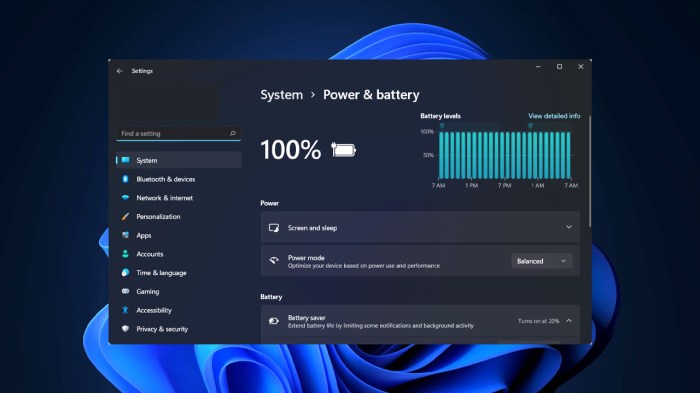
A laptop battery that refuses to charge can be incredibly frustrating, disrupting workflow and leaving you scrambling for a power outlet. This section will explore the common causes of this issue and provide a practical guide to troubleshooting the problem. Understanding the potential culprits and following a systematic approach can often resolve the issue quickly.
Causes of Laptop Battery Charging Failure
Several factors can prevent your laptop battery from charging. These range from simple issues like a faulty power adapter to more complex problems within the laptop itself. Common causes include a malfunctioning power adapter, a problem with the laptop’s charging port, a faulty battery, software glitches, or even a damaged power outlet. Identifying the source of the problem is the key to finding a solution.
Troubleshooting Steps for a Laptop That Won’t Charge
Before resorting to more drastic measures, let’s systematically troubleshoot the charging issue.
- Check the Power Adapter: Carefully inspect the power adapter for any visible damage, such as frayed wires, cracks in the casing, or loose connections. Try a different power outlet to rule out a problem with the wall socket. If possible, test the adapter with another compatible laptop to determine if the adapter itself is faulty. A visual inspection and a simple test on a known working device will quickly reveal if the adapter is at fault.
- Examine the Power Outlet: Test the power outlet with another device (like a phone charger) to ensure it’s functioning correctly. A simple test with another device is a quick and easy way to determine whether the problem lies with the outlet or the laptop. A blown fuse or a tripped circuit breaker can also prevent power from reaching the outlet.
- Inspect the Laptop Charging Port: Check the laptop’s charging port for any debris, damage, or bent pins. Gently remove any visible debris using compressed air or a soft brush. A careful visual inspection of the port is crucial, as even minor damage can disrupt charging. If there’s any visible damage, professional repair may be necessary.
- Restart Your Laptop: Sometimes, a simple restart can resolve temporary software glitches that might be interfering with the charging process. A quick reboot can often resolve minor software issues that may be preventing the laptop from charging correctly.
- Check Battery Settings (if applicable): Some laptops have power management settings that might inadvertently prevent the battery from charging. Access your laptop’s power settings and ensure that the battery is configured to charge. Consult your laptop’s manual for specific instructions on accessing and modifying these settings.
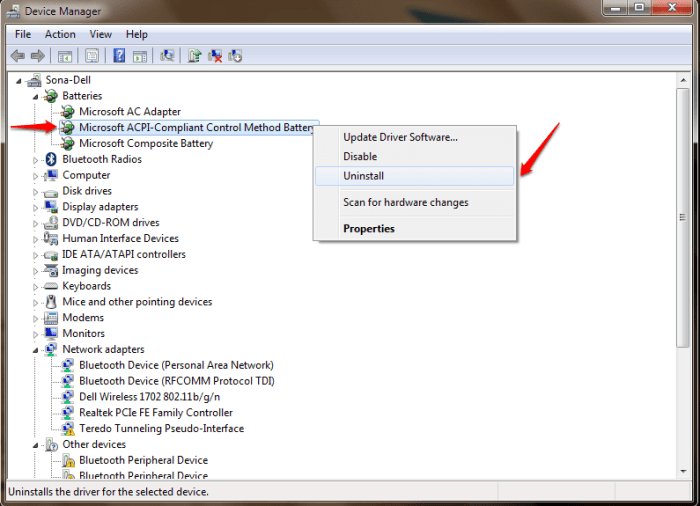
- Update or Reinstall Drivers: Outdated or corrupted drivers can sometimes interfere with battery charging. Check your laptop manufacturer’s website for the latest drivers and install them. Updating drivers is a straightforward process that can often resolve charging issues stemming from software problems.
Preventing Future Charging Issues
Regular maintenance can significantly reduce the likelihood of future charging problems. Avoid leaving your laptop plugged in constantly once it’s fully charged, as this can degrade the battery over time. Keep the charging port clean and free from debris. Handle the power adapter carefully to prevent damage to the cable or connector. Regularly checking your laptop’s power settings and keeping your drivers updated will help maintain optimal battery health and charging performance.
Comparison of Laptop Power Adapters
| Adapter Type | Voltage (V) | Amperage (A) | Compatibility |
|---|---|---|---|
| Type-C USB Power Delivery | 20 | 3-5 | Many modern laptops |
| Barrel Connector (various sizes) | 19 | 2-4.5 | Many older laptops |
| Proprietary Connector | Variable | Variable | Specific laptop models |
| MagSafe (Apple) | Variable | Variable | Older Apple MacBook models |
Laptop Battery Draining Too Quickly
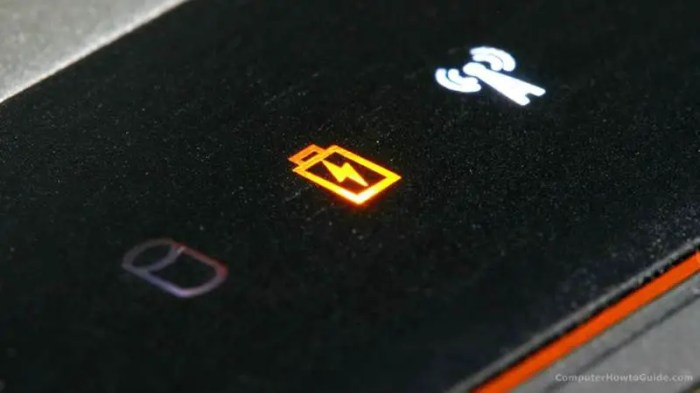
Experiencing a rapidly depleting laptop battery can be frustrating. Understanding the contributing factors and implementing effective solutions can significantly extend your battery’s lifespan and improve your overall computing experience. This section will explore common causes of rapid battery drain and provide practical steps to address them.
Rapid battery drain is often a result of a combination of factors, rather than a single culprit. High screen brightness, numerous running applications consuming system resources, and underlying hardware issues can all contribute to reduced battery life. Even seemingly minor issues can cumulatively impact performance.
Factors Contributing to Rapid Battery Drain
Several factors contribute to a laptop battery draining faster than expected. These include excessive screen brightness, resource-intensive background applications, and potential hardware problems. For example, a consistently bright screen consumes a significant amount of power, whereas numerous applications running simultaneously, particularly those utilizing the processor and graphics card, increase energy consumption. Hardware issues, such as a failing battery or a malfunctioning power management chip, can also lead to significantly shorter battery life.
Practical Steps to Improve Laptop Battery Life
Optimizing your laptop’s power settings and managing applications are crucial for extending battery life. Adjusting your screen brightness to a comfortable yet energy-efficient level is a simple yet effective first step. Closing unnecessary applications, especially those running in the background, will also reduce power consumption. Consider using power-saving modes, which typically limit background processes and reduce screen brightness, thereby extending battery life at the cost of some performance. Regularly uninstalling unused programs can also free up system resources and improve battery performance.
Benefits of Using Power Saving Modes
Power saving modes offer a significant advantage in extending battery life. These modes typically reduce processor speed, limit background processes, and dim the screen, all contributing to reduced energy consumption. While this may result in slightly slower performance, the extended battery life often outweighs this minor inconvenience, especially when working on the go or in situations where access to a power outlet is limited. For example, a laptop with a typical battery life of 4 hours might see an increase to 6 hours in power saving mode, significantly increasing productivity during extended periods away from a power source.
Software Tools for Battery Usage Monitoring and Management
Several software tools are available to monitor and manage battery usage. These tools provide detailed information about power consumption by individual applications and system components, allowing for more targeted optimization efforts.
- BatteryBar: This tool provides a detailed breakdown of battery usage, allowing users to identify power-hungry applications.
- Powercfg (Windows): This built-in Windows command-line tool offers comprehensive battery usage reports and allows for the customization of power plans.
- CoconutBattery (macOS): This macOS utility provides detailed information about the health and usage of the laptop’s battery.
These tools can help users identify and address specific issues contributing to rapid battery drain, leading to improved battery life and overall system performance.
Battery Health and Calibration
Maintaining your laptop battery’s health is crucial for extending its lifespan and ensuring optimal performance. Neglecting proper care can lead to premature degradation and reduced battery capacity, requiring a costly replacement sooner than expected. Understanding your battery’s health and periodically calibrating it are key steps in proactive battery maintenance.
Proper battery care involves avoiding extreme temperatures, ensuring proper ventilation around the laptop, and regularly monitoring its charge level. Avoid consistently letting the battery drain completely or remain at 100% charge for extended periods. Aim for a charge range between 20% and 80% for optimal long-term health.
Battery Health Assessment Methods
Determining your battery’s health involves using both built-in tools and third-party software. Most modern operating systems (Windows and macOS) offer built-in utilities that provide information on battery capacity, charge cycles, and overall health. These utilities typically display a percentage representing the battery’s current capacity relative to its original capacity. Third-party software applications can offer more detailed information, including individual cell health and potential issues. However, always ensure that you download such software from reputable sources to avoid malware.
Interpreting Battery Health Reports
Battery health reports typically include several key metrics. The most important is the “design capacity,” which represents the maximum charge the battery could hold when it was new. The “full charge capacity” shows the current maximum charge the battery can hold. A significant difference between these two values indicates battery degradation. The “cycle count” indicates how many times the battery has been fully charged and discharged. A higher cycle count generally correlates with more wear and tear. Other metrics may include the current battery health percentage and temperature readings, which can further assist in assessing the battery’s condition. A healthy battery will show a full charge capacity close to its design capacity, a reasonable cycle count, and normal operating temperature.
Battery Calibration Procedures
Battery calibration helps improve the accuracy of the battery meter by aligning the reported charge level with the actual charge level. This is particularly helpful if the battery meter shows inaccurate readings or the laptop unexpectedly shuts down before reaching the reported low-battery threshold. The process generally involves fully discharging the battery, followed by a full charge without interruption. Specific steps vary slightly depending on the operating system and laptop model. However, the core principle remains consistent: completely deplete the battery’s power, then fully recharge it without using the laptop. This allows the operating system to recalibrate the battery meter and improve its accuracy.
Visual Indicators of Battery Health
A healthy battery typically shows no visible signs of damage, such as swelling, bulging, or leaking. The casing should be intact and free from cracks or deformation. A damaged battery, on the other hand, might exhibit swelling, indicating internal pressure build-up, or physical damage to the casing. A damaged battery might also display unusual heat generation during charging or use. It is crucial to replace a damaged battery immediately, as it presents a potential safety hazard.
Closure
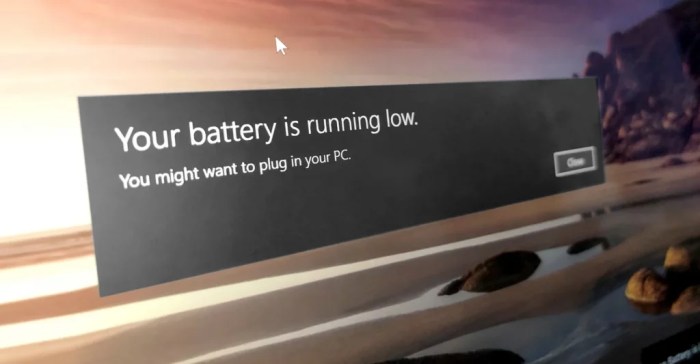
Addressing common laptop battery problems empowers you to maximize your device’s performance and longevity. By systematically troubleshooting charging issues and optimizing power consumption, you can significantly improve your laptop’s battery life and avoid costly repairs. Remember that preventative maintenance, such as regularly monitoring battery health and utilizing power-saving features, is crucial for long-term battery performance. With a little understanding and proactive effort, you can keep your laptop powered up and ready when you need it.