A dead smartphone battery can be incredibly frustrating, leaving you disconnected and unable to access vital information or communication. This guide explores nine practical solutions to troubleshoot a smartphone that refuses to charge, covering hardware malfunctions, software glitches, and environmental factors. We’ll delve into diagnosing problems, from faulty charging ports to software conflicts, and offer actionable steps to get your phone powered up again.
Understanding the intricacies of your smartphone’s charging system is key to effective troubleshooting. We will examine both the physical components—the charging port, battery, and cable—and the software interactions that can interfere with charging. This comprehensive guide aims to equip you with the knowledge to resolve common charging issues and prevent future problems.
Hardware Issues
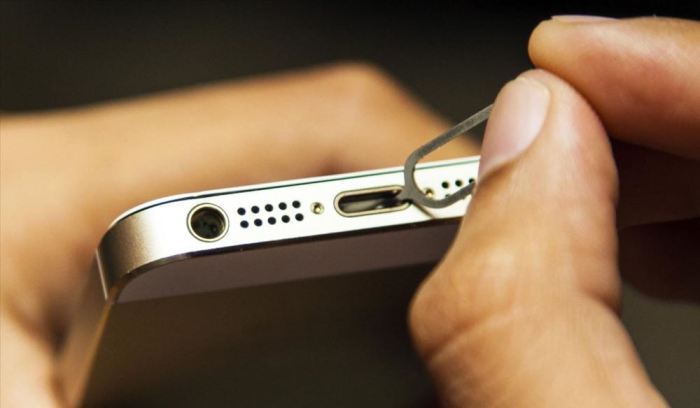
Smartphone charging problems often stem from hardware malfunctions. Understanding the potential culprits can significantly aid in troubleshooting and repair. This section details common hardware issues, their causes, visual indicators, and practical troubleshooting steps.
Diagnosing Charging Port Problems
A damaged charging port is a frequent cause of charging difficulties. Physical damage, such as bent pins or debris lodged inside, can interrupt the connection between the phone and the charger. Corrosion from sweat or liquids can also impair conductivity.
| Problem | Potential Causes | Visual Description | Troubleshooting Steps |
|---|---|---|---|
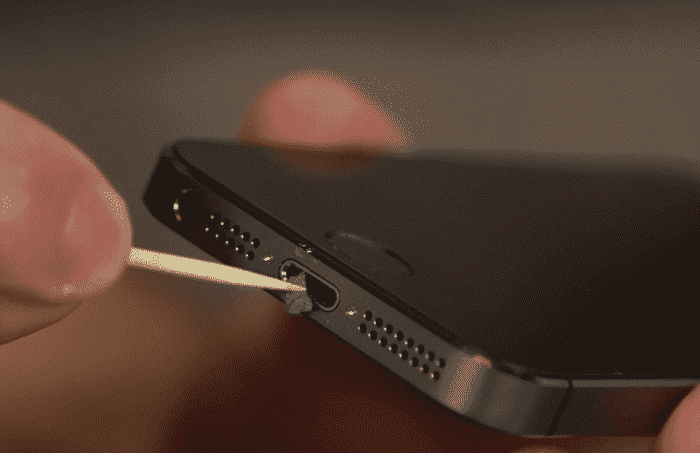
| Charging Port Damage | Bent or broken pins, debris in the port, corrosion | Bent or missing pins visible in the port, discoloration or residue around the port, loose connection when plugging in the charger. | Carefully inspect the port for damage. Attempt to gently remove any visible debris using a compressed air canister or a toothpick (avoid scratching the port). Try different charging cables and adapters. If damage is significant, professional repair is needed. |
| Faulty Battery | Battery degradation, internal damage, manufacturing defects | Slow charging, rapid battery drain, phone unexpectedly shutting down, swollen battery (visible bulge on the back of the phone). | Check the battery health using your phone’s settings or a third-party app. If the battery health is significantly low (below 80%), replacement may be necessary. A swollen battery should be replaced immediately as it poses a safety risk. |
| Charging Cable or Adapter Issues | Damaged wiring, broken connectors, faulty power supply | Visible damage to the cable (frayed wires, bent connectors), adapter not providing power, intermittent charging. | Try a different charging cable and adapter. Inspect the cable and adapter for visible damage. If the problem persists, replace the cable or adapter. |
| Internal Charging Circuitry Problems | Manufacturing defects, component failure due to overheating or damage. | Phone does not charge at all, or charges extremely slowly, even with new cables and adapters. May be accompanied by unusual heating. | This requires professional diagnosis and repair as it involves internal components. Attempting to fix this yourself can cause further damage. |
Troubleshooting Hardware Charging Issues: A Flowchart
The following flowchart illustrates a systematic approach to troubleshooting hardware-related charging problems. It guides users through a series of checks to isolate the source of the issue.
[Description of Flowchart: The flowchart would begin with the problem “Phone won’t charge.” The first branch would ask “Is the charging cable and adapter working?” If yes, it leads to “Check the charging port.” If no, it leads to “Try a new cable and adapter.” Checking the charging port leads to “Is the port damaged?” If yes, it leads to “Professional repair needed.” If no, it leads to “Check the battery.” Checking the battery leads to “Is the battery swollen or significantly degraded?” If yes, it leads to “Battery replacement needed.” If no, it leads to “Check internal circuitry (professional repair needed).” The “Try a new cable and adapter” branch would also eventually lead to “Check the charging port” if the problem persists after trying new accessories.]
Internal Smartphone Charging System Components
A smartphone’s charging system involves several interconnected components. The charging port receives power from the adapter, which is then transferred to the charging IC (Integrated Circuit). This IC regulates the voltage and current, supplying power to the battery. A malfunction in any of these parts—the port, the charging IC, or the battery itself—can prevent the phone from charging correctly. For example, a faulty charging IC might not properly regulate the voltage, leading to slow or inconsistent charging. A damaged battery may not accept a charge, resulting in no charging at all.
Software Glitches
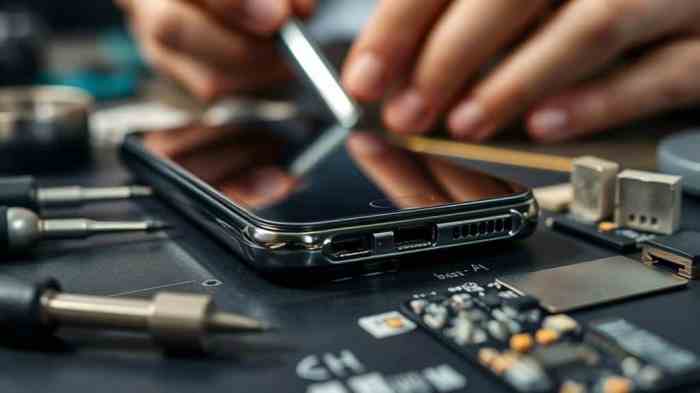
Sometimes, the problem preventing your smartphone from charging isn’t a hardware malfunction but a software glitch. These glitches can interfere with the communication between your phone’s operating system and its charging circuitry, leading to charging issues. Fortunately, several troubleshooting steps can often resolve these software-related problems.
Software glitches can manifest in various ways, sometimes subtly interfering with the charging process, while other times causing complete charging failure. A simple restart might suffice, but more intensive measures like software updates or even a factory reset may be necessary in persistent cases. Identifying the root cause is key to finding the most effective solution.
Restarting Your Smartphone
A simple restart can often resolve minor software glitches that are interfering with the charging process. This clears temporary files and processes, allowing the system to refresh and potentially fix the charging conflict. To restart your phone, press and hold the power button until the power options menu appears. Then, select “Restart” or the equivalent option on your phone’s model. Allow the phone to fully power down and then power back up before attempting to charge it again.
Checking for Software Updates
Outdated software can sometimes contain bugs that affect charging functionality. Manufacturers regularly release updates that address these issues. To check for updates, navigate to your phone’s settings menu. Look for an option like “Software Update,” “System Update,” or a similar designation. If an update is available, download and install it. This process may take some time, and your phone will need to be connected to a stable Wi-Fi network during the download and installation. Once the update is complete, restart your phone and test the charging functionality again.
Identifying and Resolving App Conflicts
While less common, certain apps might conflict with your phone’s charging system, disrupting the charging process. Identifying the culprit requires some detective work. If the charging problem began after installing a new app, consider uninstalling it to see if the problem resolves. If you suspect an app is causing the issue, try restarting your phone in safe mode. Safe mode disables third-party apps, allowing you to test if a specific app is causing the charging problem. If the phone charges normally in safe mode, systematically uninstall recently installed apps until you find the offender.
Factory Reset (with Data Backup)
A factory reset is a more drastic measure, restoring your phone to its original factory settings. This erases all data on your phone, so it’s crucial to back up all your important data (photos, videos, contacts, documents, etc.) beforehand. This can be done through cloud services like Google Drive, iCloud, or OneDrive, or by connecting your phone to a computer.
- Back up your data to a cloud service or computer.
- Go to your phone’s settings menu.
- Find the “System” or “General” settings.
- Locate the “Reset” options.
- Select “Factory data reset” or a similar option.
- Confirm the reset and wait for the process to complete. This may take several minutes.
- Once the reset is finished, set up your phone as new.
- After setup, test the charging functionality.
A factory reset should only be considered as a last resort after trying other troubleshooting methods. Remember, this will delete all your personal data, so a complete backup is essential.
Environmental Factors and Charging Practices
Smartphone charging isn’t solely dependent on the phone’s internal workings; external conditions and charging habits significantly influence its success. Understanding these factors is crucial for troubleshooting charging issues and maximizing battery lifespan. This section explores environmental impacts, compares charging methods, and Artikels best practices for optimal charging performance.
Environmental Factors Affecting Smartphone Charging
Extreme temperatures, both hot and cold, can negatively impact a smartphone’s charging capabilities. High temperatures can damage the battery, reducing its capacity and lifespan. Conversely, extremely low temperatures can slow down the charging process and even prevent it entirely. Similarly, exposure to moisture can cause short circuits and damage the charging port, rendering it unusable. Protecting your phone from these elements is key to ensuring consistent and safe charging.
Comparison of Wired and Wireless Charging Methods
Different charging methods present unique advantages and disadvantages concerning charging speed and efficiency. The following table compares wired and wireless charging:
| Charging Method | Advantages | Disadvantages |
|---|---|---|
| Wired Charging | Generally faster charging speeds, more reliable connection, usually less expensive. | Requires a cable, can be inconvenient, cable can wear out or become damaged. |
| Wireless Charging | Convenient, no cable required, can charge through cases (depending on thickness). | Slower charging speeds than wired, requires a compatible charging pad, can be more expensive. |
Best Practices for Smartphone Charging
Following these best practices can significantly improve your smartphone’s charging performance and extend its battery life:
- Avoid extreme temperatures: Do not charge your phone in direct sunlight or in extremely cold environments.
- Use the original charger: Using a non-certified charger can damage your battery or cause charging issues.
- Don’t overcharge: Once your phone is fully charged, unplug it to prevent unnecessary stress on the battery.
- Keep the charging port clean: Regularly clean the charging port with a soft, dry brush to remove dust and debris.
- Avoid charging while using: Charging while using the phone can lead to overheating and slower charging speeds.
- Optimize battery settings: Utilize your phone’s battery optimization features to manage background app activity and extend battery life.
- Consider partial charges: Avoid letting your battery drain completely before charging; keeping it between 20% and 80% charge is often recommended for long-term battery health.
- Regularly update your phone’s software: Software updates often include improvements to battery management and charging efficiency.
- Check for physical damage: Examine the charging port and cable for any signs of damage, such as bent pins or frayed wires.
Final Conclusion
Successfully charging your smartphone often involves a systematic approach, combining hardware checks with software troubleshooting. By carefully examining the charging port, cable, and adapter, and then investigating potential software conflicts, you can effectively diagnose and resolve most charging issues. Remember to consider environmental factors and practice good charging habits to maximize your battery’s lifespan and avoid future problems. With a little patience and these nine solutions, you can conquer your charging woes and get back online.