In today’s digital landscape, safeguarding your online presence is paramount. From sophisticated phishing scams to data breaches, the threats to your personal information are ever-present. This guide provides six essential best practices to bolster your online security, empowering you to navigate the digital world with greater confidence and peace of mind. We’ll explore practical strategies for creating strong passwords, securing your browsing habits, and implementing robust privacy settings, ultimately helping you minimize your vulnerability to cyber threats.
By understanding and implementing these practices, you’ll significantly reduce your risk of becoming a victim of online crime and protect your valuable data. This isn’t about becoming a cybersecurity expert; it’s about adopting simple, effective habits that can make a world of difference.
Strong Passwords & Authentication
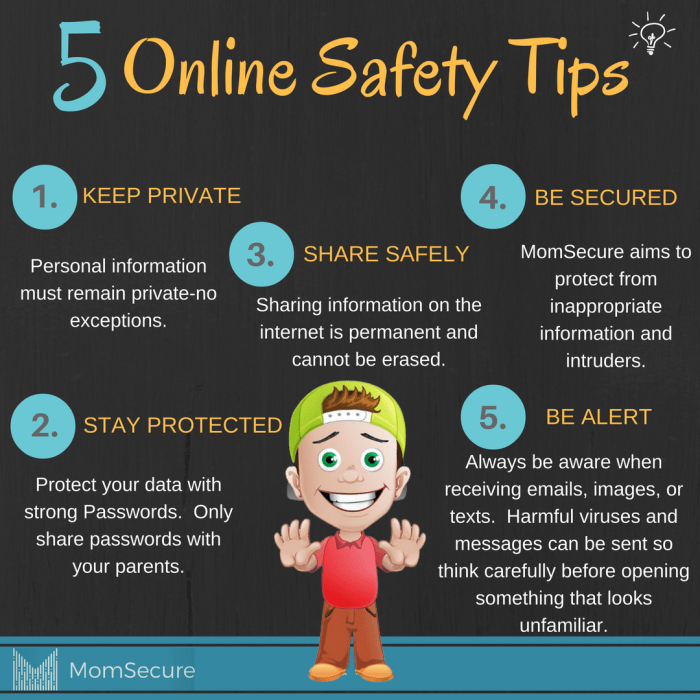
Robust passwords and multi-layered authentication are cornerstones of a secure online presence. Weak passwords leave your accounts vulnerable to unauthorized access, potentially leading to identity theft, financial loss, and reputational damage. This section explores effective strategies for password management and the crucial role of two-factor authentication in bolstering your online security.
Password Management Strategies
Choosing the right password management approach significantly impacts your overall security posture. The following table compares different strategies, highlighting their strengths and weaknesses to help you make an informed decision.
| Strategy | Strengths | Weaknesses | Implementation |
|---|---|---|---|
| Password Managers (e.g., LastPass, 1Password) | Generates strong, unique passwords; securely stores passwords; autofills login forms; cross-platform compatibility. | Reliance on a single point of failure (the master password); potential for vulnerabilities in the manager itself; subscription cost for premium features. | Download and install a reputable password manager; create a strong master password; import existing passwords; enable autofill. |
| Unique Passwords for Each Account | High security if passwords are strong and unique; compromise of one account doesn’t compromise others. | Difficult to remember and manage numerous unique passwords; increased risk of password reuse if not meticulously managed. | Create strong, unique passwords for each online service; use a password manager or a secure password storage system (e.g., a well-protected document). |
| Passphrase Generation | Easy to remember if constructed thoughtfully; can be very strong if sufficiently long and complex. | Can be susceptible to dictionary attacks if not carefully crafted; may be less convenient to type than shorter passwords. | Combine multiple unrelated words, numbers, and symbols to create a long and memorable phrase. Example: “MyDogLovesBlueSkies2024!”. |
Password Complexity and Security
The following illustration depicts the relationship between password complexity and security.
Imagine a visual representation: A simple padlock representing a weak password is easily broken by a single, small pick (representing a simple brute-force attack). A more complex padlock, representing a strong password with a combination of uppercase and lowercase letters, numbers, and symbols, requires multiple, larger, and more specialized tools (representing sophisticated attacks) to break. The more complex the padlock (stronger password), the more tools and effort (more sophisticated attacks and longer time) are required, making the chances of successful cracking significantly lower. The visual uses size and detail to convey the relative strength of different password types and the level of effort required to compromise them.
Enabling Two-Factor Authentication (2FA)
Two-factor authentication adds an extra layer of security by requiring a second form of verification beyond your password. This significantly reduces the risk of unauthorized access, even if your password is compromised.
Implementing 2FA typically involves these steps:
- Locate 2FA Settings: Navigate to your account settings on the online service you wish to secure. The exact location varies by service, but often it’s under “Security,” “Account Settings,” or “Login & Security.”
- Select 2FA Method: Choose your preferred 2FA method. Common options include authenticator apps (e.g., Google Authenticator, Authy), SMS verification codes, or security keys.
- Follow Service Instructions: Each service provides specific instructions on how to set up and activate 2FA. Carefully follow these steps, often involving scanning a QR code with your authenticator app or entering a provided code.
- Backup Recovery Codes: Most services provide backup recovery codes. These are crucial if you lose access to your primary 2FA method. Store these codes securely in a safe place, offline.
- Verify Functionality: After setting up 2FA, test it to ensure it’s working correctly by attempting to log in and verifying the second authentication factor.
Risks of Weak Passwords
Using weak or easily guessable passwords exposes your accounts to significant risks. These include:
* Account Takeover: Attackers can easily guess or crack weak passwords, gaining full control of your accounts.
* Data Breaches: Compromised accounts can lead to the exposure of sensitive personal information, such as financial details, addresses, and social security numbers.
* Identity Theft: Stolen information can be used to impersonate you, leading to financial losses and damage to your credit rating.
* Malware Infection: Attackers might use compromised accounts to install malware on your devices.
* Financial Loss: Access to your online banking or payment accounts can result in significant financial losses.
Secure Browsing & Software Updates
Maintaining a secure online presence requires vigilance in both your browsing habits and the software you use. Neglecting either aspect significantly increases your vulnerability to cyber threats, from data breaches to malware infections. This section details best practices to bolster your security through careful browser selection and consistent software updates.
Browser Security Feature Comparison
Different browsers offer varying levels of security features. Understanding these differences allows you to choose the browser best suited to your needs and risk tolerance. While all modern browsers incorporate essential security measures, their implementations and effectiveness can vary.
- Chrome: Offers strong sandboxing, automatic updates, and integrated phishing and malware protection. It regularly updates its security protocols and benefits from a large user base, leading to rapid identification and patching of vulnerabilities. However, its extensive data collection practices are a concern for some users.
- Firefox: Known for its privacy-focused features, including enhanced tracking protection and a strong emphasis on user data control. It offers similar security features to Chrome, but with a greater emphasis on user privacy. Its smaller user base compared to Chrome may mean slightly slower vulnerability detection.
- Safari: Apple’s browser prioritizes integration with the Apple ecosystem and offers robust security features, including built-in anti-tracking and fraud protection. It is generally considered secure, benefiting from Apple’s rigorous security standards, but its features are primarily geared towards Apple users.
- Edge: Microsoft’s browser has improved significantly in recent years and now offers comparable security features to Chrome and Firefox, including built-in anti-phishing and malware protection. Its integration with Windows makes it a convenient choice for Windows users.
Phishing Attempt Identification and Mitigation
Phishing attempts, designed to trick users into revealing sensitive information, are a constant threat. Recognizing and avoiding these scams is crucial for online security.
Identifying a phishing attempt often involves looking for inconsistencies and red flags. Legitimate organizations rarely use informal language or urgent demands in their communications. Always verify the sender’s identity independently, and never click links or download attachments from suspicious emails. Hovering your mouse over links to reveal the actual URL before clicking is another crucial step. Legitimate websites use HTTPS, indicated by a padlock icon in the address bar. Beware of websites that lack this security protocol. If you are unsure, contact the organization directly through a verified channel to confirm the authenticity of the communication.
Secure Software Download and Installation
Downloading and installing software directly from untrusted sources can expose your system to malware. Following these steps minimizes this risk:
- Download software only from official websites or reputable app stores. Avoid unofficial sources or third-party download sites, which often bundle unwanted software or malware.
- Always verify the digital signature of the software to ensure its authenticity and integrity. This helps confirm the software hasn’t been tampered with.
- Read reviews and check the software’s reputation before downloading and installing. Look for any reports of malicious behavior.
- Pay close attention during the installation process, opting out of any bundled software or toolbars that you don’t recognize or need.
- Run a malware scan after installation to ensure the software is clean and hasn’t introduced any unwanted programs.
Software Update Best Practices
Regular software updates are essential for patching security vulnerabilities. Neglecting updates leaves your system vulnerable to exploitation.
| Software Type | Update Frequency | Security Risks of Outdated Software | Best Practices for Updating |
|---|---|---|---|
| Operating System (Windows, macOS) | As soon as updates are released | Vulnerability to malware, data breaches, and system instability | Enable automatic updates; regularly check for updates manually |
| Web Browsers (Chrome, Firefox, Safari) | Automatic updates recommended | Exposure to phishing attacks, malware infections, and privacy violations | Enable automatic updates; manually check for updates periodically |
| Antivirus Software | Regularly (often daily) scheduled updates | Inability to detect and remove the latest malware threats | Ensure automatic updates are enabled; check for updates frequently |
| Applications (Office Suites, Media Players) | As soon as updates are released | Vulnerability to exploits, data loss, and system instability | Enable automatic updates where possible; check for updates periodically |
Safe Online Practices & Privacy Settings
Protecting your privacy online is crucial in today’s digital world. Regularly reviewing and adjusting your privacy settings, coupled with mindful online behavior, forms a strong defense against potential threats and unwanted access to your personal information. This section will guide you through essential practices to enhance your online safety and maintain control over your data.
Regularly reviewing and adjusting your privacy settings across various online platforms is a proactive measure to safeguard your personal information. Failing to do so can expose you to unwanted solicitations, data breaches, or even identity theft. By understanding and managing these settings, you actively contribute to a safer online experience.
Privacy Setting Adjustments
Taking control of your privacy begins with understanding the settings offered by each platform you use. Social media platforms, email providers, and online retailers all have different mechanisms for controlling what information is visible to others. For example, on Facebook, you can adjust who can see your posts, your friends list, and other personal details. Similarly, on Twitter, you can control who can reply to your tweets and who can see your profile information. Regularly review these settings and adjust them according to your comfort level. Make it a habit to check these settings at least every few months, or whenever a platform updates its privacy policy.
Responding to Compromised Accounts
If you suspect a compromise, immediate action is vital. This could manifest as unauthorized logins, unusual activity, or phishing emails. The following steps should be taken immediately:
- Change your passwords immediately, using strong, unique passwords for each account.
- Enable two-factor authentication (2FA) wherever possible, adding an extra layer of security.
- Review your account activity for any suspicious transactions or communications.
- Report the compromise to the platform’s support team and file a report with relevant authorities if necessary.
- Monitor your credit report for any fraudulent activity.
Prompt action minimizes the potential damage and prevents further exploitation. Remember, the faster you react, the better your chances of mitigating the consequences of a breach.
Recognizing and Avoiding Suspicious Emails and Websites
Phishing attempts and malicious websites are designed to deceive you into revealing sensitive information. Learning to identify these threats is a crucial aspect of online safety. Here are some key indicators:
- Suspicious sender addresses: Emails from unknown or unexpected senders should raise suspicion. Check the sender’s email address carefully for inconsistencies or misspellings.
- Urgent or threatening language: Phishing emails often use alarming language to pressure you into acting quickly without thinking.
- Generic greetings: Legitimate emails usually address you by name. Generic greetings like “Dear Customer” are a red flag.
- Suspicious links or attachments: Avoid clicking on links or opening attachments from unknown sources. Hover over links to see the actual URL before clicking.
- Poor grammar and spelling: Legitimate organizations usually maintain a professional tone and avoid grammatical errors.
- Requests for personal information: Legitimate organizations rarely ask for sensitive information via email.
- Unusual website design: Malicious websites often have poor design, broken links, or unusual features.
- Unsecured website connection (http instead of https): The “s” in “https” indicates a secure connection.
Evaluating the Trustworthiness of Online Information Sources
Navigating the vast amount of information online requires critical thinking and a discerning eye. The following flowchart illustrates a decision-making process for evaluating online sources:
The flowchart begins with a central question: “Is the information source reputable?” If yes, the path leads to “Trustworthy Source – Use with caution.” If no, the path continues to “Is the information supported by evidence?” If yes, it goes to “Potentially Trustworthy – Verify information from multiple sources.” If no, it goes to “Untrustworthy Source – Avoid using this information.” Each decision point is clearly marked with arrows indicating the flow of the evaluation process. This visual representation provides a clear and systematic approach to verifying the reliability of online information.
Last Word
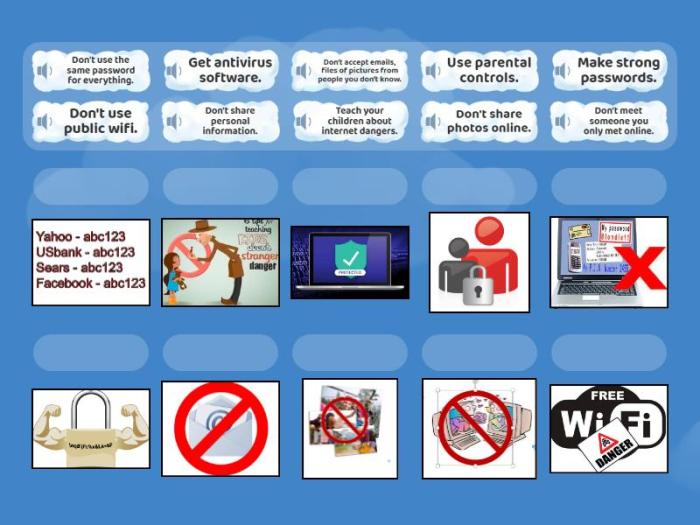
Protecting your online security is an ongoing process, not a one-time fix. By consistently applying these six best practices – from utilizing strong passwords and secure browsing techniques to regularly reviewing privacy settings and remaining vigilant against phishing attempts – you’ll build a robust defense against online threats. Remember, proactive security measures are the best defense against the ever-evolving landscape of cybercrime. Stay informed, stay vigilant, and stay secure.