Two-factor authentication (2FA) significantly enhances online security, but occasional hiccups can leave users locked out. This guide addresses two prevalent 2FA issues: lost authentication codes and problems with authentication apps or devices. We’ll explore common causes, provide practical troubleshooting steps, and offer preventative measures to ensure seamless access to your accounts.
Understanding the nuances of 2FA recovery and troubleshooting is crucial for maintaining a secure online presence. By learning to navigate these common challenges, you can safeguard your accounts and avoid frustrating delays. This guide provides clear, step-by-step instructions and preventative strategies to keep you connected and protected.
Lost or Forgotten Authentication Codes
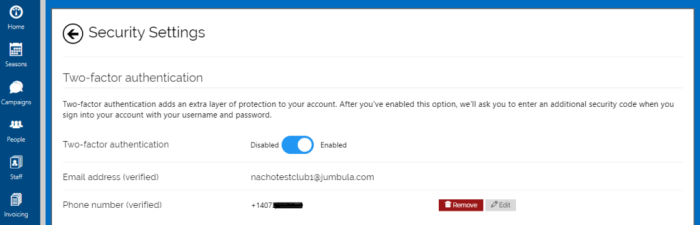
Losing access to your two-factor authentication (2FA) codes can be incredibly frustrating, effectively locking you out of your accounts. This typically stems from a combination of factors, including misplacing backup codes, forgetting to save them, or losing access to your recovery methods. Understanding these causes and having a recovery plan in place is crucial for maintaining secure access to your online accounts.
Causes of Lost or Forgotten Two-Factor Authentication Codes
Several common scenarios lead to lost or forgotten 2FA codes. The most frequent is simply not backing up codes provided by the authentication app. Another common issue is losing access to the device where the codes are stored, whether through theft, damage, or simply forgetting where it is. Finally, failure to update recovery methods (email, phone number) or having outdated contact information can also hinder recovery. These situations underscore the importance of proactive security measures.
Recovering Access Using Different Methods
Recovering access depends on the 2FA app and the methods you’ve set up. Most apps offer several recovery options.
Recovery via Email
If you’ve registered a recovery email address, the 2FA app will usually send a recovery code to this address. Check your spam folder, as it may be filtered there. Once received, follow the instructions provided by the app to regain access.
Recovery via Phone Number
Similar to email recovery, a text message (SMS) containing a recovery code can be sent to your registered phone number. Ensure the number is up-to-date and accessible. If you’ve lost access to your phone number, contact your mobile carrier to regain access or update your recovery information with your 2FA provider.
Recovery via Security Questions
Some 2FA apps utilize security questions as a final layer of recovery. Answering these correctly will allow you to reset your 2FA settings and generate new codes. Choosing strong and memorable, yet not easily guessable, security questions is vital.
Best Practices for Securely Storing Backup Codes
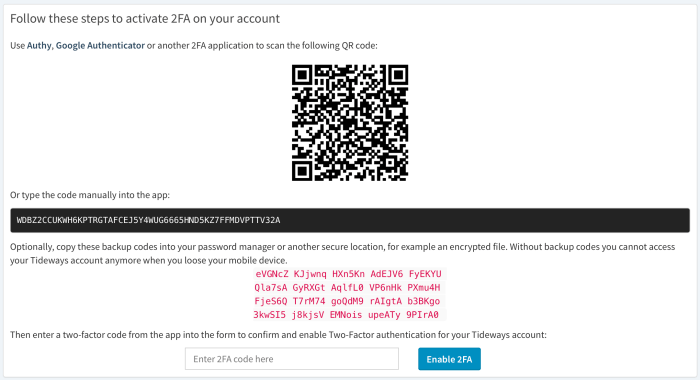
Storing backup codes securely is paramount. Avoid keeping them digitally on a frequently used device, as this increases the risk of loss or compromise. Consider writing them down on paper and storing them in a safe place, like a fireproof safe or a lockbox. Another option is to store them in a password manager that utilizes strong encryption and multi-factor authentication itself. Regularly review and update your backup codes, especially if you suspect compromise.
Comparison of Recovery Methods
| Recovery Method | Speed of Recovery | Security Level | Ease of Use |
|---|---|---|---|
| Moderate | Moderate | High | |
| Phone Number (SMS) | Fast | Moderate | High |
| Security Questions | Slow | Low | Moderate |
| Backup Codes | Fast | High | Moderate |
Problems with Authentication App or Device

Two-factor authentication (2FA) apps, while significantly enhancing security, can sometimes present their own set of challenges. Issues ranging from simple app glitches to more serious device problems can disrupt access to your accounts. Understanding these potential problems and knowing how to troubleshoot them is crucial for maintaining a secure online experience.
Authentication App Malfunctions and Troubleshooting
Authentication apps, like Google Authenticator or Authy, are susceptible to various problems. These include unexpected crashes, data corruption, and conflicts with other applications or system updates. Addressing these issues efficiently involves a systematic approach, starting with the simplest solutions and progressing to more involved ones. Below are some common problems and their solutions.
- App Crashing: Force-quit the app and restart your device. If the problem persists, try clearing the app’s cache and data (this will not delete your accounts, but it may require re-entering your 2FA setup). As a last resort, reinstall the app from your device’s app store.
- Incorrect Time Settings: Many authentication apps rely on precise time synchronization. If your device’s clock is inaccurate, even by a few seconds, it can prevent the app from generating valid codes. Ensure your device’s date and time are automatically set using network time. This is usually found in your device’s settings under “Date & Time” or a similar option.
- Device Loss or Damage: Losing your primary device can render your 2FA setup unusable. Before this happens, ensure you have backup recovery codes (provided during 2FA setup) readily available and stored securely offline. Consider using a 2FA app that supports multiple devices or cloud backup (but carefully weigh the security implications of cloud storage).
Security Implications of Different Authentication App Types
Different 2FA apps utilize various methods, each with its own security profile. Time-based one-time passwords (TOTP) apps generate codes based on a shared secret and a time-based algorithm. Push notification-based apps, on the other hand, send a notification directly to your device, requiring user confirmation.
Time-based OTP apps offer a good balance of security and convenience, provided your device’s clock is accurate. They are generally more resistant to network attacks compared to push notification systems, as they do not rely on a constant internet connection for code generation. However, they are vulnerable to clock manipulation attacks. Push notification systems, while offering a more user-friendly experience, are dependent on a stable internet connection and are susceptible to man-in-the-middle attacks if the communication channel is not properly secured.
Troubleshooting Authentication App Malfunctions: A Flowchart
A structured approach to troubleshooting can quickly resolve most app-related issues.
- Start: Authentication app malfunction detected.
- Check Device Time: Is the device’s time accurate? If yes, proceed to step 3; if no, correct the time and retry.
- Restart App and Device: Force-quit the app and restart your device. Does the app function correctly? If yes, problem solved; if no, proceed to step 4.
- Clear App Cache and Data: Clear the app’s cache and data. Does the app function correctly? If yes, problem solved; if no, proceed to step 5.
- Reinstall App: Reinstall the app from the app store. Does the app function correctly? If yes, problem solved; if no, contact app support or consider alternative 2FA methods.
- End: Problem resolved or requires further assistance.
Account Locked Due to Multiple Failed Attempts
Account lockout is a security measure designed to protect your accounts from unauthorized access. If you repeatedly enter the wrong password, security code, or biometric information, your account will temporarily be locked to prevent brute-force attacks. This is a common frustration, but understanding why it happens and how to resolve it can make the process smoother.
Account lockout is triggered after a pre-defined number of incorrect login attempts. This number varies depending on the service provider; some might lock accounts after three failed attempts, while others might allow more. The underlying reason for this security measure is to deter malicious actors who try to guess passwords or use automated tools to crack them. The more attempts allowed, the greater the risk of unauthorized access, while fewer attempts lead to a higher chance of legitimate users being locked out.
Unlocking a Locked Account
The process for unlocking a locked account usually involves using a recovery method linked to your account. This might include answering security questions, verifying an email address or phone number, or providing additional identifying information. Many services offer a “Forgot Password” or “Account Locked” link directly on the login page. Clicking this link usually initiates the account recovery process, guiding you through the necessary steps. If you cannot unlock your account using the self-service options, you will need to contact the service provider’s support team. Be prepared to provide proof of identity, such as your registered email address, phone number, or other information linked to the account. The support team will then guide you through the verification process and unlock your account.
Preventative Measures to Avoid Account Lockout
Implementing proactive measures significantly reduces the likelihood of account lockout. One effective strategy is utilizing a password manager. Password managers securely store and manage your passwords, generating strong, unique passwords for each account. This eliminates the risk of using weak or repetitive passwords, a primary cause of failed login attempts. Another helpful technique is enabling biometric authentication whenever possible. Biometric authentication, such as fingerprint or facial recognition, provides a more convenient and secure way to log in, reducing reliance on passwords and the risk of entering them incorrectly.
Best Practices for Managing Multiple Accounts and Avoiding Authentication Errors
Managing numerous online accounts can be challenging, increasing the risk of authentication errors. Here’s a list of best practices to help you avoid these issues:
- Use a password manager to generate and store strong, unique passwords for each account.
- Enable two-factor authentication (2FA) wherever possible. This adds an extra layer of security, making it significantly harder for unauthorized users to access your accounts.
- Regularly review your security questions and ensure they are up-to-date and easily remembered.
- Avoid using the same password across multiple accounts. If one account is compromised, the attacker will not gain access to your other accounts.
- Be cautious of phishing attempts. Phishing emails or messages often try to trick you into revealing your login credentials. Never click on suspicious links or enter your credentials on unfamiliar websites.
- Keep your devices and software updated with the latest security patches. This helps protect against vulnerabilities that could be exploited by attackers.
- If you suspect unauthorized access to your account, change your password immediately and contact the service provider’s support team.
Ending Remarks
Mastering the art of 2FA troubleshooting empowers you to maintain control over your digital life. By understanding the common pitfalls and implementing the preventative measures Artikeld, you can significantly reduce the risk of account lockouts and ensure consistent access to your online services. Remember, proactive security is the best security. Regularly review your 2FA settings and backup codes to stay ahead of potential issues.