A malware infection can be a frustrating and potentially damaging experience. From slow performance to data loss, the consequences can be significant. Fortunately, effective remediation is possible with a systematic approach. This guide Artikels eight crucial steps to identify, remove, and prevent future malware infestations, empowering you to regain control of your computer’s security.
Understanding the process involves a combination of proactive measures, utilizing specialized software, and potentially performing system-level interventions. By following these steps carefully, you can significantly improve your chances of a successful recovery and strengthen your computer’s defenses against future threats. Remember to always back up important data before attempting any significant repairs.
Initial Assessment and Preparation
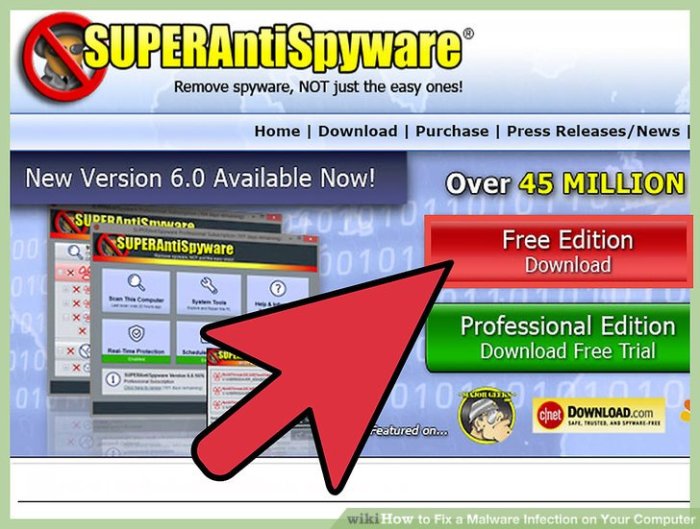
Suspecting a malware infection can be unsettling, but taking swift and methodical steps is crucial to minimizing damage and restoring your system’s health. This initial phase involves carefully assessing the situation, gathering the necessary tools, and preparing your system for the malware removal process. Proper preparation significantly increases the chances of a successful cleanup and prevents further complications.
Before attempting any malware removal, it’s essential to understand the current state of your computer and take preventative measures to protect your data and system files. This involves identifying symptoms, gathering the necessary tools, and preparing for the removal process.
Safe Mode Booting and Initial System Checks
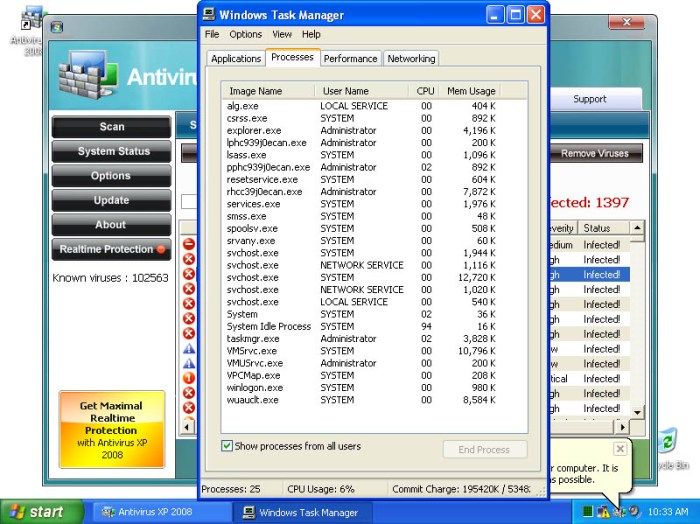
Safe Mode is a diagnostic startup mode that loads only essential system files and drivers. This limits the potential for malware to interfere with the removal process. To boot into Safe Mode (the exact keystrokes may vary slightly depending on your operating system), restart your computer and repeatedly press the F8 key (or Shift+F8, or another function key, depending on your system’s BIOS) before the operating system logo appears. Select “Safe Mode with Networking” to allow for online access to resources during malware removal. Once in Safe Mode, check for obvious signs of infection such as unusually high CPU usage, slow performance, unusual pop-ups, or unfamiliar programs running in the Task Manager.
Essential Tools for Malware Removal
Effective malware removal often requires specialized tools. Having these readily available streamlines the process and increases the likelihood of complete eradication.
| Tool | Function |
|---|---|
| Antivirus Software (e.g., Malwarebytes, Bitdefender, Norton) | Scans for and removes malware, viruses, and other malicious software. A reputable antivirus program is crucial for identifying and eliminating threats. |
| Anti-malware Software (e.g., Malwarebytes, HitmanPro) | Specifically designed to detect and remove malware, often catching threats that antivirus programs might miss. These often operate using different detection methods. |
| System Restore Utility (built into Windows) | Allows you to revert your system to a previous state before the infection, potentially undoing the damage caused by malware. This is a valuable backup option. |
Creating a System Restore Point
A system restore point is a snapshot of your system’s files and settings. Creating one *before* attempting any malware removal provides a safety net, allowing you to revert to this point if the removal process causes unexpected issues. To create a restore point in Windows, search for “Create a restore point” in the Start menu, then click “Create.” Give the restore point a descriptive name (e.g., “Before Malware Removal”) and click “Create.” This process saves a copy of your system’s configuration, allowing you to return to this state if needed.
Malware Removal Techniques
Effective malware removal requires a multi-pronged approach, combining automated scanning with manual intervention where necessary. The best strategy often involves a combination of techniques to ensure complete eradication. Choosing the right method depends on the type and severity of the malware infection.
Several methods exist for removing malware from an infected computer. These range from using automated antivirus software to performing a manual cleanup of infected files and registry entries. Specialized tools offer targeted solutions for particularly stubborn or complex malware infections. The selection of the most appropriate technique depends heavily on the user’s technical skills and the nature of the malware.
Antivirus Program Scan and Removal
Reputable antivirus programs are the first line of defense against malware. These programs utilize various techniques, including signature-based detection (matching known malware patterns) and heuristic analysis (identifying suspicious behavior), to detect and remove threats. The process typically involves installing and updating the antivirus software, performing a full system scan, and then allowing the program to quarantine or delete the identified malware. Regular updates are crucial for effectiveness, as new malware strains emerge constantly. Following the antivirus software’s prompts during the removal process is essential to ensure complete removal. A post-scan reboot is often recommended to finalize the removal process.
Manual Malware Removal
Manual malware removal involves identifying and deleting infected files and registry entries. This process requires a high level of technical expertise and caution. Incorrectly removing system files can render the computer unusable. Before attempting manual removal, it’s crucial to back up important data. The process typically begins with identifying suspicious files and processes through the Task Manager and file explorer. Then, using the system’s built-in tools or a third-party file explorer with administrative privileges, the user can delete the identified malware. However, many malware programs deeply embed themselves within the system registry, requiring the modification or deletion of specific registry keys. This should only be attempted by experienced users familiar with the Windows Registry Editor. A single incorrect edit can severely damage the operating system.
Specialized Malware Removal Tools
Specialized malware removal tools are designed to tackle specific types of malware that antivirus programs might miss. These tools often employ advanced techniques to detect and remove rootkits, boot sector viruses, and other complex malware. Examples include Malwarebytes, HitmanPro, and Emsisoft Emergency Kit. These tools are typically used after an initial scan with an antivirus program to address any remaining threats. Their effectiveness varies depending on the specific malware and the tool’s capabilities. They often require administrator privileges to operate effectively. Using multiple specialized tools can sometimes be beneficial in achieving complete malware removal.
Comparison of Malware Removal Methods
| Method | Pros | Cons |
|---|---|---|
| Antivirus Program | Automated, relatively easy to use, good for general protection, regularly updated. | May miss some advanced malware, requires regular updates, can be resource-intensive. |
| Manual Removal | Can effectively remove deeply embedded malware, provides a deeper understanding of the infection. | Requires significant technical expertise, high risk of damaging the system if done incorrectly, time-consuming. |
| Specialized Tools | Effective against specific types of malware, often complements antivirus programs, can remove stubborn infections. | May require specific technical knowledge, can be costly (some are commercial products), might not be effective against all malware types. |
System Restoration and Prevention
If malware removal proves unsuccessful, restoring your system to a previous state or reinstalling the operating system becomes necessary. This section details these recovery methods and crucial preventative measures to safeguard your computer against future infections. Prioritizing prevention is key to maintaining a secure digital environment.
System restoration utilizes previously saved snapshots of your system’s configuration. If a restore point exists from before the malware infection, it can effectively undo the changes made by the malicious software. Reinstalling the operating system is a more drastic step, wiping the entire drive and starting fresh, but guarantees complete removal of persistent malware. Proactive prevention, however, is the most effective long-term solution.
System Restore Point Utilization
Restoring your system to a previous restore point is a relatively straightforward process. This method reverts your system files and settings to a point in time before the malware infection occurred. Accessing and utilizing System Restore depends on your operating system; however, the general process involves navigating to System Properties (often through Control Panel or System Settings) and selecting the System Restore option. Then, choose a restore point that predates the infection, review the changes that will be made, and confirm the restoration. After the process completes, your system should be in a state prior to the malware’s infiltration. Note that any work completed after the chosen restore point will be lost.
Operating System Reinstallation
Reinstalling your operating system is a more thorough approach, erasing all data and software from your hard drive before installing a fresh copy. This is a last resort, but ensures complete removal of any persistent malware. Before beginning, back up any crucial data to an external drive or cloud storage. You will need your operating system installation media (DVD or USB drive) and a product key. The process generally involves booting from the installation media, following the on-screen instructions, partitioning the hard drive (if necessary), and installing the operating system. Once installed, you’ll need to reinstall your applications and restore your backed-up data.
Preventing Future Malware Infections
Proactive measures significantly reduce the risk of future malware infections. A multi-layered approach combining software updates, safe browsing habits, and robust firewall configurations provides comprehensive protection.
- Keep your software updated: Regularly update your operating system, antivirus software, and other applications. This patches security vulnerabilities that malware can exploit.
- Practice safe browsing: Avoid clicking on suspicious links or downloading files from untrusted sources. Be cautious of email attachments and only download software from official websites.
- Use a strong firewall: Configure your firewall to block unauthorized network access. This prevents malware from connecting to external servers and spreading.
- Install and maintain robust antivirus software: Regularly scan your system for malware and keep your antivirus definitions updated. Consider using a multi-layered approach with both real-time protection and on-demand scanners.
- Enable automatic updates: Configure your operating system and applications to automatically download and install updates. This ensures you’re always running the latest security patches.
- Educate yourself: Stay informed about the latest malware threats and learn how to identify and avoid them. Resources like cybersecurity websites and government agencies provide valuable information.
Final Wrap-Up

Successfully navigating a malware infection requires a blend of technical proficiency and cautious execution. By systematically following these eight steps, from initial assessment to preventative measures, you can effectively eliminate malware and bolster your system’s security. Remember that prevention is key; adopting safe browsing habits and regularly updating your software are crucial long-term strategies to minimize the risk of future infections. Proactive security is the best defense against the ever-evolving threat landscape.