A lifeless PlayStation 4 can be incredibly frustrating, leaving gamers stranded in a world without adventure. This guide offers a structured approach to troubleshooting, taking you through simple checks and more advanced diagnostics to get your console back online. We’ll cover everything from basic power cord checks to more involved internal inspections, ensuring you have the knowledge to tackle the problem effectively, regardless of your technical expertise.
Whether you’re greeted with a blank screen, a blinking light, or complete silence, understanding the potential causes and systematically eliminating them is key. This step-by-step process will empower you to diagnose and resolve the issue, potentially saving you the cost and hassle of professional repair.
Initial Troubleshooting Steps
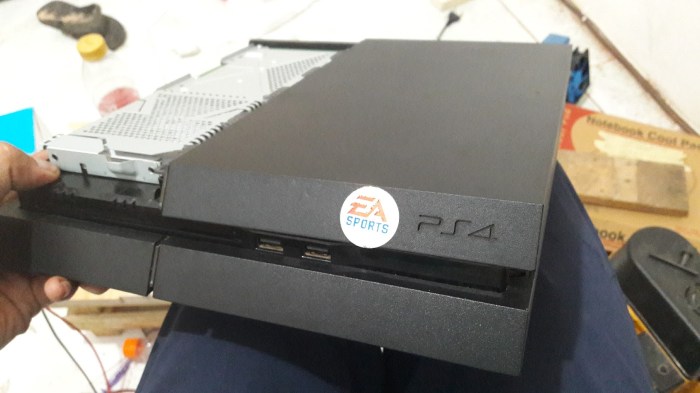
Before diving into complex repairs, let’s tackle some simple checks that often resolve the issue of a PlayStation 4 refusing to power on. These initial steps are crucial for identifying the problem quickly and avoiding unnecessary further troubleshooting. Addressing these fundamental aspects can save time and effort in the long run.
It’s essential to systematically eliminate the most common causes before moving to more involved solutions. This methodical approach helps pinpoint the source of the problem efficiently.
Power Cord and Outlet Inspection
A seemingly obvious yet often overlooked step is verifying the power cord and outlet. Ensure the power cord is securely plugged into both the PS4 and the wall outlet. A loose connection is a frequent culprit for power-related issues. Visually inspect the cord for any signs of damage such as fraying, kinks, or exposed wires. Similarly, test the outlet using another device (like a lamp or phone charger) to confirm it’s functioning correctly. If the other device works, the problem likely lies with the PS4 itself; if not, the issue is with the outlet and requires electrical attention.
PS4 Power Supply Inspection
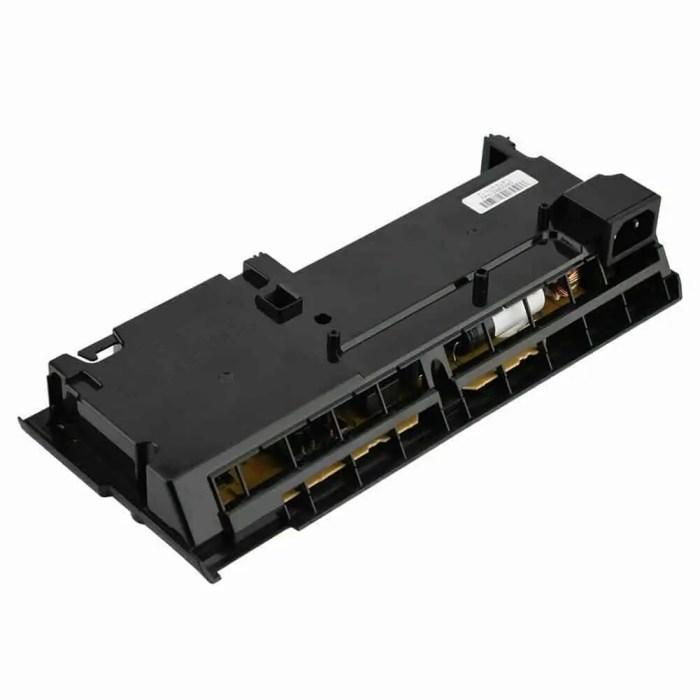
The power supply unit (PSU) is a critical component responsible for converting AC power from the wall outlet to DC power needed by the PS4. Carefully examine the external PSU (located in the back or side of the PS4, depending on the model) for any visible damage. Look for signs of overheating (such as discoloration or warping of the plastic casing), physical damage (cracks, dents), or any unusual smells. Be mindful that internal components are not accessible without opening the casing, which should only be done by trained professionals.
Testing the Power Cord with Another Device
To isolate whether the problem stems from the power cord itself, test it with another electronic device. If the power cord successfully powers another device, it suggests the problem lies within the PS4. However, if the other device also fails to power on, it points to a fault with the power cord or the outlet. This simple test effectively eliminates the power cord as a potential cause, guiding the troubleshooting process towards other components or issues within the PS4.
Troubleshooting Flowchart
A flowchart can visually represent the troubleshooting process. This structured approach helps navigate the various steps logically.
[Imagine a flowchart here. The flowchart would start with a box labeled “PS4 Won’t Turn On?”. This would branch to two boxes: “Check Power Cord and Outlet” and “Check Power Supply”. The “Check Power Cord and Outlet” box would branch to “Outlet Working?” (Yes/No). “Yes” would lead to “Test Power Cord with Another Device” (Works/Doesn’t Work). “No” would lead to “Check Outlet”. The “Check Power Supply” box would branch to “Visible Damage?” (Yes/No). “Yes” would lead to “Replace Power Supply”, while “No” would lead to more advanced troubleshooting steps (not included in this section).]
Advanced Diagnostics and Internal Checks

If initial troubleshooting steps haven’t resolved your PlayStation 4’s power issue, it’s time to delve into more advanced diagnostics. This involves carefully opening the console to inspect its internal components. Remember, this process carries a risk of damaging your console if not performed correctly, so proceed with caution and consult online guides with detailed, high-quality images if you are unsure about any step. Always disconnect the power cord before beginning any internal work.
Opening the PS4 and inspecting the internal components requires careful attention to detail. Various online resources provide step-by-step guides with images, which are highly recommended for a safe and successful procedure. These guides often use specialized tools like Torx screwdrivers, and it’s important to use the correct tools to avoid damaging the screws or the console’s casing. Once open, pay close attention to any visible damage, loose connections, or signs of overheating.
Internal Component Inspection
After safely opening the PS4, visually inspect the hard drive and its connection. The hard drive is usually located towards the bottom of the console. Check that the hard drive is securely connected to the motherboard. Look for any signs of damage to the hard drive itself, such as cracks or bulging. A loose connection can cause the console to not power on, while a damaged hard drive might manifest as complete failure or data corruption. Ensure the SATA data cable and power cable are firmly seated in their respective connectors. A loose connection might be solved by gently reseating the cable.
PS4 Power Issue Symptom Analysis
The following table Artikels potential power issues, their likely causes, troubleshooting steps, and expected outcomes. Remember that these are common issues, and other problems may exist.
| Symptom | Possible Cause | Troubleshooting Step | Likely Outcome |
|---|---|---|---|
| No power light | Faulty power supply, damaged power cord, internal short circuit | Check power cord and outlet; visually inspect power supply and internal components for damage; test power supply (if possible) | Power light illuminates if power supply or cord is faulty; may require professional repair if internal short circuit is suspected. |
| Blinking power light | Overheating, software glitch, failing hard drive | Ensure adequate ventilation; try safe mode; check hard drive connection and for damage | Steady power light if overheating or software glitch was the cause; further investigation needed if hard drive is damaged. |
| Power light on, but no display | HDMI cable issue, faulty display, problem with the console’s video output | Try a different HDMI cable and display; check video settings | Image appears on screen if cable or display was the issue; if not, a problem with the console’s video output is likely. |
| Beeping sounds | Overheating, hardware failure (e.g., failing fan) | Check for dust buildup and ensure adequate ventilation; inspect fan for damage or obstruction | Reduced or elimination of beeping if caused by overheating or fan failure; professional repair may be needed for more serious hardware failures. |
Power Supply Unit Testing
The power supply unit (PSU) is a critical component. Testing it requires some technical skill and appropriate tools. A multimeter is necessary to check the voltage outputs of the PSU. Consult a detailed online guide specifically for your PS4 model to identify the correct voltage readings and testing points. If the PSU fails these tests, replacement is likely necessary. Incorrectly testing the PSU can result in electrical shock or damage to the unit, so only attempt this if you have the necessary expertise and tools. Improper testing can cause further damage.
Software and System Recovery
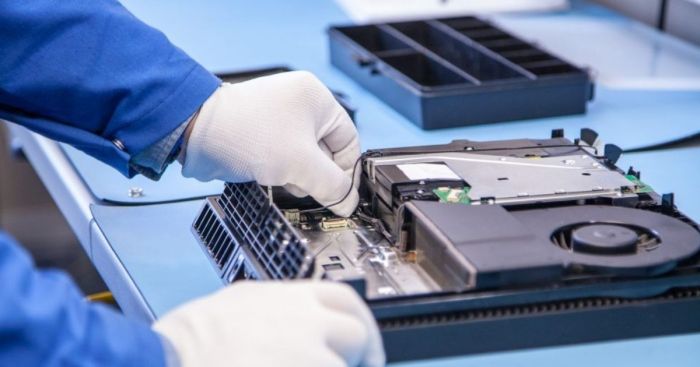
If the initial hardware checks haven’t resolved your PS4’s power issue, the problem might lie within the console’s software. Fortunately, the PS4 offers several built-in recovery options accessible through Safe Mode. These options allow you to repair corrupted system files, rebuild the database, and even perform a full system restore, although the latter comes with the significant caveat of data loss.
Safe Mode provides a limited interface to troubleshoot software problems without fully booting the system. It’s a crucial step before considering more drastic measures. Successfully navigating Safe Mode often resolves many software-related issues, preventing the need for more complex repairs.
Initiating Safe Mode on a PS4
To enter Safe Mode, completely power off your PS4. Then, press and hold the power button on the console. You’ll hear a single beep, followed by another after approximately 7 seconds. Release the power button after the second beep. The console will now boot into Safe Mode, displaying a menu on the screen with several options.
Rebuilding the PS4 Database in Safe Mode
Rebuilding the database reorganizes the data on your PS4’s hard drive, addressing potential file corruption or inconsistencies that may be preventing the system from booting correctly. This process does not delete any user data.
- With the PS4 in Safe Mode, select “Rebuild Database” from the menu.
- The process may take some time, depending on the size of your hard drive and the amount of data stored. Avoid interrupting the process.
- Once complete, restart your PS4 normally. If the problem persists, proceed to the next steps.
Performing a System Software Update via Safe Mode
If your PS4 is unable to update its system software through the normal process, Safe Mode provides an alternative method. This is crucial for resolving software glitches and ensuring compatibility with new features and games. However, this method requires a USB drive formatted correctly with the latest PS4 system software.
- Download the latest PS4 system software update file from the official PlayStation website.
- Save the file to a properly formatted USB drive (FAT32). The file needs to be placed in a specific folder structure: `PS4 > UPDATE > PS4UPDATE.PUP`.
- Connect the USB drive to your PS4.
- In Safe Mode, select “Update System Software”.
- Follow the on-screen instructions to update the system software from the USB drive.
Performing a Full PS4 System Restore
A full system restore is the most drastic software recovery option and will erase all data on your PS4’s hard drive, reverting it to factory settings. This should only be considered as a last resort after all other options have been exhausted, and only if you have backed up your important data.
- Important: This process will delete all user data, games, saved files, and settings. Ensure you have a backup if you want to retain any information.
- In Safe Mode, select “Initialize PS4 (Reinstall System Software)”.
- Choose either “Initialize PS4” to completely wipe the hard drive or “Reinstall System Software” to keep the system files but remove user data.
- Follow the on-screen prompts to complete the process. This will take some time.
- Once complete, your PS4 will be restored to its factory settings, requiring you to set it up again as a new console.
Conclusive Thoughts
Resurrecting your PlayStation 4 from its power-related slumber can be achieved with a methodical approach. By carefully following the steps Artikeld, from basic power checks to more advanced internal inspections, you’ll be well-equipped to identify and fix the problem. Remember, safety is paramount when working with electronics; if you’re uncomfortable with any step, seeking professional assistance is always the best option. With patience and a systematic approach, you’ll soon be back in the game!