Frustrated with unreliable Bluetooth connections? Whether it’s your headphones cutting out or your keyboard refusing to pair, Bluetooth glitches can be incredibly disruptive. This guide tackles two prevalent issues: devices failing to be discoverable and intermittent connection drops. We’ll provide clear, step-by-step solutions for various operating systems, helping you regain seamless connectivity.
We’ll explore the root causes behind these problems, from simple fixes like checking battery levels and optimizing device placement to more advanced troubleshooting steps involving software updates and interference mitigation. By the end, you’ll have the knowledge and tools to diagnose and resolve these common Bluetooth headaches.
Bluetooth Device Not Discoverable
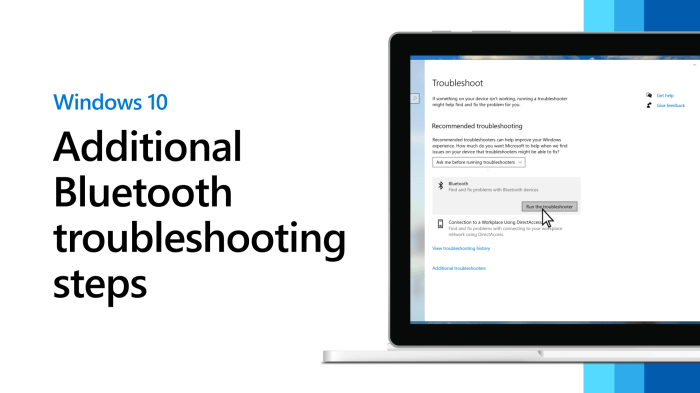
A common frustration when setting up Bluetooth connections is encountering a device that simply won’t show up on your computer or smartphone’s list of available devices. This usually means the Bluetooth device isn’t set to “discoverable” mode. This mode broadcasts a signal allowing other devices to find it. Let’s explore why this happens and how to fix it.
Several factors can prevent a Bluetooth device from being discoverable. The device might be in pairing mode but not discoverable mode (these are distinct settings). It could be a software glitch on either the device or the connecting device. Low battery power can sometimes interfere with the broadcast signal. Finally, the device might have its discoverability feature explicitly turned off.
Making a Bluetooth Device Discoverable
To make a Bluetooth device discoverable, you need to access its settings menu. The exact steps vary depending on the operating system and the specific device (headphones, keyboard, speaker, etc.). However, the general principle remains consistent across different platforms. The following provides instructions for the most common operating systems.
Discoverability on Different Operating Systems
The following table summarizes the steps and interface elements involved in enabling Bluetooth discoverability on various operating systems. Remember that the precise location of settings might vary slightly depending on the version of the OS.
| Operating System | Steps to Make Device Discoverable | Screenshot Description | Troubleshooting Tips |
|---|---|---|---|
| Windows | 1. Open Settings (Windows key + I). 2. Select “Bluetooth & devices”. 3. Ensure Bluetooth is turned on. 4. Locate your device in the list of paired devices. 5. Select “More options” or a similar menu for the device. 6. Look for “Make discoverable” or a similar option and enable it. |
A screenshot would show the “Bluetooth & devices” settings page, with a list of paired devices, and the “More options” menu expanded to reveal the discoverability setting. A toggle switch or checkbox would indicate whether the device is discoverable. | If the device doesn’t appear, try restarting the Bluetooth adapter or even your computer. Check for conflicting software or drivers. Ensure the device is sufficiently charged. |
| macOS | 1. Click the Bluetooth icon in the menu bar. 2. Select “Open Bluetooth Preferences”. 3. Ensure Bluetooth is turned on. 4. Select your device from the list of devices. 5. The option to make the device discoverable may be implicit within the pairing process. Check the device’s documentation for specific instructions. |
A screenshot would show the System Preferences window for Bluetooth, displaying a list of paired devices. The device’s entry might include an indicator of its discoverability status, potentially near a “Paired” label. | Restart your Mac. Check for software updates. Ensure your device is charged and within range. Try removing and re-pairing the device. |
| Android | 1. Open Settings. 2. Select “Connected devices” or “Bluetooth”. 3. Ensure Bluetooth is turned on. 4. Tap the gear icon next to your device. 5. Look for “Visibility” or “Discoverable” and enable it. The timeframe for discoverability might be limited (e.g., 2 minutes). |
A screenshot would show the Bluetooth settings page, displaying a list of paired devices, with a gear icon next to each device leading to a detailed settings menu. The “Visibility” or “Discoverable” toggle would be clearly visible. | Restart your phone. Check your device’s manual for specific instructions. Ensure your device has enough battery power. |
| iOS | 1. Open Settings. 2. Select “Bluetooth”. 3. Ensure Bluetooth is turned on. 4. The discoverability setting is often implicit within the pairing process itself. The device needs to be put into pairing mode first, which usually makes it discoverable for a short time. Consult your device’s manual for specific instructions. |
A screenshot would show the iOS Bluetooth settings page with a list of paired devices. The device needs to be in pairing mode, which is usually indicated by a flashing light on the device itself. | Restart your iPhone. Check for iOS updates. Ensure your device is adequately charged and within range. Try forgetting the device and re-pairing it. |
Troubleshooting Discoverability Issues
If you’ve followed the steps above and your device is still not discoverable, consider these additional troubleshooting steps:
Check Device Settings: Ensure that your device’s Bluetooth is turned on and that any power-saving modes that might disable Bluetooth are deactivated. Some devices have separate settings for “Pairing Mode” and “Discoverable Mode”; both may need to be activated.
Pairing Mode: Many Bluetooth devices require you to put them into a specific “pairing mode” before they become discoverable. Consult your device’s user manual for instructions on entering pairing mode. This often involves holding down a specific button on the device for a few seconds.
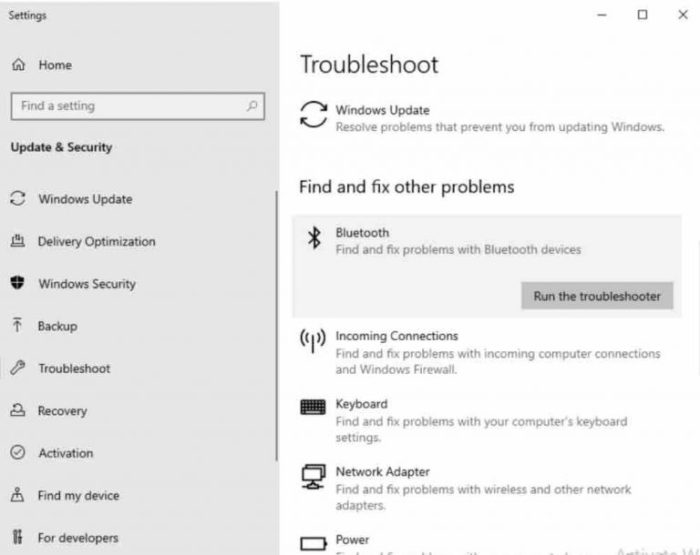
Software Glitches: Software glitches on either your computer/phone or the Bluetooth device can disrupt discoverability. Restarting both devices is a common first step. For persistent problems, consider updating the Bluetooth drivers or firmware on your devices.
Intermittent or Dropped Bluetooth Connections
Experiencing intermittent or dropped Bluetooth connections can be frustrating, disrupting everything from listening to music to making hands-free calls. These disruptions stem from a variety of factors, and understanding these causes is the first step towards a stable connection.
Intermittent or dropped Bluetooth connections are often caused by a combination of factors affecting signal strength and stability. These include the physical distance between devices, interference from other electronic devices, and low battery power in either the connected device or the Bluetooth adapter. Environmental factors, such as physical obstructions (walls, furniture) also play a significant role.
Causes of Intermittent Bluetooth Connections
Several factors contribute to unreliable Bluetooth performance. Distance significantly impacts signal strength; the further apart your devices are, the weaker the signal becomes, leading to dropouts. Other electronic devices operating on similar frequencies (e.g., Wi-Fi, microwaves) can create interference, disrupting the Bluetooth signal. Finally, low battery power in either your Bluetooth device or your computer/phone can result in unstable connections or complete disconnections.
Improving Bluetooth Signal Strength
Optimizing your devices’ placement and minimizing interference can significantly improve Bluetooth signal strength and stability. Keep your Bluetooth devices as close together as possible, minimizing physical obstructions between them. For example, moving your Bluetooth headphones closer to your phone or laptop can improve the connection. Avoid placing devices near other electronic equipment, especially those operating on the 2.4 GHz frequency band (like microwaves and some cordless phones), as these can cause interference. Consider repositioning your router or other Wi-Fi emitting devices to reduce potential overlap with the Bluetooth frequency band.
Bluetooth Version Comparison
Different Bluetooth versions offer varying levels of performance. Bluetooth 5, compared to older versions like Bluetooth 4.2 or earlier, generally provides improved range, speed, and connection stability. This translates to fewer dropped connections and a more reliable experience, particularly over longer distances or in environments with more potential interference. For instance, Bluetooth 5 might maintain a stable connection across a larger room where older versions might experience frequent dropouts. However, the actual performance improvements depend on the specific devices and their implementation of the Bluetooth standard.
Troubleshooting Intermittent Bluetooth Connections
A systematic approach to troubleshooting is essential for resolving intermittent Bluetooth issues. The following flowchart Artikels a logical sequence of steps to diagnose and resolve the problem.
The flowchart below visually represents the troubleshooting steps. Imagine a flowchart starting with “Intermittent Bluetooth Connection?”. A “Yes” branch leads to “Check Device Power (Both Devices)”. A “No” branch leads to the end. From “Check Device Power”, a “Low Battery” branch leads to “Charge Devices & Retry”, and a “Sufficient Power” branch leads to “Restart Devices (Both Devices)”. From “Restart Devices”, a “Connection Restored?” branch leads to the end (success), and a “No” branch leads to “Check for Interference”. From “Check for Interference”, a “Interference Found?” branch leads to “Reduce Interference & Retry”, and a “No Interference” branch leads to “Update Bluetooth Drivers”. From “Update Bluetooth Drivers”, a “Connection Restored?” branch leads to the end (success), and a “No” branch leads to “Consult Manufacturer Support”.
Pairing and Connection Issues

Pairing a Bluetooth device with your computer or smartphone is usually a straightforward process, but occasional hiccups can occur. Understanding the steps involved and common troubleshooting techniques can significantly improve your Bluetooth experience. This section will cover the typical pairing procedure, address common errors, and offer best practices for maintaining stable connections.
Pairing a Bluetooth device involves making the device discoverable, initiating a pairing request on your computer or smartphone, and confirming the pairing code. The specific steps might vary slightly depending on the operating system and the device being paired, but the overall process remains consistent. Common issues often arise from problems with device discoverability, incorrect pairing codes, or interference from other Bluetooth devices.
Bluetooth Pairing Steps
The general process involves first ensuring your Bluetooth device is in pairing mode (often indicated by a flashing light). Then, on your computer or smartphone, activate Bluetooth, scan for available devices, select the target device from the list, and enter any required pairing code. This code is usually displayed on the device itself. Once confirmed, the device should be paired and connected. After successful pairing, the device will typically appear in the list of paired devices, allowing for quick reconnection in the future.
Common Pairing Errors and Solutions
Several common errors can occur during the Bluetooth pairing process. For example, the device might not be discoverable, the pairing code might be incorrect, or a connection timeout might occur. These problems can often be resolved by ensuring the Bluetooth device is correctly placed within range of the host device, restarting both devices, checking for software updates, and verifying the pairing code accuracy. If a device is not appearing in the list of available devices, ensure the device is properly switched into pairing mode.
Best Practices for Stable Bluetooth Connections
Maintaining stable Bluetooth connections involves several key practices. Keeping your operating system and Bluetooth drivers up-to-date is crucial. Regularly checking for and installing updates ensures compatibility and addresses potential bugs. Managing your list of paired devices is also important; removing infrequently used devices can reduce potential interference and improve overall performance. Additionally, minimizing physical obstructions and other sources of radio frequency interference can significantly improve signal strength and connection stability. Avoid using Bluetooth devices near sources of strong electromagnetic fields, such as microwaves or Wi-Fi routers.
Unpairing and Re-pairing Bluetooth Devices
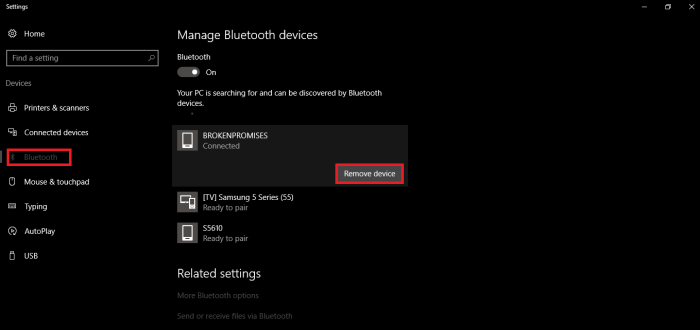
Sometimes, you might need to unpair or forget a Bluetooth device and then re-pair it. This is often necessary to troubleshoot connection problems or if you’re experiencing unexpected behavior. The process varies slightly depending on the operating system and device type. For instance, on a Windows computer, you would go to Settings > Bluetooth & devices, select the device you want to remove, and click “Remove device”. On a macOS system, you would go to System Preferences > Bluetooth, select the device, and click the “X” button. The process is similar for smartphones, usually involving going to the Bluetooth settings menu and selecting the option to unpair or forget the device. After unpairing, follow the standard pairing steps to reconnect the device. For example, with Bluetooth headphones, you might need to press and hold a button on the headphones to enter pairing mode. With a Bluetooth keyboard or mouse, the process might involve installing any necessary drivers after unpairing and re-pairing.
Final Wrap-Up
Mastering Bluetooth connectivity doesn’t have to be a technological battle. By understanding the common causes of discoverability issues and intermittent connection drops, and by following the troubleshooting steps Artikeld in this guide, you can significantly improve your Bluetooth experience. Remember to check device settings, optimize placement, and consider software updates – these simple steps can often resolve even the most frustrating connection problems. Enjoy a more reliable and stable wireless connection!