Frustrated with slow mobile data, dropped connections, or sky-high bills? You’re not alone. Millions grapple with common mobile data issues daily. This guide tackles four prevalent problems – slow speeds, complete connection loss, excessive data usage, and more – offering practical solutions to restore your mobile internet experience to its optimal state. We’ll explore troubleshooting steps, optimization techniques, and preventative measures to keep your mobile data running smoothly.
From simple restarts to advanced APN configuration, we provide clear, step-by-step instructions to help you diagnose and resolve these issues. Whether you’re a tech novice or savvy user, this guide empowers you to take control of your mobile data and enjoy seamless connectivity. We’ll also delve into proactive strategies for managing data usage and preventing future problems, ensuring a consistently reliable mobile internet experience.
Slow Mobile Data Speeds

Frustratingly slow mobile data can significantly impact productivity and enjoyment of your mobile device. Several factors contribute to this common problem, and understanding these causes is the first step towards finding a solution. Let’s explore the common culprits and effective troubleshooting steps.
Slow mobile data speeds are often caused by network congestion, weak signal strength, outdated software, background apps consuming data, or even limitations in your data plan. Network issues, such as cell tower maintenance or high user demand in your area, can temporarily reduce speeds. Similarly, a weak signal, often indicated by low bars on your phone’s signal indicator, directly affects download and upload speeds. Outdated software on your phone or your network equipment might lack the latest optimizations for speed and efficiency. Lastly, running many data-hungry applications simultaneously can easily overwhelm your available bandwidth.
Troubleshooting Slow Data Speeds
Addressing slow data speeds involves a systematic approach. Begin by checking your signal strength. A weak signal is a primary cause of slow speeds. Move to a location with a stronger signal, ideally near a window or outside. If the problem persists, restarting your device can often resolve temporary software glitches that may be impacting performance. This simple step clears the device’s memory and re-establishes connections. Finally, examine your data usage. If you’ve exceeded your data allowance, your carrier might throttle your speeds to manage network resources. Contact your carrier to discuss your data usage and potential upgrades.
Optimizing Mobile Data Settings
Several settings can significantly impact your mobile data speed. Enabling data saver mode, a feature found on most modern smartphones, limits background data usage, freeing up bandwidth for your active applications. Disabling automatic updates for apps can also help, as these updates can consume considerable data in the background. Additionally, consider turning off location services when not needed; location tracking can continuously use data. Finally, regularly clearing your browser’s cache and cookies can improve browsing speed by removing unnecessary data that can slow down your phone.
Comparison of Methods for Improving Mobile Data Speed
| Method | Description | Pros | Cons |
|---|---|---|---|
| Use a Wi-Fi Connection | Connect to a reliable Wi-Fi network. | Fastest speeds, less data usage from your mobile plan. | Requires Wi-Fi availability, may not always be an option. |
| Adjust Network Settings | Select preferred network type (e.g., 4G LTE, 5G), switch between network modes. | Can improve connection stability and speed in certain areas. | May not always be effective, requires some technical understanding. |
| Use a Data Booster App | Download apps designed to optimize data usage and improve speeds. | Potentially improves speeds, may offer additional features like data compression. | May require permissions, some apps might be ineffective or even malicious. |
| Contact Your Carrier | Inquire about network issues, data plan upgrades, or potential network congestion in your area. | Can resolve carrier-side issues, get a better data plan. | Requires contacting customer support, may not immediately solve the problem. |
No Mobile Data Connection

Experiencing a complete lack of mobile data can be incredibly frustrating. This section will guide you through troubleshooting steps to identify the cause and restore your connection. We’ll explore how to differentiate between network coverage issues and SIM card problems, and offer solutions to get you back online.
Troubleshooting a missing mobile data connection involves systematically checking various aspects of your device and network setup. The first step is determining whether the problem lies with your device’s ability to connect to the network or if there’s a broader network outage affecting your area.
Network Coverage and SIM Card Functionality
Checking for network coverage involves verifying that your mobile carrier’s signal is present and strong enough in your current location. This can be done by visually inspecting your device’s signal bars or by checking the network status through your device’s settings. A weak or absent signal indicates a coverage problem, possibly due to your location, network congestion, or a temporary outage. In contrast, checking SIM card functionality involves confirming that the SIM card is correctly inserted, active, and recognized by your device. A faulty or improperly inserted SIM card will prevent your device from connecting to the network, regardless of signal strength. This check often involves physically examining the SIM card and its tray within your device.
Potential Solutions for Connection Issues
Several solutions can resolve mobile data connection problems. If you’ve confirmed network coverage is adequate and your SIM card is functioning correctly, consider restarting your device. A simple reboot can often resolve temporary software glitches that may be interfering with the connection. If the problem persists, check for network outages in your area by contacting your mobile service provider or checking their website or social media for service alerts. Your provider may be experiencing technical difficulties affecting the entire region. They can also help diagnose problems with your account, such as unpaid bills or incorrect settings.
Manually Configuring APN Settings on Android
Incorrectly configured Access Point Names (APNs) are a common cause of mobile data connection issues. Manually configuring these settings can resolve connectivity problems. It’s crucial to ensure you use the correct APN settings provided by your mobile carrier. Incorrect settings will prevent your device from connecting to the network.
- Open your Android device’s Settings app.
- Tap on Network & internet, then Mobile network.
- Tap on Access Point Names (APN).
- Tap the three-dot menu (usually located in the upper right corner) and select New APN.
- Enter the correct APN settings provided by your carrier. These typically include the Name, APN, Proxy, Port, Username, Password, MMSC, and MMSC proxy. Incorrect values here will prevent your device from connecting.
- Tap the three-dot menu again and select Save.
- Select the newly created APN from the list and try connecting to the mobile data network.
High Mobile Data Usage

Unexpectedly high mobile data bills can be frustrating. Understanding your data usage and implementing effective management strategies is key to avoiding this. This section will explore methods for monitoring your data consumption, techniques for saving data, and strategies for controlling data-hungry applications.
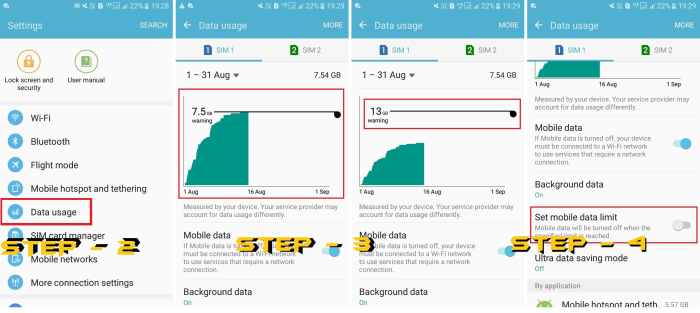
Monitoring and Managing Mobile Data Usage involves regularly checking your data usage through your mobile carrier’s app or website. Most carriers provide detailed breakdowns of your data consumption, often categorized by app. This allows you to pinpoint data hogs and adjust your usage accordingly. Setting data usage limits or alerts within your phone’s settings can also help prevent exceeding your allocated data. These alerts will notify you when you’re approaching your limit, giving you the opportunity to adjust your behavior.
Data Saving Techniques
Several techniques can significantly reduce your mobile data consumption. Limiting background data prevents apps from using data when not actively in use. This setting, typically found in your phone’s settings under “Data Usage” or a similar menu, can dramatically reduce data usage, especially for apps that frequently update or sync in the background. Data compression apps work by compressing data before it’s transmitted, reducing the amount of data used. These apps often integrate with your browser and other apps to provide data savings across the board. While effective, they might slightly increase loading times. The choice between limiting background data and using a compression app depends on individual preferences and priorities; some users may prefer the simplicity of limiting background data, while others might opt for the broader data-saving capabilities of a compression app.
Data-Intensive Applications and Strategies for Reduction
Streaming services like Netflix, YouTube, and Spotify, along with social media platforms like Instagram, Facebook, and TikTok, are notorious data consumers. High-resolution video streaming and frequent image uploads contribute significantly to high data usage. To mitigate this, consider streaming videos at lower resolutions (e.g., selecting “Standard Definition” instead of “High Definition”), downloading content for offline viewing when possible, and limiting the number of high-resolution images uploaded or downloaded. For social media, adjusting settings to reduce automatic video playback and disabling high-quality image loading can be helpful. Gaming apps can also be significant data consumers, particularly those that require frequent updates or online play. Limiting gameplay time or choosing games with smaller download sizes can help manage data usage.
Tips for Reducing Data Consumption While Streaming and Using Social Media
Reducing data usage while enjoying your favorite online activities requires a mindful approach. Here are some practical strategies:
- Download videos and music for offline use whenever possible.
- Stream videos at the lowest resolution that provides acceptable quality.
- Limit the use of auto-playing videos on social media platforms.
- Download images instead of constantly streaming them.
- Reduce the frequency of checking social media and avoid browsing aimlessly.
- Use Wi-Fi whenever possible for data-intensive activities.
- Turn off background data for social media apps and streaming services.
Final Summary
Successfully navigating the world of mobile data requires understanding both the technology and your individual usage patterns. By mastering the troubleshooting techniques and optimization strategies Artikeld in this guide, you can effectively address common mobile data problems. Remember, proactive monitoring and management are key to preventing future issues and ensuring a consistently reliable and efficient mobile internet experience. Take control of your data, and enjoy the seamless connectivity you deserve.