Is your Windows 10 computer running slower than a snail? Experiencing frustrating lag and delays? You’re not alone. Many users encounter performance issues over time. This guide provides nine actionable tips to revitalize your system’s speed and responsiveness, covering software optimization, hardware considerations, and crucial system tweaks. We’ll explore practical solutions to common problems, empowering you to reclaim your computer’s peak performance.
From managing resource-hungry programs and browser extensions to understanding the benefits of an SSD and optimizing your Windows settings, we’ll equip you with the knowledge and steps needed to significantly improve your computer’s speed and efficiency. By following these straightforward techniques, you can transform your sluggish machine into a responsive and efficient workhorse.
Software Optimization
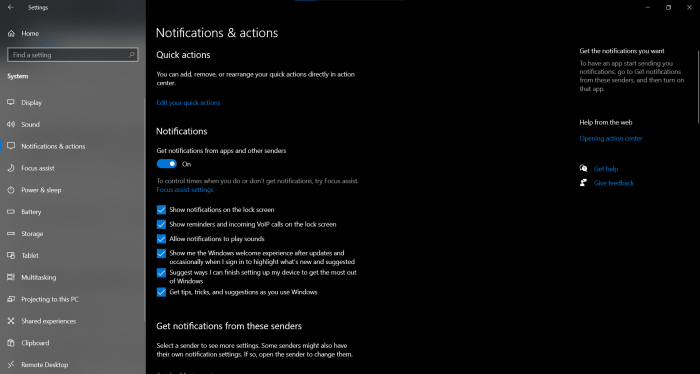
Optimizing your software is crucial for a faster Windows 10 experience. This involves managing startup programs, uninstalling unused applications, cleaning temporary files, and controlling browser extensions. Regularly updating your system and drivers also plays a significant role in maintaining optimal performance.
Managing Startup Programs
Many programs automatically launch when you start your computer, consuming resources and slowing down boot times. Disabling unnecessary startup programs can significantly improve your system’s responsiveness. The following table lists some common examples and how to manage them. To access startup settings, search for “Task Manager” in the Windows search bar, click “More details,” then navigate to the “Startup” tab.
| Program Name | Publisher | Startup Impact | Action Taken |
|---|---|---|---|
| Dropbox | Dropbox, Inc. | High | Disabled; Files are accessed on demand. |
| Adobe Creative Cloud | Adobe Inc. | Medium | Enabled; Essential for my workflow. |
| McAfee | McAfee | Medium | Enabled; Necessary for real-time virus protection. |
| Steam | Valve Corporation | Low | Enabled; Allows for quick game launching. |
| Spotify | Spotify AB | Low | Disabled; Launch manually when needed. |
Uninstalling Unused Programs and Cleaning Temporary Files
Unused programs occupy disk space and can sometimes run background processes, impacting performance. Regularly uninstalling these programs frees up space and improves efficiency. Temporary files, such as internet cache and system logs, also accumulate over time, consuming storage and slowing down the system. Cleaning these files helps maintain optimal performance.
To uninstall programs, open the “Settings” app (Windows key + I), go to “Apps,” then “Apps & features.” Select the program you want to uninstall and click “Uninstall.” To clean temporary files, search for “Disk Cleanup” in the Windows search bar and run the tool. Select the file types you wish to delete and click “OK.”
Managing Browser Extensions and Add-ons
Browser extensions and add-ons, while offering convenient features, can significantly impact browser performance and overall system speed if too many are installed. Many run in the background, consuming resources even when not actively used. Regularly review and disable or remove extensions that are no longer needed.
To manage extensions in Chrome, click the three vertical dots in the top right corner, select “More tools,” then “Extensions.” You can disable or remove extensions from here. Similar processes exist for other browsers like Firefox and Edge.
Updating Windows and Drivers
Keeping your Windows operating system and device drivers updated is essential for security and performance. Updates often include performance improvements, bug fixes, and security patches that can significantly enhance your system’s speed and stability. Outdated drivers can cause conflicts and slowdowns.
To check for Windows updates, open the “Settings” app, go to “Update & Security,” then “Windows Update.” Click “Check for updates.” For driver updates, you can use the Device Manager (search for it in the Windows search bar) to check for updates for individual devices or use the manufacturer’s website to download the latest drivers.
Hardware Considerations
A sluggish Windows 10 computer isn’t always a software problem. Often, underlying hardware limitations are the culprit. Understanding your computer’s hardware capabilities and identifying potential bottlenecks is crucial for optimizing performance. This section will explore key hardware components and their impact on your system’s speed.
Hardware components such as RAM, storage, and the processor itself can significantly impact the overall performance of your Windows 10 system. Insufficient resources in any of these areas can lead to noticeable slowdowns, application freezes, and overall system instability. Upgrading or optimizing these components can often yield dramatic improvements in speed and responsiveness.
Hard Drive vs. Solid State Drive
Hard disk drives (HDDs) use spinning platters to store data, while solid-state drives (SSDs) use flash memory. This fundamental difference leads to vastly different performance characteristics. SSDs offer significantly faster read and write speeds, resulting in dramatically faster boot times, application loading, and overall system responsiveness. For example, booting a system from an HDD might take several minutes, while an SSD can often boot in under 20 seconds. The speed difference is even more pronounced when launching applications or accessing large files. The lack of moving parts in an SSD also contributes to its increased durability and longevity compared to an HDD.
Recommended Minimum Hardware Specifications
The minimum hardware requirements for optimal Windows 10 performance vary depending on intended use. However, a general guideline for a smooth and responsive experience is provided below. These specifications represent a baseline; higher specifications will naturally lead to improved performance, especially for demanding tasks like gaming or video editing.
| Component | Minimum Recommendation |
|---|---|
| Processor (CPU) | Intel Core i3 or AMD Ryzen 3 equivalent or better |
| RAM | 8 GB |
| Storage | 256 GB SSD (Solid State Drive) |
Monitoring CPU and RAM Usage
Windows 10 provides built-in tools to monitor CPU and RAM usage. This allows you to identify resource-intensive processes and pinpoint potential bottlenecks. Understanding how to interpret this data can help you optimize your system’s performance and identify areas for improvement.
To monitor CPU usage, open Task Manager (Ctrl+Shift+Esc). The “Processes” tab displays the CPU usage of each running application. High CPU usage ( consistently above 80-90%) indicates that your processor is working at its maximum capacity, potentially causing slowdowns. Similarly, the “Performance” tab provides a graphical representation of CPU usage over time.
To monitor RAM usage, also use the Task Manager’s “Performance” tab. This shows the amount of RAM currently in use and available. High RAM usage (consistently above 80-90%) suggests that your system is running low on memory, potentially leading to slowdowns or application crashes. Identifying processes consuming significant RAM can help you prioritize closing unnecessary applications or upgrading your system’s RAM.
System Tweaks and Settings
Optimizing your Windows 10 system goes beyond software and hardware; fine-tuning the operating system’s settings can significantly impact performance. By making strategic adjustments to visual effects, power plans, and disk management, you can unlock noticeable speed improvements. This section details several key tweaks to boost your system’s responsiveness.
Disabling Visual Effects
Disabling unnecessary visual effects can free up system resources, leading to a more responsive system. Windows 10 offers a built-in tool to manage these effects. The following steps demonstrate how to minimize visual clutter and improve performance:
- Right-click on the Start button and select System.
- Click on About in the left-hand menu.
- Click on Advanced system settings in the right-hand panel.
- In the System Properties window, click the Advanced tab.
- Under Performance, click Settings.
- Select the Adjust for best performance radio button. This will disable most visual effects. Alternatively, you can choose Let Windows choose what’s best for my computer for a balanced approach, or customize individual effects manually.
- Click Apply and then OK to save the changes.
Adjusting Power Settings for Performance
Windows power plans dictate how aggressively your system manages power consumption. Switching to a high-performance plan prioritizes speed over battery life (if applicable). This can be especially beneficial for desktop computers.
To illustrate, imagine the power settings screen: you’ll see a list of available plans, such as “Balanced,” “Power saver,” and “High performance.” The “High performance” plan, usually depicted with a lightning bolt icon, allocates maximum processing power, leading to faster application launch times and improved responsiveness. Selecting this plan will usually result in a higher CPU clock speed and increased fan activity. The “Balanced” plan offers a compromise between performance and power saving, while “Power saver” prioritizes minimizing energy usage.
To change your power plan:
- Click the battery icon in the system tray (bottom-right corner of the screen).
- Select Power Options.
- Choose the High performance plan from the list.
Defragmenting or Optimizing a Hard Drive
For traditional hard disk drives (HDDs), defragmentation is a crucial step to improve read/write speeds. Over time, files become fragmented, scattered across the disk, slowing down access. Defragmentation rearranges these files for faster retrieval. Solid State Drives (SSDs) generally do not require defragmentation, as they use a different technology. However, Windows may still offer an “optimize” option for SSDs which performs a different type of maintenance.
To defragment or optimize your drive:
- Search for “Defragment and Optimize Drives” in the Windows search bar.
- Select the drive you wish to defragment or optimize (usually your C: drive).
- Click Analyze to check the drive’s fragmentation level.
- Click Optimize to start the process.
Recommended Windows 10 Settings Adjustments
A range of settings can impact performance. The following adjustments are categorized by their potential impact:
| Setting | Category | Description |
|---|---|---|
| Disable Startup Programs | Significant | Reduce the number of applications launching at startup to free up resources. Access this through Task Manager (Ctrl+Shift+Esc). |
| Turn off automatic updates during use | Moderate | Prevent updates from interrupting your workflow. Configure this in Windows Update settings. |
| Reduce visual effects (as described above) | Moderate | Minimize unnecessary animations and transparency for improved performance. |
| Disable background apps | Moderate | Limit the number of applications running in the background consuming resources. Manage this in Settings > Privacy > Background apps. |
| Clear temporary files and cache | Minor | Regularly clear temporary files to free up disk space. Use Disk Cleanup (search for it in the start menu). |
Summary
Revitalizing your Windows 10 computer’s performance doesn’t require complex technical expertise. By implementing the nine tips Artikeld above—from optimizing software and addressing hardware limitations to fine-tuning system settings—you can significantly enhance your computing experience. Remember, regular maintenance and proactive optimization are key to maintaining a fast and responsive system. Take control of your computer’s speed and enjoy a smoother, more efficient workflow.