A frozen computer can be incredibly frustrating, halting productivity and causing significant inconvenience. This guide provides eight straightforward steps to diagnose and resolve common causes of computer freezes, ranging from simple software glitches to more complex hardware issues. We’ll explore both software and hardware solutions, empowering you to troubleshoot effectively and get your computer running smoothly again.
From identifying the root cause of the freeze – be it an overheating processor, a problematic program, or a failing hard drive – to implementing practical solutions like updating drivers, running disk cleanup, and checking RAM, we’ll walk you through each step with clear explanations and actionable advice. By following this guide, you’ll gain the knowledge and confidence to tackle most computer freezes independently, minimizing downtime and maximizing your computer’s performance.
Identifying the Freeze
A frozen computer, unresponsive to input, is frustrating. Understanding the causes helps in effective troubleshooting. Several factors can contribute to this problem, ranging from simple software glitches to more serious hardware issues. Let’s explore some common culprits and initial steps to take.
Causes of Computer Freezes
Computer freezes occur due to various reasons. Software conflicts, insufficient RAM, corrupted system files, overheating components, failing hardware (hard drive, RAM, CPU), and malware infections are all potential causes. A freeze can manifest as a complete system lock-up or a situation where the system is responsive but extremely slow.
Restarting the Computer
A simple restart often resolves temporary software glitches. This process clears the computer’s memory and allows it to start afresh. To restart your computer, follow these steps:
- Click the Start button (usually located in the bottom-left corner of the screen).
- Select the Power button.
- Click “Restart”.
If the computer doesn’t respond to this, hold down the power button for 5-10 seconds to force a shutdown. Then, try restarting normally.
Checking for Overheating
Overheating components, especially the CPU and GPU, can lead to system freezes. Excessive heat can cause instability and shutdowns. To check for overheating:
- Feel the computer case. If it’s unusually hot, especially near the CPU or GPU area, overheating is a likely culprit.
- Use monitoring software (many free options are available online) to check CPU and GPU temperatures. If these exceed recommended operating temperatures (usually around 70-80°C for CPUs and similar for GPUs, though specifics vary by model), overheating is a serious issue requiring attention.
Solutions include improving airflow (cleaning dust from fans and vents), ensuring adequate ventilation, and potentially replacing aging thermal paste on the CPU and GPU.
Identifying the Culprit Program
Sometimes, a specific program causes the freeze. If the freeze consistently occurs when using a particular application, that application is likely the cause. Note the program running immediately before the freeze occurs. If possible, try closing the program through Task Manager (Ctrl+Shift+Esc) before it freezes completely. If you can identify the program, consider updating it, reinstalling it, or seeking alternative software.
Types of Computer Freezes and Their Likely Causes
| Freeze Type | Description | Likely Causes | Troubleshooting Steps |
|---|---|---|---|
| Complete System Freeze | The entire system becomes unresponsive; no mouse clicks or keystrokes register. | Hardware failure, driver issues, severe software conflicts, operating system corruption. | Restart, check hardware, run system diagnostics. |
| Application Freeze | A single program becomes unresponsive, while the rest of the system continues to function. | Buggy software, insufficient RAM, resource conflict. | Close the program (Task Manager), update or reinstall the program. |
| Partial Freeze | Some system functions are unresponsive while others remain functional. | Driver problems, resource conflicts, malware. | Check device managers, run malware scans, update drivers. |
| Slowdown/Lag | The system is running, but very slowly. | Insufficient RAM, malware, disk fragmentation, too many programs running. | Close unnecessary programs, run disk cleanup, check for malware, upgrade RAM. |
Software-Related Solutions
A freezing computer is often a symptom of underlying software issues. Addressing these problems can significantly improve system stability and responsiveness. Outdated drivers, excessive temporary files, and unnecessary programs all contribute to performance degradation and ultimately, freezes. Let’s explore how to tackle these software-related culprits.
Outdated drivers can cause instability and conflicts within your operating system, leading to frequent freezes. They are essentially the software that allows your operating system to communicate with your hardware (like your graphics card, printer, or mouse). If a driver is outdated, it might not be compatible with the latest system updates or even have known bugs that cause crashes. Regular driver updates are crucial for maintaining a stable and efficient system.
Updating Drivers Effectively
Updating drivers involves locating the latest versions from the manufacturer’s website and installing them. For example, to update your graphics card driver, you would visit the website of NVIDIA (if you have an NVIDIA card) or AMD (if you have an AMD card), find your specific card model, and download the appropriate driver. Windows also provides a built-in driver update utility accessible through Device Manager. However, manually checking for updates on the manufacturer’s site ensures you get the most up-to-date and optimized drivers. It is important to note that during the installation process, you should follow the manufacturer’s instructions carefully to avoid any potential issues.
Disk Cleanup and Defragmentation
Over time, your hard drive accumulates temporary files, old system files, and other unnecessary data. This clutter can slow down your system and lead to freezes. Disk Cleanup is a built-in Windows utility that helps remove these unnecessary files. Defragmentation, while less crucial for SSDs (Solid State Drives), remains beneficial for HDDs (Hard Disk Drives). Defragmentation rearranges files on the hard drive to improve access times and overall performance. Running both Disk Cleanup and Defragmentation (for HDDs) regularly helps maintain optimal hard drive performance and prevent freezes related to disk space limitations or file fragmentation.
Uninstalling Unnecessary Programs
Many programs are installed on your computer over time, some of which you may no longer use. These unused programs consume valuable disk space and resources, potentially contributing to system freezes. To uninstall unnecessary programs, go to the Control Panel (in Windows) and select “Programs and Features”. From there, you can select and uninstall any programs you no longer need. Be cautious when uninstalling programs, as removing critical system components can cause problems.
Software Update Maintenance Checklist
Maintaining a schedule for software updates is essential for preventing future freezes. The following checklist can help:
- Regular Driver Updates: Check for driver updates at least once a month, or more frequently if you experience problems.
- Scheduled Disk Cleanup: Run Disk Cleanup at least once a week to remove temporary files.
- Defragmentation (HDDs): Schedule defragmentation for HDDs once a month or as needed.
- Software Updates: Enable automatic updates for your operating system and other critical software.
- Uninstall Unused Programs: Regularly review installed programs and uninstall those you no longer use.
Following this checklist can significantly improve your system’s stability and reduce the likelihood of future freezes. Remember that proactive software maintenance is key to a smooth and efficient computing experience.
Hardware-Related Solutions & Prevention
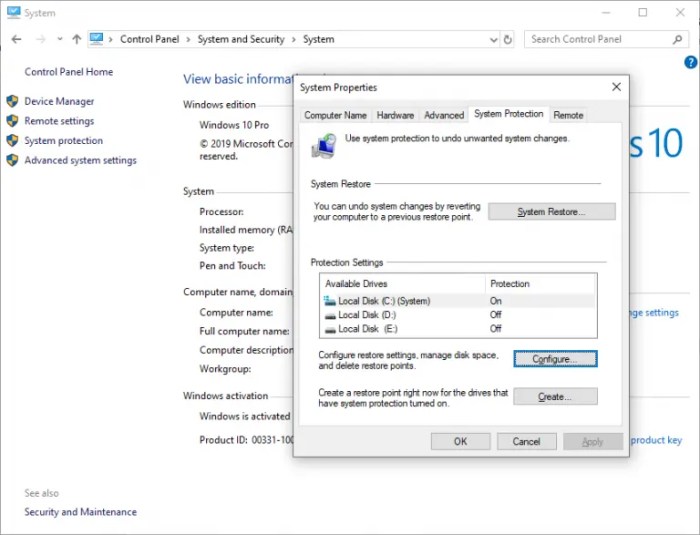
A freezing computer isn’t always a software issue; sometimes, the problem lies within the hardware itself. Identifying and addressing these hardware problems can significantly improve your computer’s stability and prevent future freezes. This section will guide you through diagnosing potential hardware culprits and implementing preventative measures.
Identifying Potential Hardware Problems
Several hardware components can cause a computer to freeze. Overheating is a common culprit, particularly for the CPU and GPU. Faulty RAM modules can also lead to instability and freezing. A failing hard drive, exhibiting symptoms like slow read/write speeds or clicking noises, is another frequent cause. Finally, issues with the power supply unit (PSU), such as insufficient power delivery, can also trigger system freezes. Identifying the specific component requires careful observation and diagnostic testing.
Checking RAM for Errors
Memory errors are a significant cause of computer freezes. Windows includes a built-in memory diagnostic tool. To access it, search for “Windows Memory Diagnostic” in the Start menu. You can choose to restart your computer immediately and run the test, or schedule it for the next reboot. The diagnostic tool will thoroughly test your RAM modules, identifying any errors. A high number of errors indicates faulty RAM, requiring replacement.
Checking Hard Drive Health
Hard drive failure is a major cause of system instability and data loss. Windows includes a built-in tool to check the health of your hard drive, though more comprehensive tools are available from third-party developers. Using the built-in tool can provide a basic assessment of your hard drive’s health. Look for warnings about bad sectors or other issues. Third-party tools often provide more detailed diagnostics, including SMART (Self-Monitoring, Analysis and Reporting Technology) data, offering a more in-depth assessment of drive health. Consider using a tool like CrystalDiskInfo or similar to perform a more comprehensive analysis.
Preventative Measures for Avoiding Future Hardware-Related Freezes
Regular maintenance is key to preventing hardware-related freezes. Ensure adequate cooling by keeping your computer’s vents clear of dust and debris. Regularly clean the inside of your computer case using compressed air. Monitor your CPU and GPU temperatures using monitoring software. If temperatures consistently run high, consider upgrading your cooling solution. Keep your software updated, including drivers for your hardware components, as updates often include stability improvements. Finally, regularly back up your important data to an external drive or cloud storage service to protect against data loss in case of a hard drive failure.
Potential Hardware Upgrades to Improve Performance and Stability
Upgrading certain hardware components can significantly improve your computer’s performance and stability. Adding more RAM is often a cost-effective way to improve performance and reduce freezes, particularly if your system is running low on memory. Upgrading to a solid-state drive (SSD) will dramatically improve boot times and overall system responsiveness. Replacing an older, less efficient power supply with a higher-wattage model can also enhance stability and prevent power-related freezes. Finally, upgrading to a more powerful CPU or GPU, depending on your needs, can improve performance and handle more demanding tasks without causing freezes. Consider the specific needs of your computer and budget when choosing upgrades.
Final Thoughts
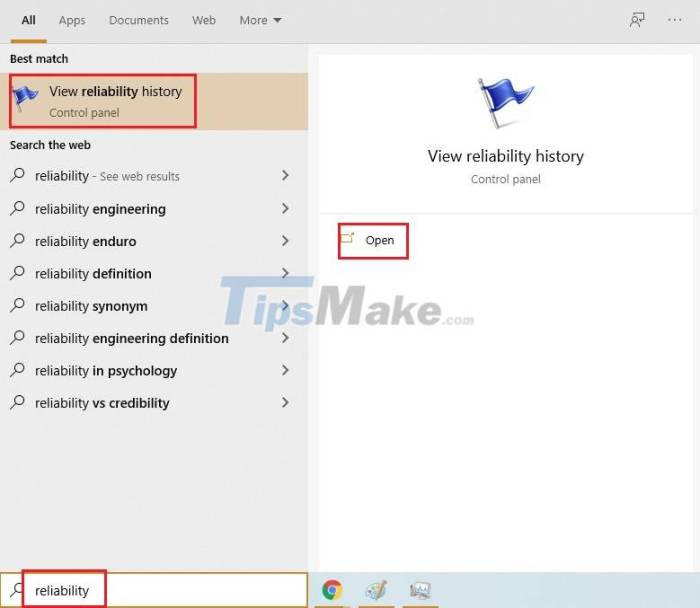
Successfully navigating a computer freeze requires a systematic approach, combining software and hardware troubleshooting. By systematically working through the eight steps Artikeld in this guide, you can effectively identify the cause of your computer’s freezing and implement the appropriate solution. Remember that preventative measures, such as regularly updating drivers and maintaining software, play a crucial role in preventing future freezes. With a little knowledge and proactive maintenance, you can keep your computer running smoothly and avoid the frustration of unexpected freezes.