A frozen smartphone is frustrating, leaving you locked out of your digital life. The sudden inability to access your apps, photos, or even make a call can be incredibly inconvenient. But don’t panic! This guide provides seven straightforward steps to help you troubleshoot and resolve this common issue, covering everything from basic troubleshooting to more advanced software solutions and when it’s time to seek professional help. Whether you’re dealing with a stubborn iPhone, an unresponsive Android, or a frozen Google Pixel, we’ve got you covered.
We’ll walk you through initial checks, like examining external obstructions and ensuring your phone is charging correctly. Then, we’ll explore software-based solutions, including safe mode, cache clearing, and factory resets. Finally, we’ll discuss identifying potential hardware problems and when professional repair is the best option. By the end, you’ll have a clear understanding of how to tackle a frozen smartphone and get back to using your device seamlessly.
Initial Troubleshooting Steps
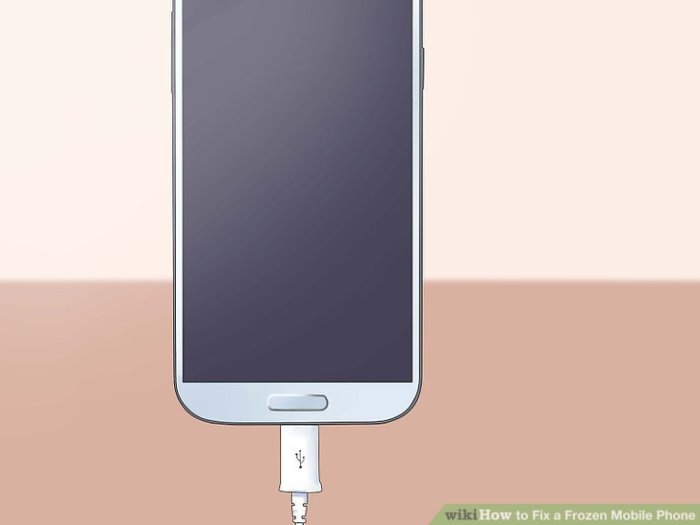
Before attempting more advanced troubleshooting, several basic steps can often resolve a frozen smartphone. These initial checks are quick, easy, and can save you significant time and effort in the long run. They address common issues that might be preventing your phone from responding normally.
Forced Restart Procedures
A forced restart, also known as a hard reset, can often resolve temporary software glitches that cause freezing. The process varies depending on your phone’s manufacturer and model. Incorrectly performing a forced restart could potentially damage your device, so follow the instructions carefully. The following table Artikels the process for some popular smartphone models.
| Phone Model | Power Button Combination | Steps | Expected Outcome |
|---|---|---|---|
| iPhone (most models) | Volume Up, Volume Down, then hold Power button | 1. Quickly press and release the Volume Up button. 2. Quickly press and release the Volume Down button. 3. Press and hold the Power button until the Apple logo appears. | The phone will power off and then restart. |
| Samsung (most models) | Power button + Volume Down button | 1. Press and hold the Power button and the Volume Down button simultaneously. 2. Continue holding until the phone vibrates and restarts. | The phone will power off and then restart. |
| Google Pixel (most models) | Power button | 1. Press and hold the Power button for about 10-15 seconds until the phone restarts. | The phone will power off and then restart. |
External Obstruction Check
A screen protector or phone case can sometimes interfere with the touchscreen’s responsiveness, leading to freezing or unresponsiveness. Carefully inspect your phone for any such obstructions. If a screen protector is present, gently peel back a corner and check for any debris or damage underneath. To remove a case, locate the release points or latches (often found on the sides or bottom) and gently pry the case off. Ensure you’re using a clean, flat surface to avoid scratching your phone. Avoid using sharp objects to prevent damage to the phone’s surface or screen.
Charging and Power Supply Assessment
Connect your frozen smartphone to a reliable charger using the original cable. Observe if there are any visual indications of charging (like a charging icon or LED light). If the phone shows no signs of charging, there could be several reasons: a faulty charging cable or adapter, a problem with the phone’s charging port, or a more serious internal issue with the phone’s battery or power management system. Attempt charging with a different cable and adapter if possible to rule out a faulty charging accessory.
Software-Based Solutions

If initial troubleshooting steps haven’t resolved your frozen smartphone, it’s time to explore software-based solutions. These methods aim to address underlying software glitches that might be causing the freeze, without resorting to drastic measures like a factory reset. They involve manipulating the phone’s operating system to identify and resolve the problem.
Booting into Safe Mode to Identify Problematic Apps
Safe mode temporarily disables third-party applications, allowing you to determine if a recently installed app is the culprit behind the freezing issue. Successfully identifying and removing the problematic app can often resolve the problem without further intervention.
- Android: The method for entering safe mode varies slightly depending on the Android version and phone manufacturer. Generally, you’ll need to press and hold the power button, then long-press the “Power off” option. A prompt to enter safe mode should appear. If not, search your phone’s manual or online for instructions specific to your model. Once in safe mode, you’ll see “Safe mode” at the bottom of the screen. Observe your phone’s behavior. If it no longer freezes, a recently installed app is likely the cause. Uninstall apps recently added before the problem started, restarting your phone after each uninstallation to check if the issue persists.
- iOS: There isn’t a true “safe mode” on iOS devices. However, restarting your device and observing its behavior after deleting recently installed apps can help identify a problematic app. If the freezing stops after deleting an app, you’ve found your culprit.
Clearing the Phone’s Cache Partition
The cache partition stores temporary files that help apps run faster. Over time, corrupted cache files can cause performance issues, including freezing. Clearing the cache partition removes these files, potentially resolving the problem. While generally safe, there’s a small risk of losing some app settings. Data stored in your phone’s internal storage will remain unaffected.
- The exact steps to clear the cache partition vary significantly between Android devices and are often manufacturer-specific. Generally, you need to power off your phone, then boot into recovery mode (often by pressing a combination of volume and power buttons). Once in recovery mode, navigate using the volume buttons and select “wipe cache partition” using the power button. Reboot your phone after the process completes.
- iOS devices don’t have a user-accessible cache partition in the same way Android devices do. Instead, regularly deleting unused apps and restarting your device helps manage temporary files and optimize performance.
Performing a Factory Reset
A factory reset restores your phone to its original factory settings, erasing all data and settings. This is a last resort before seeking professional help, as it completely wipes your phone.
Crucially, back up your data to a cloud service or computer before proceeding.
Failure to do so will result in permanent data loss.
- Android: Go to Settings > System > Reset options > Erase all data (factory reset). Follow the on-screen prompts. The exact location of these settings may vary slightly depending on your Android version and device manufacturer.
- iOS: Go to Settings > General > Transfer or Reset iPhone > Erase All Content and Settings. You will be prompted to enter your passcode. Again, a backup is essential before performing this action.
Hardware-Related Issues and Professional Help

A frozen smartphone, despite software troubleshooting, might indicate underlying hardware problems. These issues can range from minor inconveniences to significant malfunctions requiring professional intervention. Identifying the root cause is crucial for effective repair and preventing future occurrences. This section will explore potential hardware culprits and guide you through the decision-making process for seeking professional assistance.
Sometimes, software solutions simply won’t cut it. Persistent freezing, even after attempting software-based fixes, often points towards a more serious hardware problem. Understanding the symptoms associated with different hardware failures can help you determine the next steps.
Potential Hardware Problems and Their Symptoms
Hardware malfunctions can manifest in various ways, often subtly different depending on the affected component. A faulty battery, for example, might exhibit symptoms distinct from a damaged charging port or internal component failure. Careful observation is key to accurate diagnosis.
- Faulty Battery: Sudden shutdowns, rapid battery drain, inability to power on, or the phone consistently showing low battery percentage even after charging could indicate a failing battery. For example, an iPhone 6 experiencing unexpected shutdowns even with a seemingly adequate charge level often points towards battery degradation.
- Damaged Charging Port: Intermittent charging, slow charging speeds, or the inability to charge at all are common signs of a damaged charging port. This might be due to physical damage, debris lodged in the port, or internal component failure within the port itself. A Samsung Galaxy S8 failing to charge unless the cable is positioned at a very specific angle is a classic example of this.
- Internal Component Failure: This is a broad category encompassing various issues, such as a failing motherboard, damaged processor, or problems with other internal components. Symptoms can range from random freezing and crashes to complete device unresponsiveness. Imagine a Pixel 3 constantly restarting unexpectedly or exhibiting strange glitches in the operating system; this could signal a deeper hardware issue.
Decision-Making Flowchart for Repair
The following flowchart Artikels the steps to take when determining whether to attempt further troubleshooting or seek professional help.
Start
→ Has the phone frozen after attempting software troubleshooting?
Yes → Observe symptoms: Is the issue intermittent or persistent?
Intermittent → Attempt further software troubleshooting (e.g., safe mode, factory reset).
Persistent → Identify potential hardware problems (faulty battery, charging port, etc.).
Is the problem clearly a hardware issue (e.g., physical damage)?
Yes → Seek professional repair.
No → Attempt a backup and factory reset (data loss is possible).
Problem solved?
Yes → End
No → Seek professional repair.
End
Closing Notes
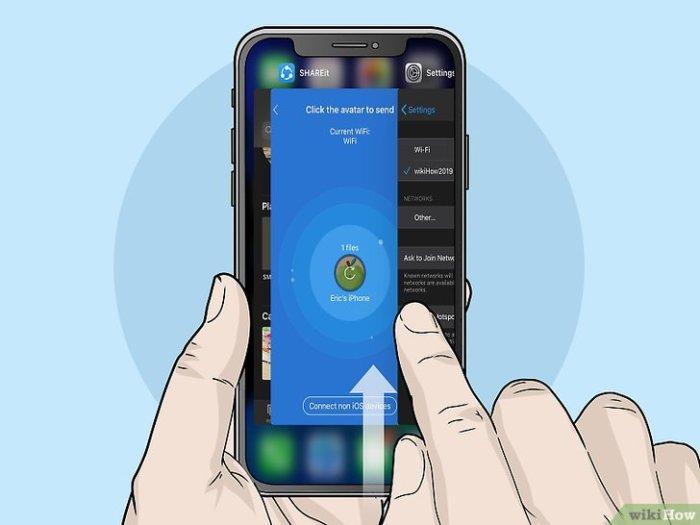
Resolving a frozen smartphone often involves a systematic approach, starting with simple troubleshooting and progressing to more advanced techniques. While many issues can be resolved independently using the steps Artikeld, recognizing when to seek professional help is crucial to avoid further damage. Remember to always back up your data regularly to mitigate the risk of information loss during troubleshooting. With a little patience and the right approach, you can regain control of your frozen device and prevent similar situations in the future. This guide serves as a comprehensive resource to empower you to handle these situations effectively.